AI VIDEO EFFECTS
Viral Effects and Visual Transformations
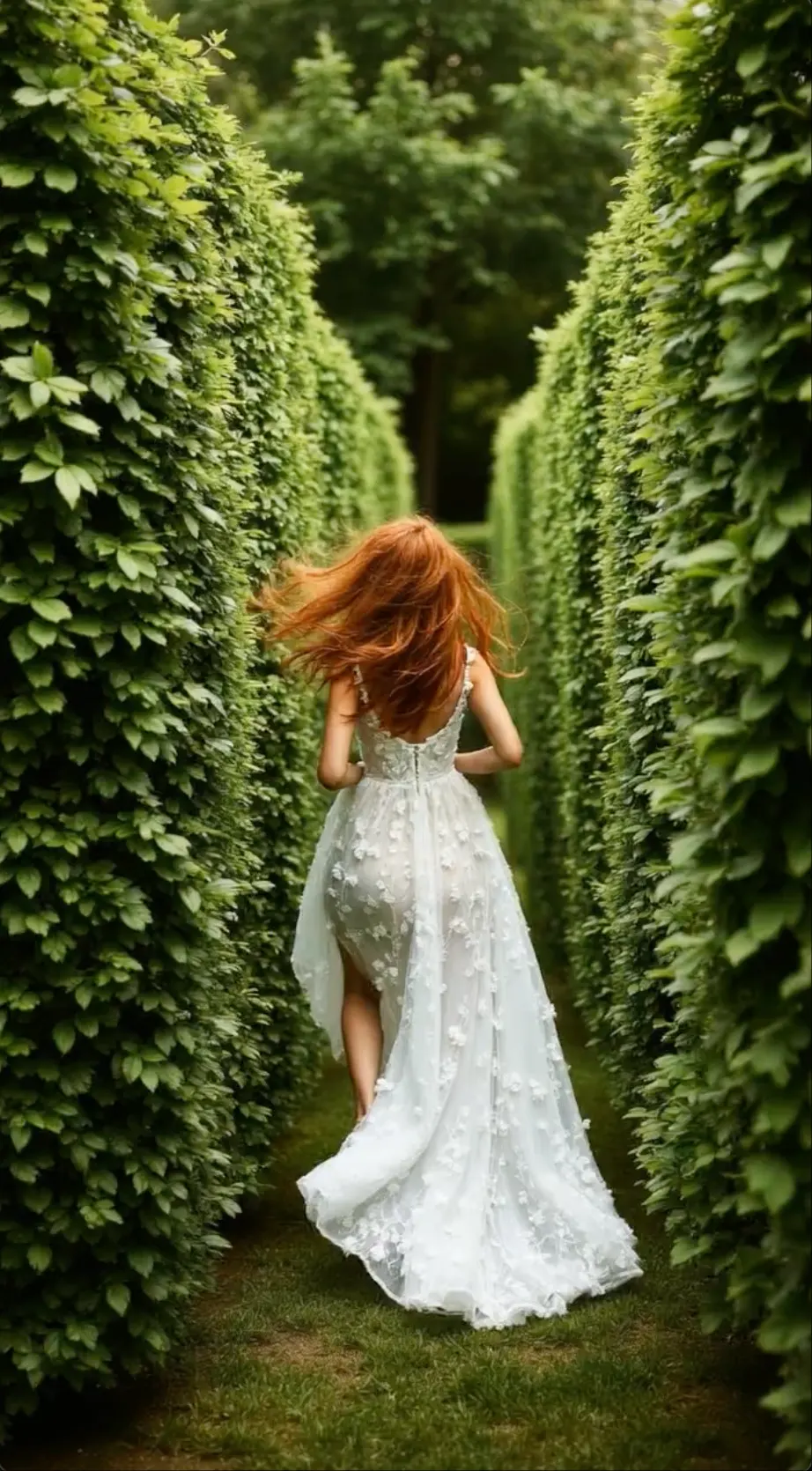
Turn one photo or clip into an eye-catching melt, inflate, swap, twist or surprise reveal made for quick sharing.
 Flow Studio
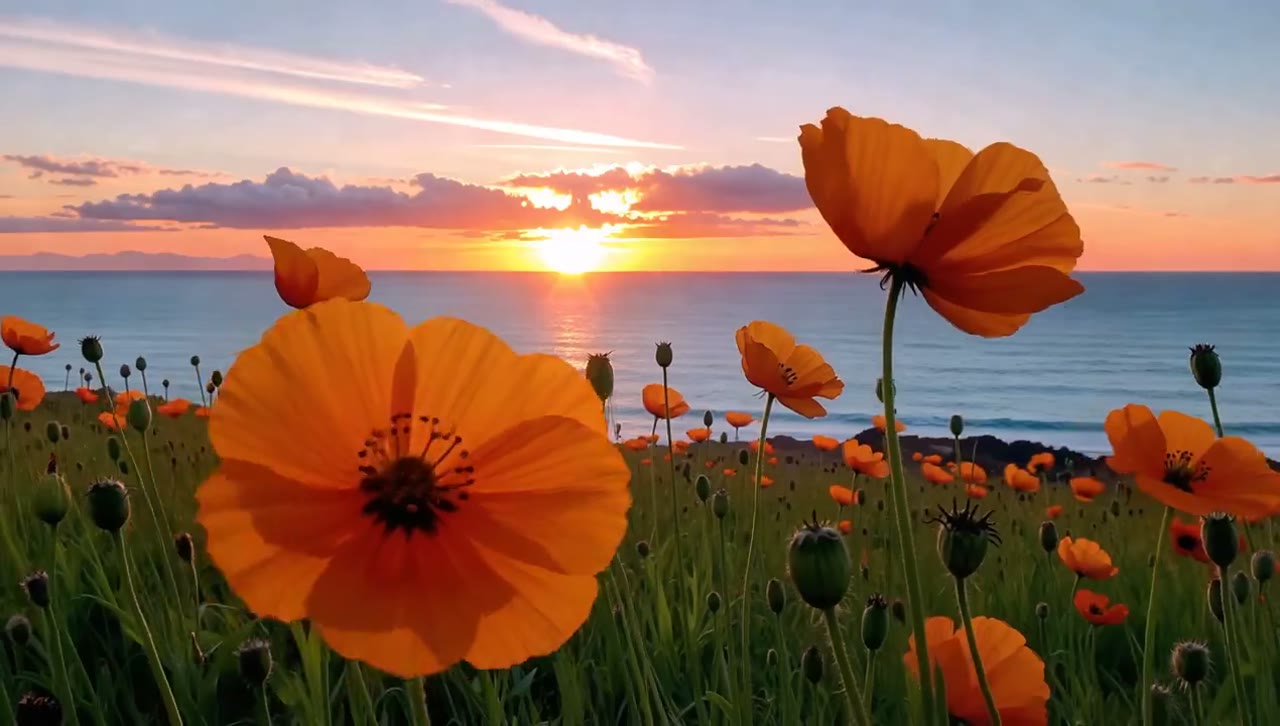
Create short AI videos from a text prompt or image. Direct the action, camera movement and visual effect, then generate a clip for social media, product content or a creative project.
WHAT YOU CAN CREATE WITH PIKA AI
Make social-first AI videos with text to video, image to video, video effects and fast edits built around one clear visual idea.
AI VIDEO EFFECTS
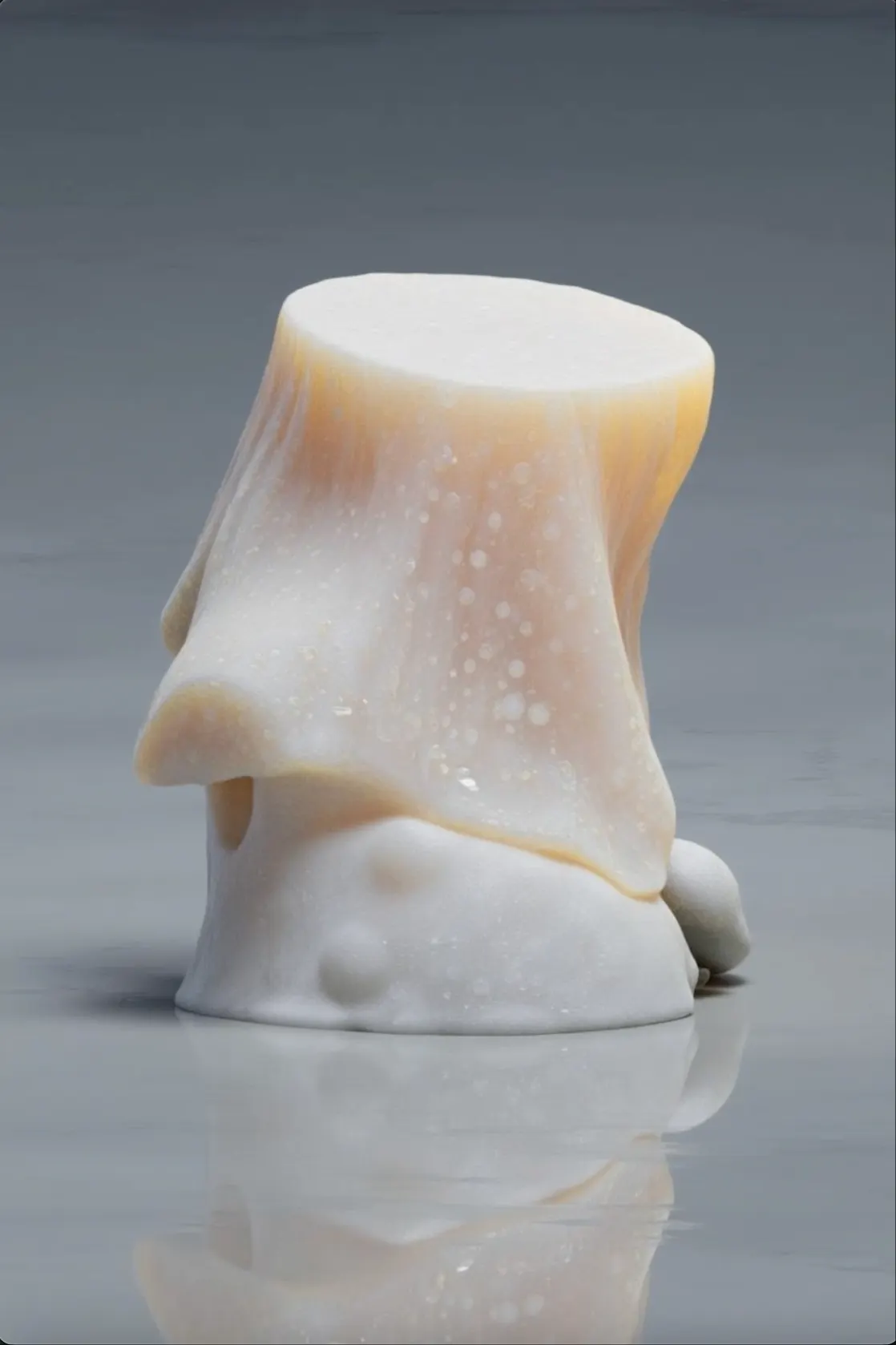
Turn one photo or clip into an eye-catching melt, inflate, swap, twist or surprise reveal made for quick sharing.
IMAGE TO VIDEO
Animate a portrait, product image or illustration while guiding the subject movement and camera direction.
TEXT TO VIDEO
Describe the subject, action, setting and shot to generate a new AI video directly from text.
SOCIAL VIDEO
Create vertical hooks, reactions and fast visual stories that are easy to watch on a phone.
VIDEO TO VIDEO
Change an object, add a new element or transform the action while keeping useful parts of the original clip.
PIKA AI VIDEO DEMOS
See short examples of prompt-based scenes, animated images, creative effects, social clips and product motion.
PIKA AI VIDEO BENEFITS
Turn photos and clips into short, shareable videos with popular effects, object swaps, and first-to-last-frame transitions.
SOCIAL EFFECTS
Choose a visual effect, add your own image, and make a quick transformation designed for social feeds.
ADD TO VIDEO
Place a new person, character, product, or prop into footage you already have instead of filming the scene again.
OBJECT SWAPS
Change a selected object or area while keeping the original action and timing of the video.
PIKAFRAMES
Set the opening and ending images, then let Pika create the movement that connects them.
HOW TO USE PIKA AI
Choose text to video or image to video, describe one clear movement, set the clip size, and generate a short AI video.
START THE VIDEO
Enter a text prompt for a new scene, or upload an image when you want the original subject and composition to guide the clip.
ADD THE MOVEMENT
Tell Pika what should move, how fast it should happen, and whether the camera should pan, zoom, follow, or stay still.
SET THE CLIP
Choose a vertical, landscape, or square format, then set the available video length and resolution for your channel.
TRY ANOTHER VERSION
Watch the result, check the subject and framing, and change the prompt or effect before creating another version.
WHO USES PIKA AI
Pika AI is best for creators who want short, effect-driven videos that are easy to test, share, and remake for social media.
SHORT VIDEO
Create fast hooks, reactions, and visual surprises for TikTok, Instagram Reels, and YouTube Shorts.
MEMES AND EDITS
Use transformations, character effects, and playful motion to make shareable memes, edits, and reaction clips.
PRODUCT PROMOTION
Turn a product photo into a quick reveal, feature demo, sale video, or creator-style promotion.
ART IN MOTION
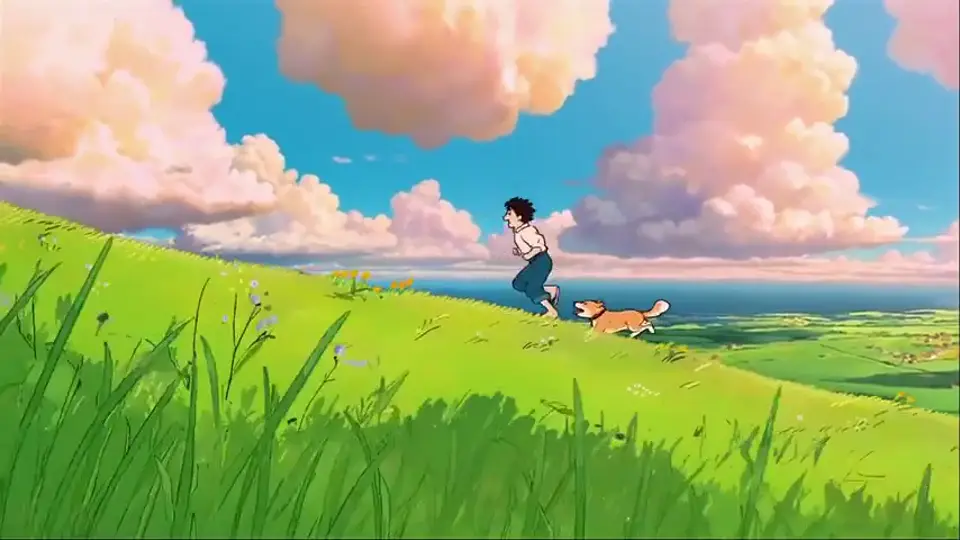
Animate posters, drawings, characters, and concept art while keeping the original visual direction easy to recognize.
Compare credit options for occasional experiments, regular social content and ongoing AI video production.
Perfect for hobbyists and beginners
Everything you need to start:
For teams and businesses
Everything in Basic, plus:
For creators and professionals
Everything in Basic, plus:
PIKA AI FAQ
Quick answers about Pika text and image generation, Pikaffects, Pikaswaps, Pikadditions, social formats, prompts and credits.
Pika creates short AI videos from text, images and existing clips. Its tools focus on social video, creative effects, object changes and quick visual ideas.
Pikaffects apply ready-made visual changes to a subject or scene. They work well for fast, playful clips when you want a clear effect without writing a long prompt.
Pikaswaps replaces an object or selected part of a video. Pikadditions places a new person, object or visual element into the clip while keeping the original scene and movement as a base.
Upload an image with one clear subject, then describe what should move and how the camera should react. Keep the first prompt simple so you can see which part needs more direction.
Yes. Pika is suited to short visual hooks, reactions, effects, product moments and character clips. Choose a vertical format when available and keep the main action easy to see on a phone.
Put the main action first, then name the camera move and speed. Keep the request to one short moment, and make a new clip when the story changes place or action.
Available length, resolution and format settings depend on the Pika model and tool you choose. Check the controls shown for the current generation before you create it.
Text generation, effects, additions, swaps, length and quality can require different amounts of processing. Review the credit cost displayed before you start each generation.
MORE AI VIDEO EFFECTS AND GENERATORS
Create videos from text or images, add eye-catching AI effects and explore tools for animated clips, social media videos and creative projects.
MAKE A SHORT CLIP THAT STANDS OUT
Animate a still image, change an object, or apply a playful effect for a quick social video.