
Portrait
Kling 3.0 AI Video Generator
Explore text-to-video, image-to-video, multi-shot, reference, and native-audio workflows for cinematic AI video creation.
|
0/2000
AI video demo gallery
What AI Video Styles Can You Explore?
Preview Kling 3.0 AI video examples featuring cinematic scenes, portraits, architecture, character motion, product shots, and visual effects.
5s
Architecture
Modern Architecture Reveal
Cinematic
Cinematic Character Study
Architecture
Interior Camera Movement
People
Natural Human Performance
Creative
Surreal Visual Concept
Portrait
Fashion Detail Sequence
Architecture
Atmospheric Exterior Shot
People
Expressive Close-Up
Creative
Experimental Motion Design
Portrait
Studio Portrait Sequence
Cinematic
Cinematic Space and Light
Who Kling 3.0 is for
Who Is Kling 3.0 Best For?
Kling 3.0 is designed for creators and teams exploring multi-shot stories, character performances, product videos, animated images, and social content with native audio.

Film and storytelling
Filmmakers Planning Multi-Shot Stories
Develop connected sequences with an opening shot, character action, camera changes, dialogue, transitions, and a clear ending.
Character content
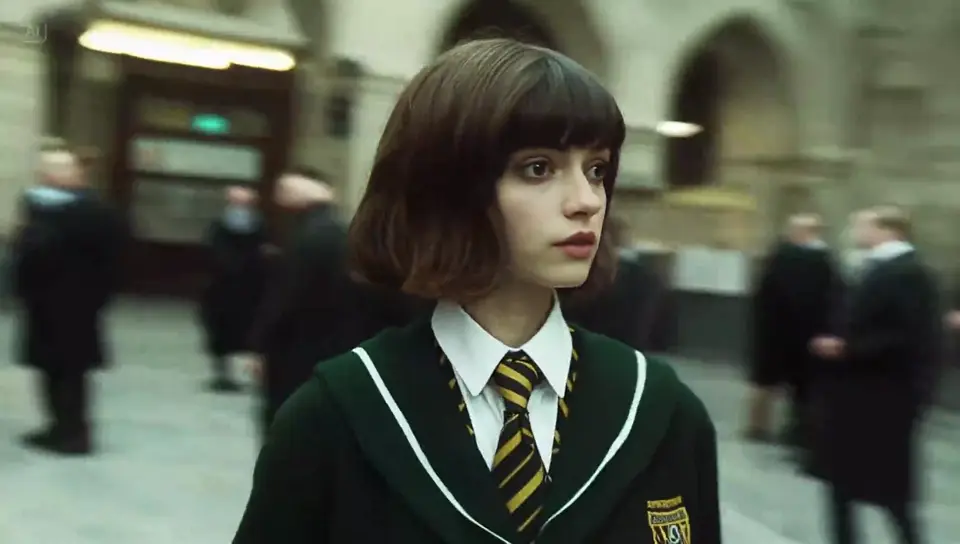
Character Creators Directing Dialogue Scenes
Plan performance-led scenes with spoken lines, multilingual voices, ambient sound, and shot-reverse-shot dialogue.

Product marketing
Product Marketers Building Video Ads
Start with product or brand references, then direct the demonstration, camera movement, sound effects, and final product shot.

Image animation
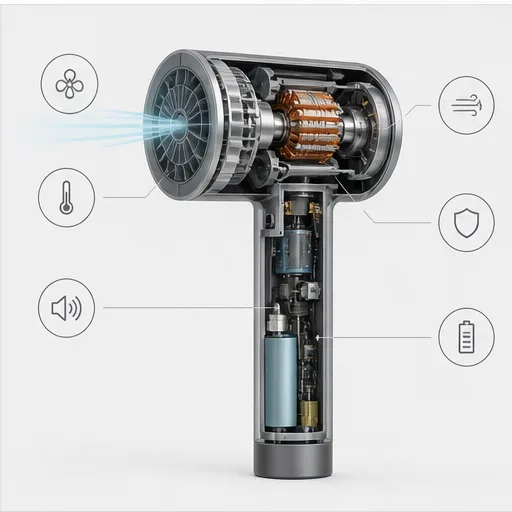
Designers Animating Photos and Keyframes
Bring a portrait, illustration, product image, or keyframe to life while the source image anchors the subject and composition.
Pre-production
Creative Teams Testing Storyboards and Concepts
Preview camera angles, scene order, character blocking, and transitions before committing to a larger film, animation, or campaign.
Social media
Social Media Creators Producing Vertical Clips
Plan TikTok, Reels, and Shorts content with a quick hook, clear action, synchronized audio, and a strong closing frame.
Why Kling 3.0
Why Choose Our Kling 3.0 AI Video Generator?
Create Kling 3.0 videos from text or images in one simple workspace. Direct the action, camera, dialogue, and sound, choose your output settings, and preview the result without a complex editing timeline.
Move from your first prompt or image to a generated Kling 3.0 video in one responsive workspace on mobile or desktop.
Text and image input
Create Videos from a Prompt or Image
Describe a new scene with text, or upload an image to bring a portrait, product, character, or artwork to life with motion.
Easy to use
Make AI Videos Without Editing Skills
Write what you want to see in everyday language, choose the video settings, and generate without building scenes on a complicated editing timeline.
Creative control
Control Motion, Camera, Dialogue, and Sound
Tell Kling 3.0 how the subject should move, where the camera should go, what a character should say, and what the scene should sound like.
Flexible output
Choose the Format, Length, and Quality
Select the aspect ratio, duration, resolution, and audio options for your project, and review the displayed credit cost before generating.
Kling 3.0 AI features
What Can the Kling 3.0 AI Video Model Do?
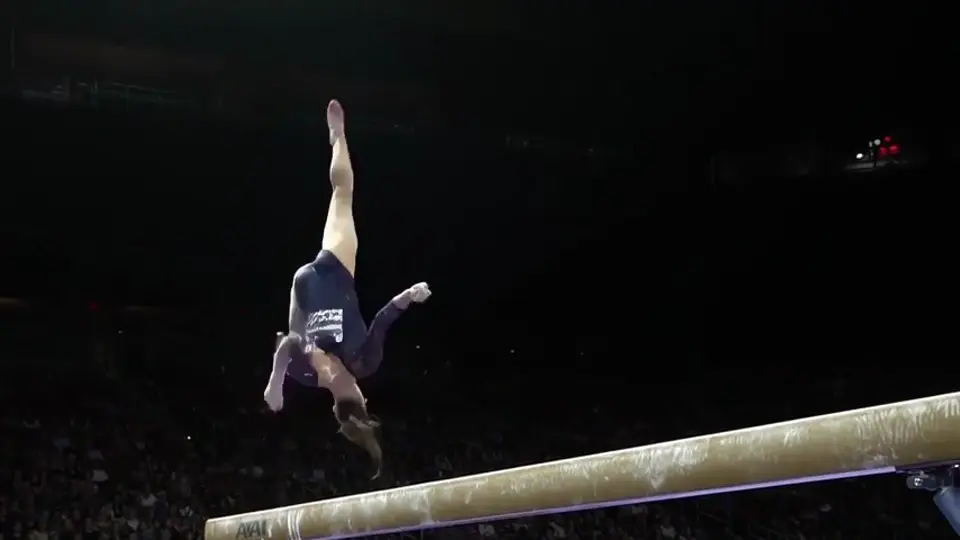
Kling AI describes Kling 3.0 as a multimodal AI video model for text, images, video references, native audio, storyboards, and consistent subjects.
Text to video
Create Video from a Text Prompt
Describe the subject, action, setting, camera movement, lighting, pace, dialogue, and sound to generate a new video scene.
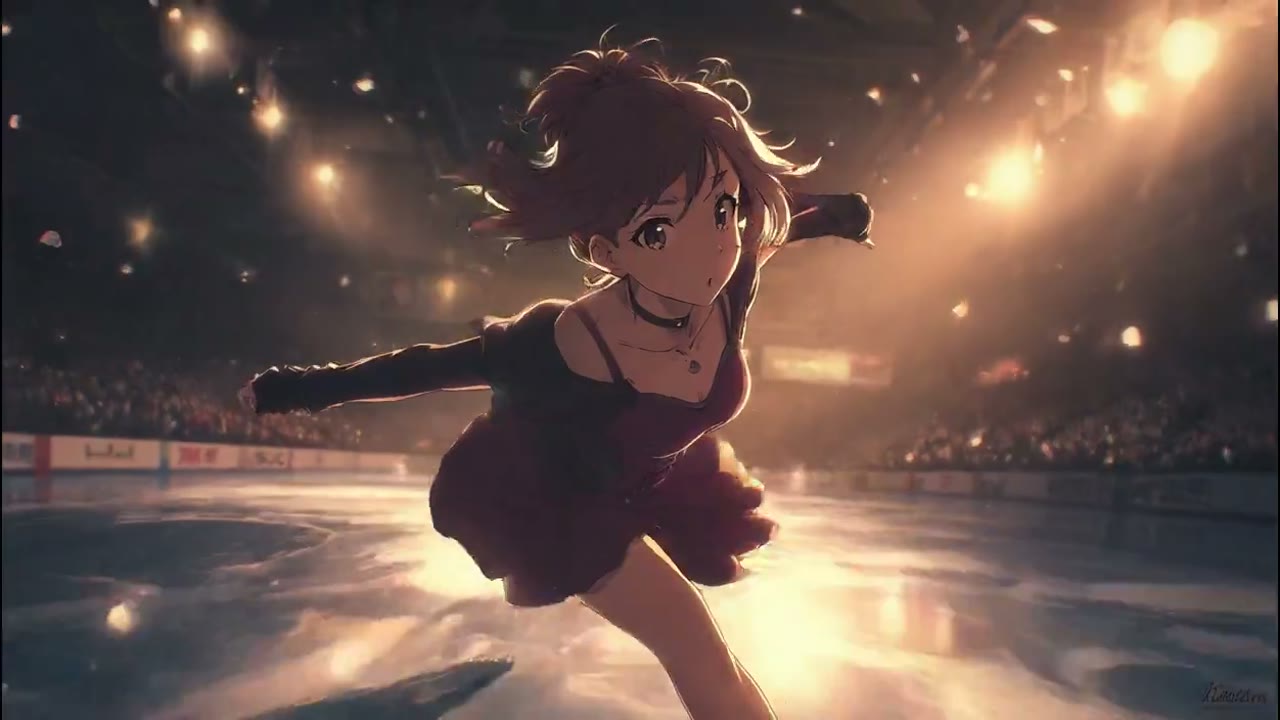
Image to video
Turn an Image into a Video
Upload a still image to anchor the opening look, then use a prompt to direct motion, camera movement, timing, and atmosphere.

Reference to video
Guide Video with Image and Video References
Use subject, element, image, or video references to guide recognizable characters, products, scenes, movement, and visual style.
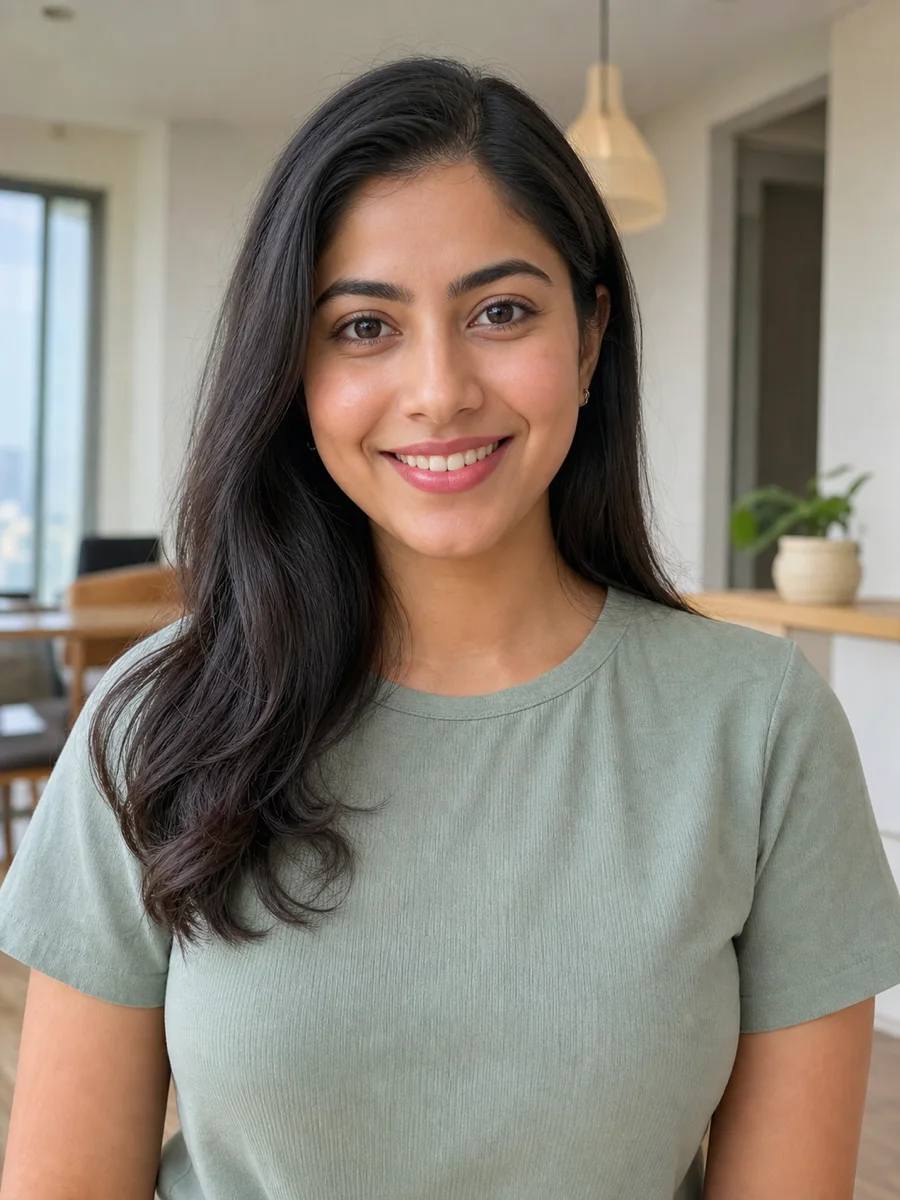
Native audio
Generate Video with Dialogue and Sound
Plan speech, accents, sound effects, ambient audio, and visible action together in the same AI video generation.

Multi-shot video
Create Connected Video Stories
Build a sequence of shots with controlled duration, framing, perspective, camera movement, dialogue, and transitions.
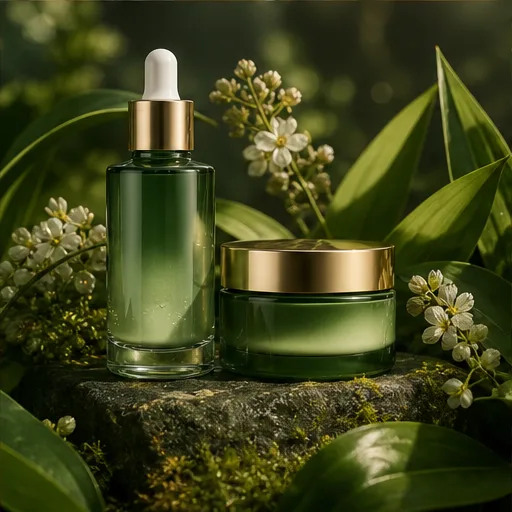
Visual consistency
Keep Characters, Products, and Scenes Consistent
Use visual references to help recurring people, objects, products, and environments remain recognizable across the video.
Kling 3.0 tutorial
How Do You Create an AI Video with Kling 3.0?
Choose text, an image, or references; write the scene in shot order; add sound direction; then generate and refine the result.
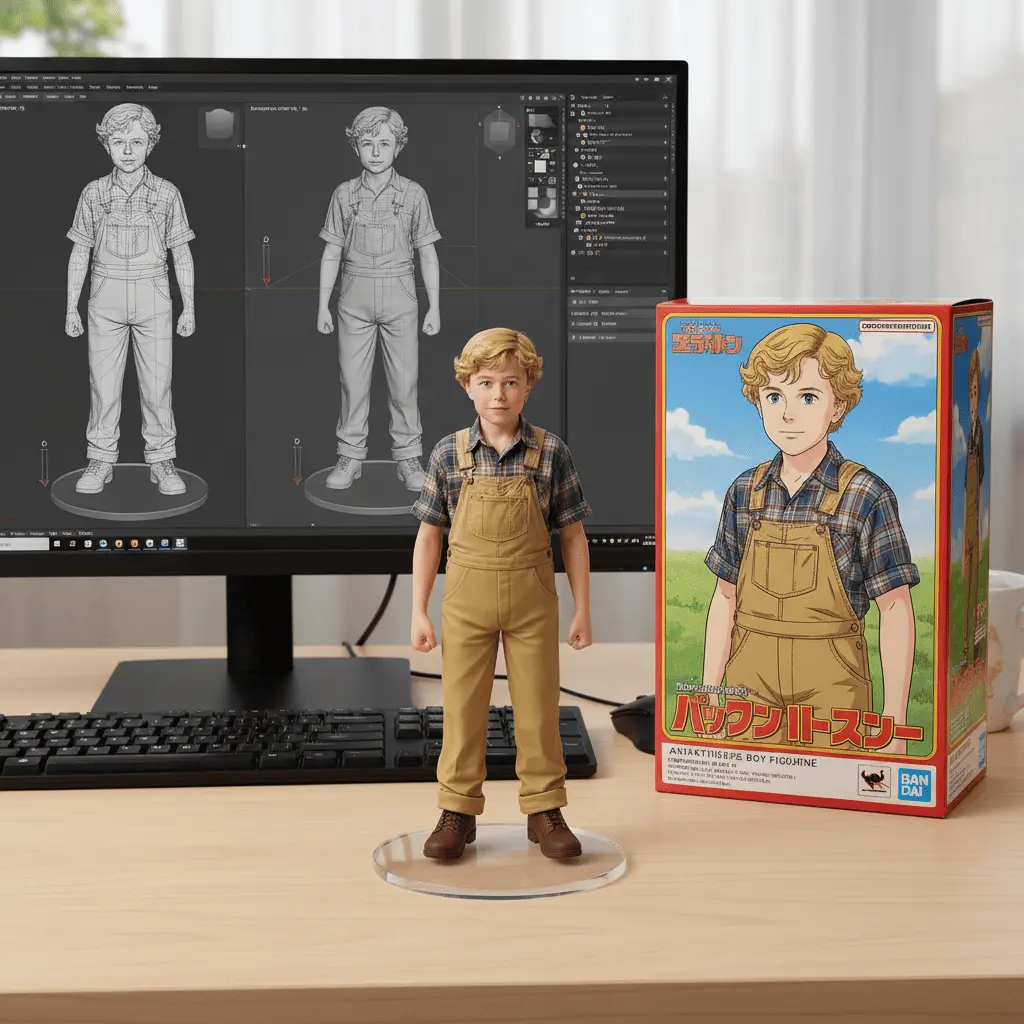 Step 1
Choose a mode
Select Text to Video, Image to Video, or References
Start with text for a new scene, an image for a fixed opening look, or references when a character, product, motion, or style must stay recognizable.
- Step 2
Write the prompt
Describe the Subject, Action, and Camera
Write events in order. Name the subject, setting, camera angle, camera movement, lighting, pace, and ending for each connected shot.
 Step 3
Add audio
Add Dialogue and Sound Effects
Identify each speaker and write the spoken line, language, delivery, ambient sound, and sound effects that support the visible action.
 Step 4
Generate and refine
Review Motion, Continuity, and Timing
Generate the video, watch the full result, then change one weak prompt instruction or reference before creating the next version.
Compare Kling 3.0 AI Video Pricing Plans
Compare monthly, annual, and one-time credit options based on how often you create, compare, and refine AI videos.
Start with free credits
Cancel anytime
Secure payment
Your local currency and applicable taxes are shown at checkout.
Cancel anytime
Flash Sale 50%
Basic
$9.90/month
$118.80 charged yearly
Perfect for hobbyists and beginners
★9,600Credits
/yearCost per 100 credits$1.24
Everything you need to start:
- Flow AI Video Basic Yearly Plan
- 800 credits per month (9600 credits/year)
- Up to 80 videos/month
- Flow Video Generator
- Unlimited Flow AI Video downloads
- 9600 Flow AI Video credits with annual billing
- Permanent Flow AI Video history
- Commercial Use License
- Nano Banana model
- Seedream model
- AI image enhancer
- AI image background remover
- Support AI video generationYearly only
- Veo 3 modelYearly only
- Sora 2 modelYearly only
- Seedance modelYearly only
- Wan 2.5 modelYearly only
- Priority generation queueYearly only
- No WatermarkYearly only
- Priority customer supportYearly only
Flash Sale 50%
Enterprise
Most Popular
$49.90/month
$598.80 charged yearly
For teams and businesses
★72,000Credits
/yearCost per 100 credits$0.83
Everything in Professional, plus:
- Flow AI Video Enterprise Yearly Plan
- 6000 credits per month (72000 credits/year)
- Up to 600 videos/month
- Flow Video
- Unlimited Flow AI Video downloads
- 72000 Flow AI Video credits with annual billing
- Permanent Flow AI Video history
- Commercial Use License
- Nano Banana model
- Seedream model
- AI image enhancer
- AI image background remover
- Support AI video generationYearly only
- Veo 3 modelYearly only
- Sora 2 modelYearly only
- Seedance modelYearly only
- Wan 2.5 modelYearly only
- Priority generation queueYearly only
- No WatermarkYearly only
- Priority customer supportYearly only
Flash Sale 50%
Professional
$19.90/month
$238.80 charged yearly
For creators and professionals
★24,000Credits
/yearCost per 100 credits$0.99
Everything in Basic, plus:
- Flow AI Video Pro Yearly Plan
- 2000 credits per month (24000 credits/year)
- Up to 200 videos/month
- Flow Video Maker
- Unlimited Flow AI Video downloads
- 24000 Flow AI Video credits with annual billing
- Permanent Flow AI Video history
- Commercial Use License
- Nano Banana model
- Seedream model
- AI image enhancer
- AI image background remover
- Support AI video generationYearly only
- Veo 3 modelYearly only
- Sora 2 modelYearly only
- Seedance modelYearly only
- Wan 2.5 modelYearly only
- Priority generation queueYearly only
- No WatermarkYearly only
- Priority customer supportYearly only
Cancel subscription, please contact the support email: support@flowaivideo.org
Kling 3.0 questions
What Are the Most Common Questions About Kling 3.0?
Get clear answers about Kling 3.0, Kling 3.0 Omni, text to video, image to video, references, audio, prompts, duration, and output controls.
What is Kling 3.0?
Kling 3.0 is an AI video model family presented by Kling AI. Official materials highlight native multimodal video generation, synchronized video and sound, intelligent storyboarding, reference inputs, consistency, and prompt adherence.
What is Kling 3.0 Omni?
Kling 3.0 Omni is the reference-oriented member of the Kling 3.0 family. Kling describes it as supporting multimodal inputs and outputs, including multi-image and subject references for more controlled video creation.
Does Kling 3.0 support text to video?
Yes. Kling officially lists text-to-video as a core workflow. A useful prompt defines one connected scene with a subject, action, setting, camera, lighting, pace, and relevant audio direction.
Can Kling 3.0 turn an image into a video?
Yes. Kling lists image-to-video as a core workflow. The source image anchors the appearance and composition while the prompt directs movement, camera behavior, timing, and atmosphere.
Can Kling 3.0 use reference images or videos?
Kling's official product materials describe reference-to-video capabilities including multi-image, element or subject, and video references. Check the selected Kling workflow for its exact input types and limits.
Does Kling 3.0 generate audio?
Kling promotes synchronized audio-video generation for the Kling 3.0 family. Audio options may vary by model variant, interface, account, region, and API release.
Does Kling 3.0 support motion control?
The Kling platform offers motion-control and reference-led video workflows. Confirm which motion controls are available for Kling 3.0, Kling 3.0 Omni, or Kling 3.0 Turbo in the interface or API you use.
What is Kling 3.0 Turbo?
Kling 3.0 Turbo is a faster member of the Kling 3.0 family. Kling's official site highlights improved audio-visual synchronization, faster generation, and lower cost without publishing one universal price for every channel.
How should I write a Kling 3.0 prompt?
Write the visual events in order, name the camera movement and timing, identify referenced subjects clearly, and separate dialogue, sound effects, atmosphere, and music so they support the visible scene.
Explore more AI video tools
Which Related AI Video Tools Can You Explore?
Discover related tools for text-to-video, image animation, reference-guided creation, talking characters, and model-focused video workflows.
 AI video modelWan 3.0 AI Video GeneratorExplore text, image, frame, file, audio, and web-reference workflows for longer AI video ideas.Explore Wan 3.0Visual controlReference to VideoGuide characters, products, objects, motion, and style with clear visual reference inputs.Explore Reference to VideoAnimate an imageImage to VideoTurn a still image into a video with subject motion, camera movement, atmosphere, and sound direction.Create Image to VideoPrompt firstText to VideoCreate an original AI video scene from a written prompt when you do not need a source image.Create Text to Video
 AI video modelSeedance 2.5Explore another model-focused AI video workflow for prompts, references, motion, and audio direction.Explore Seedance 2.5AI video modelMiniMax H3Explore text, image, video, and audio-reference workflows for short-form AI video concepts.Explore MiniMax H3Talking videoAI Lip SyncCreate a talking-character video with a portrait, dialogue, voice, and performance direction.Explore AI Lip SyncCreative workspaceAI Video GeneratorCreate AI videos with prompts, references, model choices, generation settings, and output controls in one workspace.Open AI Video Generator
Create with Kling 3.0
Ready to Turn Your Video Idea into Motion?
Write the subject, action, camera, references, dialogue, and sound, then turn the complete brief into your next AI video.
Create an AI Video