Film and video
Filmmakers Planning Consistent Characters and Scenes
Use character, location, and style references to test new actions, camera angles, and shots before moving into a longer production.
 Flow Studio
Guide characters, products, objects, and visual style with reference images, then describe the motion and scene you want to create.
Who reference to video is for
Reference-to-video generation is useful for creators and teams who need characters, products, or visual styles to remain recognizable across new shots and formats.
Use character, location, and style references to test new actions, camera angles, and shots before moving into a longer production.
Keep a product's shape, packaging, colors, and key details visible across reveals, demonstrations, lifestyle scenes, and campaign variations.
Reference a model, garment, accessory, or styling direction, then explore walks, turns, poses, transitions, and new settings.
Carry approved colors, materials, compositions, characters, and art direction into connected video concepts for the same campaign.
Assign separate references to a character, object, and environment so each visual role is clear before the scene is generated.
Build vertical hooks, transformations, product moments, and recurring character clips from visual references prepared for social publishing.
Reference-to-video benefits
Give the model clearer visual direction, preserve important character and product details, and compare reference-guided video ideas from one workspace.
Visual consistency
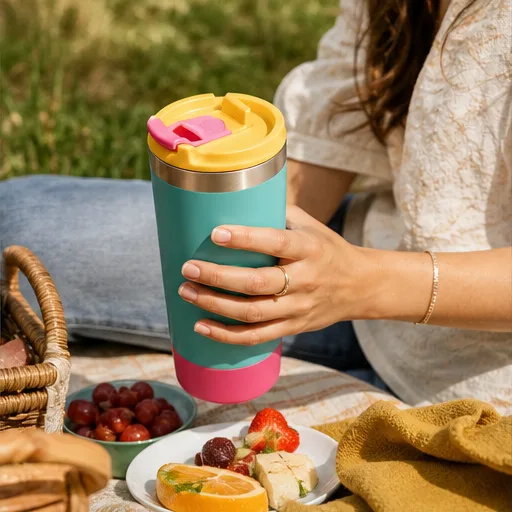
Use reference images to anchor a face, outfit, product shape, packaging, color palette, or visual style across a newly generated shot.
Creative control
Let the references establish appearance while your prompt concentrates on action, camera movement, timing, interaction, and the final frame.
Faster comparison
Reuse the same references while comparing locations, angles, hooks, and scene directions for one campaign, character, or product story.
One workspace
Keep references, prompts, supported model choices, output settings, previews, and revisions together instead of rebuilding the brief across separate tools.
Reference-to-video controls
Combine reference images with a clear prompt, then choose the available model and output settings that fit your shot. Exact inputs and limits depend on the selected model.
Multiple inputs
Add supported reference images for the subjects and objects that need stronger visual guidance.
Prompt control
Describe what happens first, how subjects interact, how the camera moves, and how the shot should end.
Visual system
Use reference material to communicate palette, lighting, surface treatment, composition, wardrobe, or overall creative mood.
Model choice
Choose among the connected models that accept reference inputs; displayed options, limits, duration, and pricing update by workflow.
Output setup
Prepare a horizontal, vertical, or square composition using the output settings available for the selected model.
Iteration
Change one instruction or one visual anchor at a time to learn which signal is affecting the generated result.
How to use the generator
Upload your reference images, describe the scene and movement, choose your video settings, then generate and preview the result.
Upload
Add clear images of the person, character, product, object, or visual style you want the video to follow.
Prompt
Describe what happens in the scene, how the subject moves, and how the camera should frame or follow the action. If you upload several images, mention each one clearly.
Generate
Select a video model, aspect ratio, duration, resolution, and other supported options, then generate your reference-guided video.
Review
Watch the result and check the subject, product details, motion, and framing. Update the prompt or reference images, generate again, and download the version you prefer.
Compare monthly, annual, and one-time credit options based on how often you generate reference-guided AI videos.
Your local currency and applicable taxes are shown at checkout.
$118.80 charged yearly
Perfect for hobbyists and beginners
Everything you need to start:
$598.80 charged yearly
For teams and businesses
Everything in Professional, plus:
$238.80 charged yearly
For creators and professionals
Everything in Basic, plus:
Reference to video questions
Get clear answers about reference images, prompts, supported models, character consistency, and how to improve reference-guided results.
Reference to video is an AI generation workflow that uses one or more visual references together with a prompt. The references guide recognizable subjects, products, objects, composition, or style, while the prompt directs action, camera movement, timing, and scene changes.
Image to video commonly treats one image as the starting frame or main visual anchor. Reference to video can use visual inputs as guidance for identity, products, objects, style, or scene direction without requiring every reference to become the first frame. Exact behavior depends on the selected model.
Yes, supported reference-to-video models can accept multiple reference images. The maximum number and available reference roles vary by model, so check the generator controls after choosing one.
Use a clear, well-lit image where the important subject or object is easy to identify. Avoid conflicting angles, heavy occlusion, tiny subjects, or unrelated backgrounds unless those details are intentionally part of the direction.
References can provide stronger identity guidance than text alone, but no AI video workflow guarantees exact identity or frame-perfect consistency. Results depend on the model, source images, scene complexity, motion, and prompt.
Yes. You can use product images or visual style references where supported. Only upload materials you have permission to use, and review the output before publishing brand or commercial content.
Name each referenced subject or object clearly, describe the visible action in order, specify camera movement and framing, and avoid repeating appearance details already communicated by the references unless one feature is essential.
The reference-to-video generator shows the available models and reference controls when you create. Input limits, duration, resolution, audio options, and credit requirements can vary by model and workflow.
Yes, when the selected model supports a vertical aspect ratio. Compose reference images with enough room around the subject and write a prompt suited to a vertical shot.
Too many competing references, unclear roles, complex interactions, or a prompt that contradicts the source image can weaken the signal. Remove unrelated inputs, assign each reference a single job, and simplify the action before trying again.
Related AI video tools
Discover related tools for image-to-video, text-to-video, talking characters, model-specific generation, and short-form social content.
 Still to motionImage to VideoAnimate one starting image with subject movement, environmental motion, and camera direction.
 Prompt firstText to VideoCreate a new AI video scene directly from a written description without a required source image.
 Talking videoAI Lip SyncTurn a portrait or character reference into a talking video with dialogue and performance direction.
 All-in-one studioAI Video GeneratorKeep reference-to-video prompts, visual inputs, model selection, video settings, previews, and generation in one workspace.
 AI video modelKling 3.0Explore a dedicated workflow for cinematic motion, character shots, and prompt-directed AI video.
 AI video modelWan 3.0Create model-specific video concepts from text and visual inputs using the available Wan workflow.
 Multi-scene videoSeedance 2.5Plan expressive motion and connected video ideas with a dedicated Seedance generation page.
 Social videoAI TikTok Video GeneratorBuild vertical hooks, creator-led clips, product moments, and short-form video concepts.
Upload the visuals that define your idea, describe the action and camera direction, then generate your first reference-guided video.