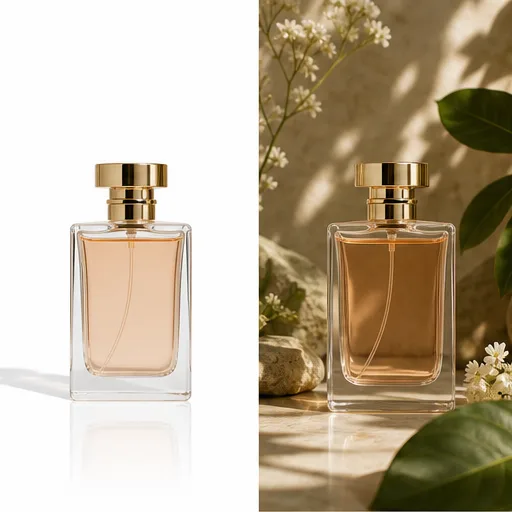
 01Background change
Replace a Photo Background
Editing prompt
Replace the background with a bright modern office, keep the person, pose, clothing, and natural edge detail unchanged.
 Flow Studio
Upload a photo, describe what to change, and create an edited image with AI.
AI photo editing examples
Tell the AI what should change while the uploaded photo provides the subject and composition.
01Background changeEditing prompt
Replace the background with a bright modern office, keep the person, pose, clothing, and natural edge detail unchanged.
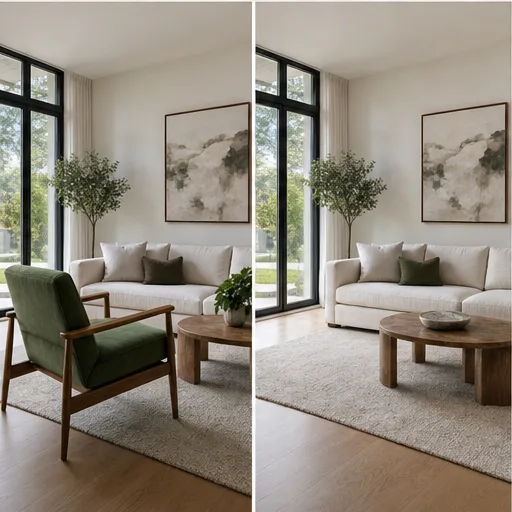 02Object removal
Editing prompt
Remove the bag on the floor and rebuild the missing floor texture naturally. Keep all other objects in the same position.
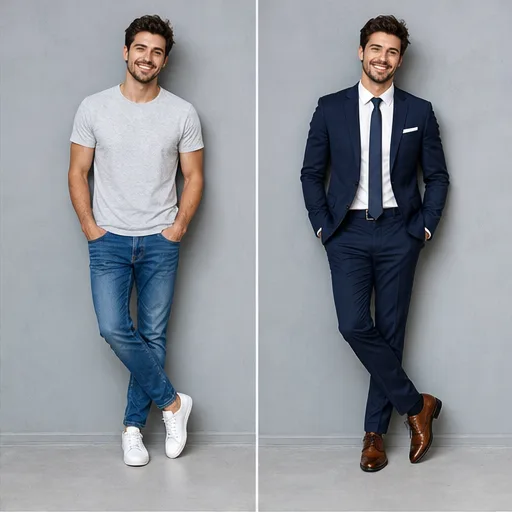 03Outfit change
Editing prompt
Replace the jacket with a tailored navy blazer and white shirt. Keep the face, hair, pose, hands, and background unchanged.
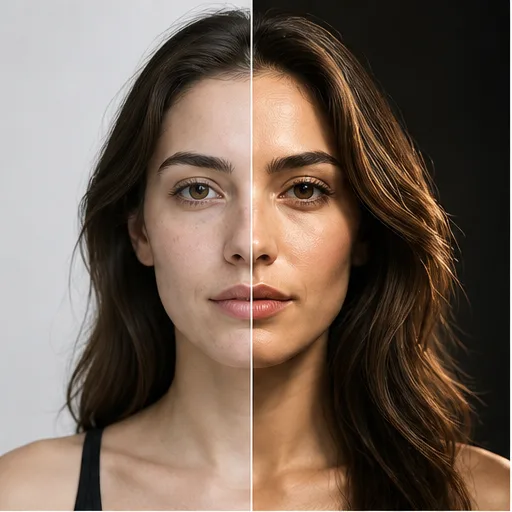 04Photo relighting
Editing prompt
Add soft golden-hour light from the left, balance the skin tones, and keep the facial features and background composition consistent.
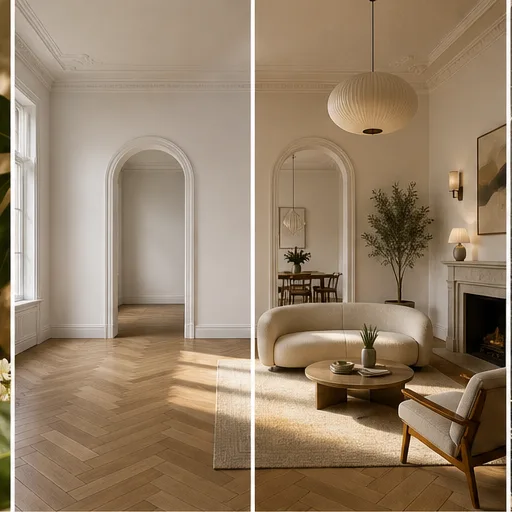 05Interior redesign
Editing prompt
Restyle this living room with warm wood, cream textiles, and modern Scandinavian furniture while preserving the room geometry and windows.
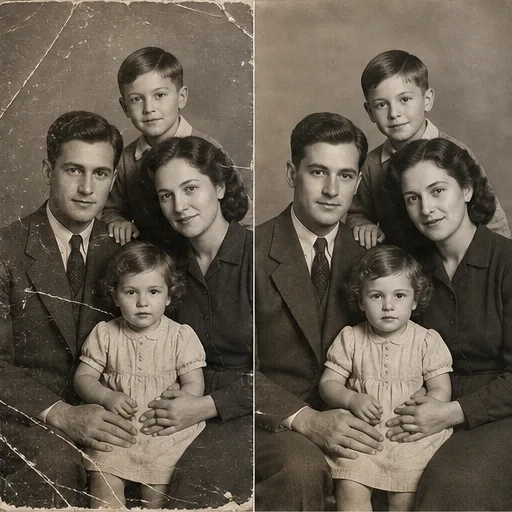 06Photo restoration
Editing prompt
Repair scratches and faded areas, improve contrast, restore natural facial detail, and keep the original period look.
AI photo editor tools
Make targeted changes to portraits, product photos, interiors, campaign images, and everyday pictures.
Replace a distracting setting with a studio backdrop, lifestyle scene, office, outdoor location, or campaign environment described in your prompt.
Delete unwanted objects, swap props, change furniture, or add a new visual element while asking the AI to preserve the rest of the image.
Adjust clothing, hairstyles, expressions, portrait backgrounds, or editorial styling while keeping the person as the visual reference.
Place a product in a cleaner scene, change surrounding props, explore lighting directions, or create lifestyle variations from one source photo.
Change time of day, color mood, lighting, photographic treatment, or art direction without starting from an empty canvas.
Explore new furniture, materials, colors, landscaping, or seasonal decor while the original image guides the layout and perspective.
Why Flow AI Video
Use plain-language edits with model, style, format, and variation controls in one workspace.
Describe the result you want instead of learning masks, layers, and complex tool panels for every creative change.
Upload the photo you want to edit and add more references when a subject, product, palette, or visual direction needs extra guidance.
Compare available models for prompt following, realistic detail, typography, and creative transformation without moving between separate sites.
State what should change and what should stay fixed—such as the face, product shape, pose, camera angle, or room geometry.
Generate multiple edited versions, compare directions, and refine a single instruction before trying another pass.
AI photo editing workflow
Upload a photo, describe the edit, choose your settings, and review the result.
Add a clear JPG, PNG, or WEBP image. Use a source where the subject and area you want to edit are easy to see.
Write what should change and what should stay the same. For example: “Replace the background with a studio wall; keep the person and lighting natural.”
Select an AI image model, aspect ratio, style, and number of outputs. Review the credit amount before starting.
Review the edited images for subject consistency, edges, lighting, hands, text, and geometry. Refine one instruction at a time when needed.
Creator feedback
Feedback from Flow AI Video users on natural-language editing and visual consistency.
The natural language editing feature in Flow AI Video is mind-blowing. I can describe changes and see them happen instantly. So intuitive!
Replacing objects and backgrounds is much faster than rebuilding the photo by hand. The edited image still feels like the original.
I create several polished photo variations without starting over. It makes client revisions and campaign testing much easier.
Select the ideal package to create stunning videos with Flow Video Generator
Your local currency and applicable taxes are shown at checkout.
$118.80 charged yearly
Perfect for hobbyists and beginners
Everything you need to start:
$598.80 charged yearly
For teams and businesses
Everything in Professional, plus:
$238.80 charged yearly
For creators and professionals
Everything in Basic, plus:
AI photo editor questions
Answers about text-based editing, uploads, backgrounds, objects, portraits, references, formats, and credits.
An AI photo editor changes an existing image using artificial intelligence. You upload a photo and describe the desired edit, such as replacing a background, removing an object, changing clothing, adjusting lighting, or restyling the scene.
Upload a JPG, PNG, or WEBP photo, write a clear editing prompt, choose an AI image model and output settings, then click Edit Photo. Review the result and refine the instruction if necessary.
State the change first, then tell the model what must stay fixed. A useful pattern is: “Replace the background with a bright kitchen; keep the person, pose, clothing, and camera angle unchanged.”
Yes. Describe the new setting and include any lighting, color, or perspective requirements. Mention the subject and edge details that should remain unchanged.
Yes. Identify the object clearly and explain what should appear in its place. For removal, ask the model to rebuild the hidden background texture naturally while preserving nearby details.
It can create outfit, hairstyle, and portrait variations from an uploaded photo. For better consistency, describe the new item and explicitly ask to preserve the face, pose, hands, body proportions, and background.
The uploaded photo guides the result, but generated details can still vary. Precise instructions, clear source images, restrained edits, and explicit preservation language can reduce unwanted changes.
The editor accepts the formats shown in the upload control, including JPG, PNG, and WEBP. The current file-size guidance appears in the editor before upload.
An AI photo editor begins with an uploaded image and changes it. Text to image creates a new image from a written description and does not require a source photo.
AI photo editing uses credits. The current amount per output is shown in the model selector and on the Edit Photo button before the request is submitted.
More AI image tools
Generate a completely new image from a written idea when you do not need a source photo.
Turn the edited photo into a short AI video with subject and camera motion.
Turn product images into polished AI ad creatives with product-focused scenes, motion, and campaign formats.
Start from your photo
Upload an image, write one clear instruction, and create a new edited version.
Edit a Photo with AI