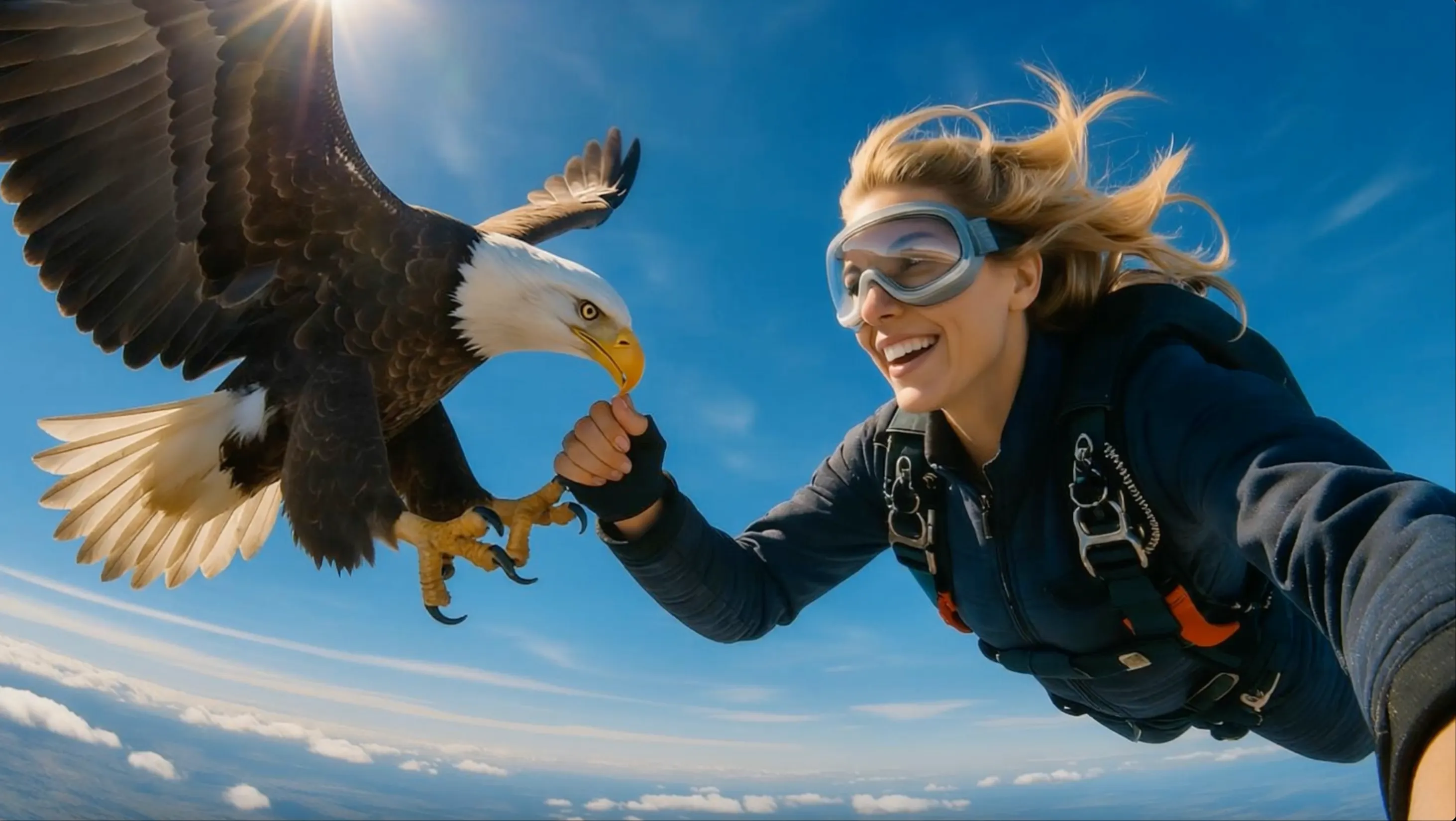
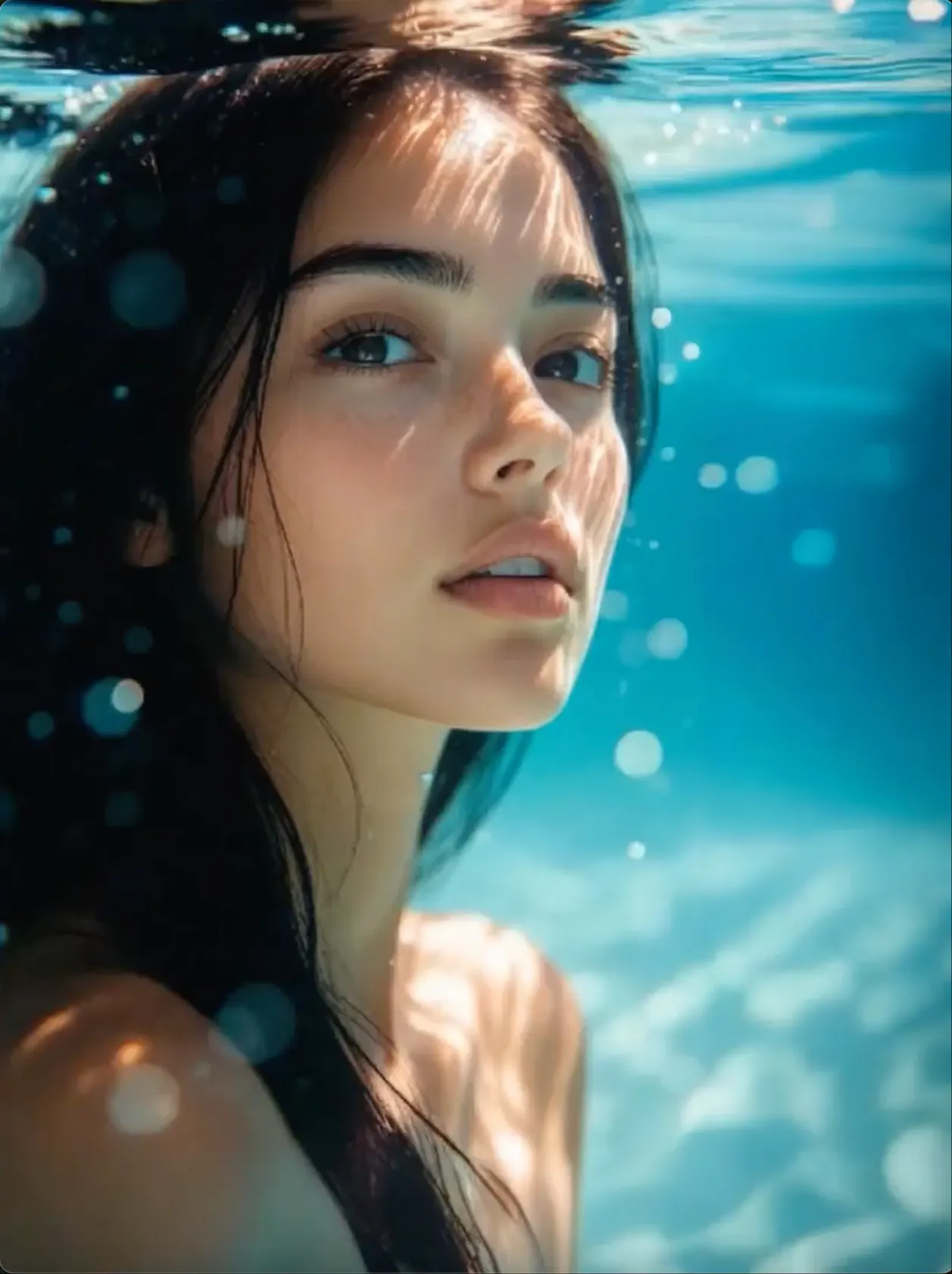
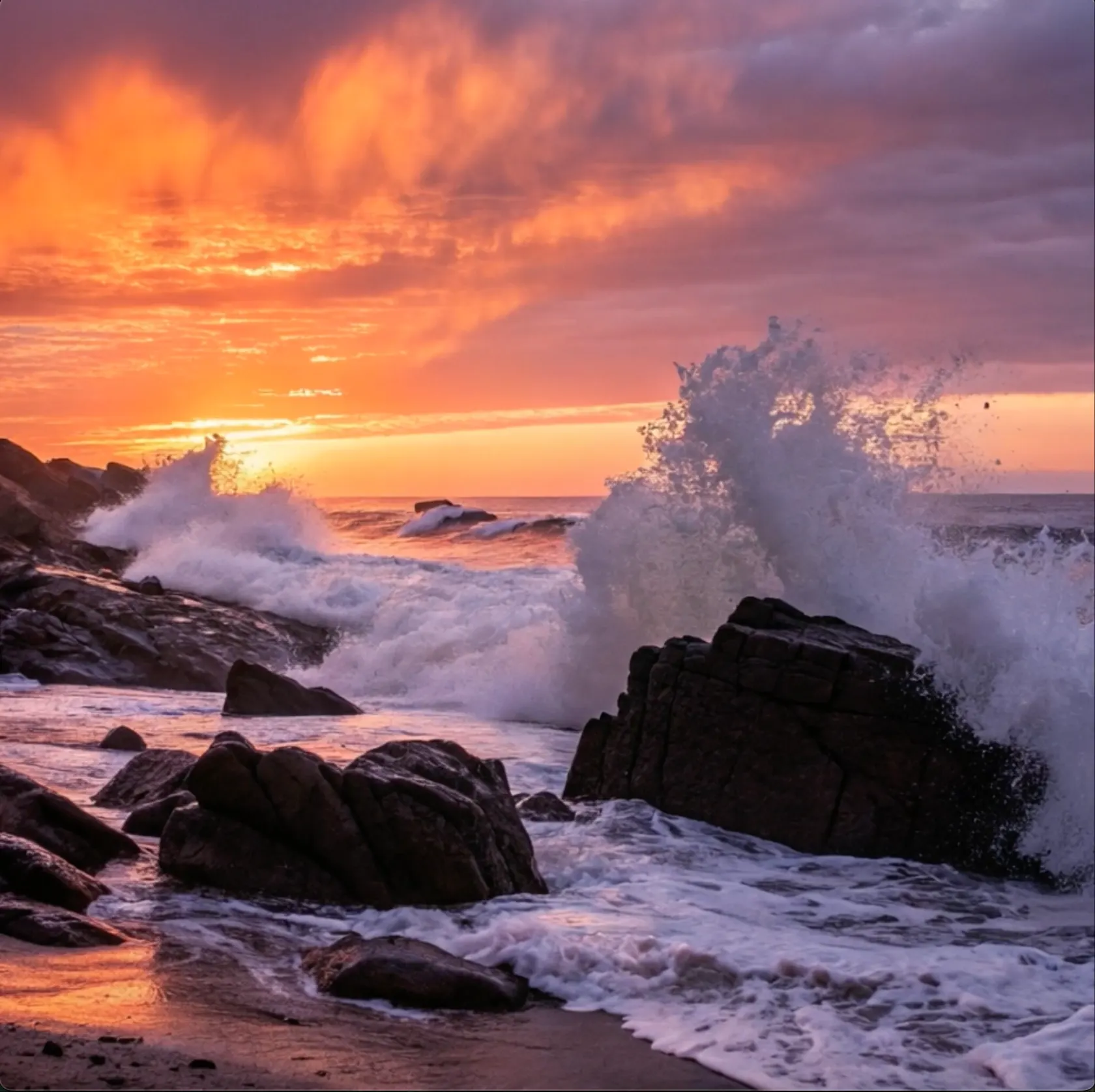
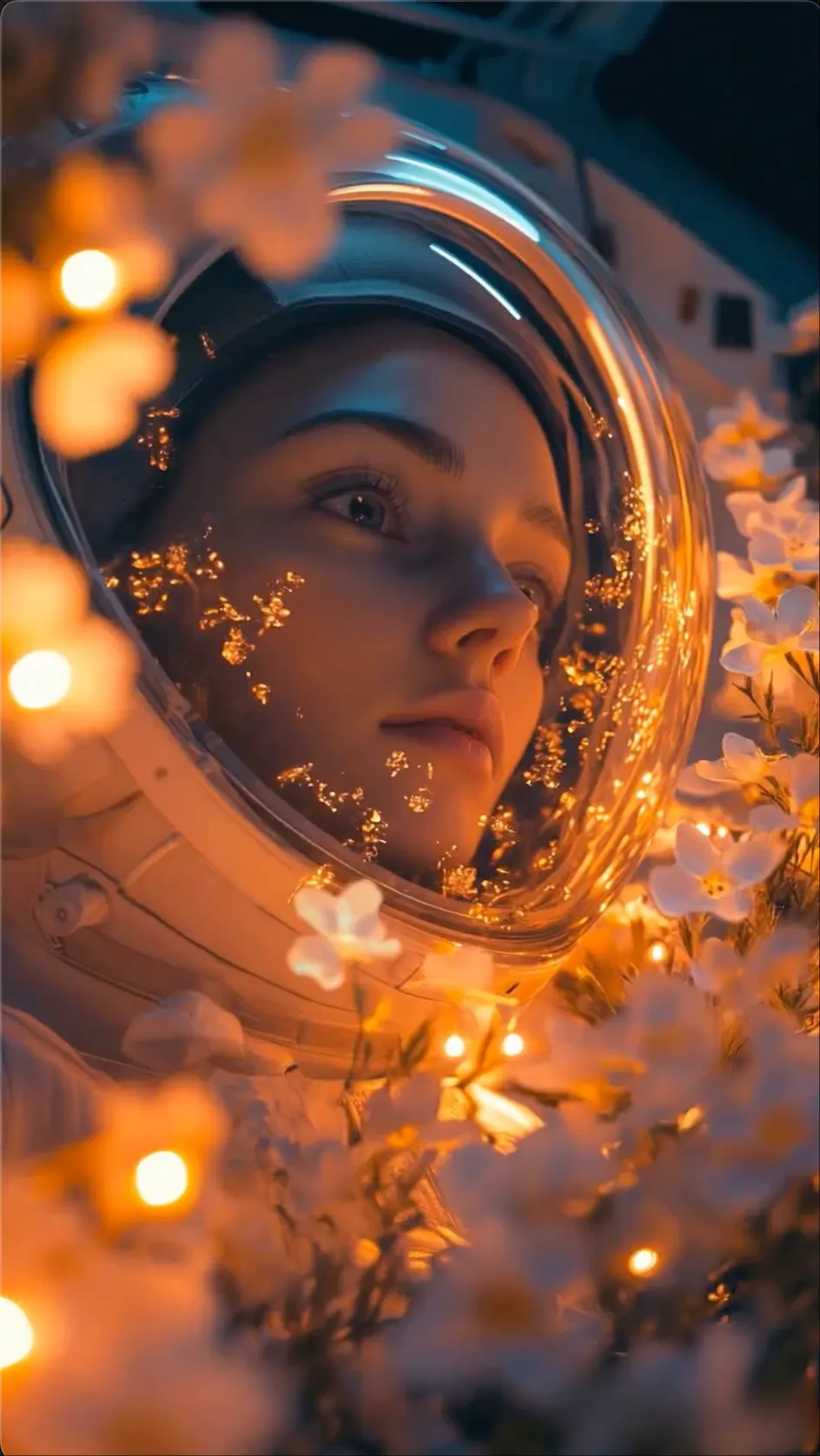
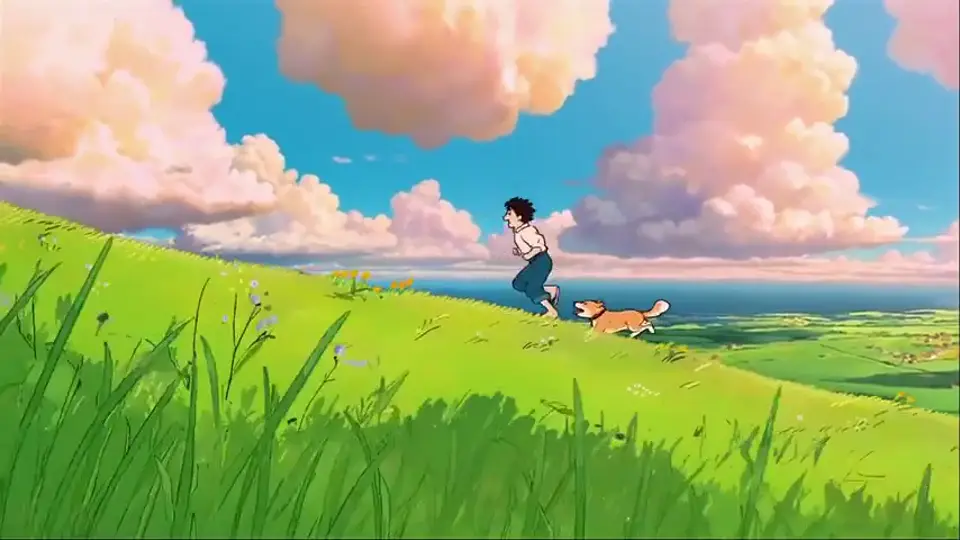
Cinematic scene
A Directed Story Moment
Combine subject action, atmosphere, framing, and camera movement in a concise shot.
 Flow Studio
Create cinematic AI video from a text prompt or reference image. Direct the subject, motion, camera, lighting, and visual style in one workspace.
Runway AI video examples
Explore cinematic scenes, product shots, image-to-video motion, and AI B-roll built from specific visual and camera direction.
Cinematic scene
Combine subject action, atmosphere, framing, and camera movement in a concise shot.
Image to video
Start with a still image and describe how the subject, environment, and camera should move.
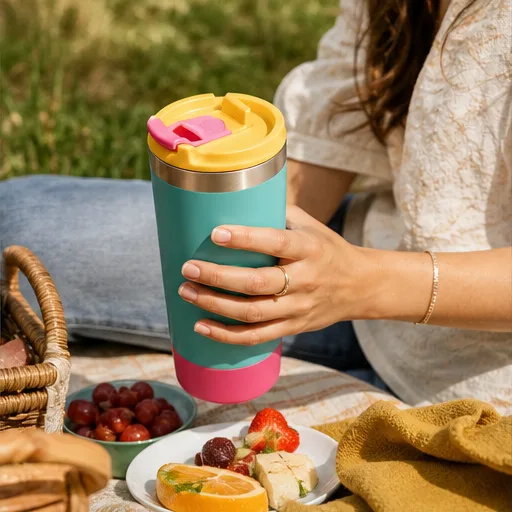
Product shot
Direct a product-focused scene with intentional lighting, composition, movement, and pacing.
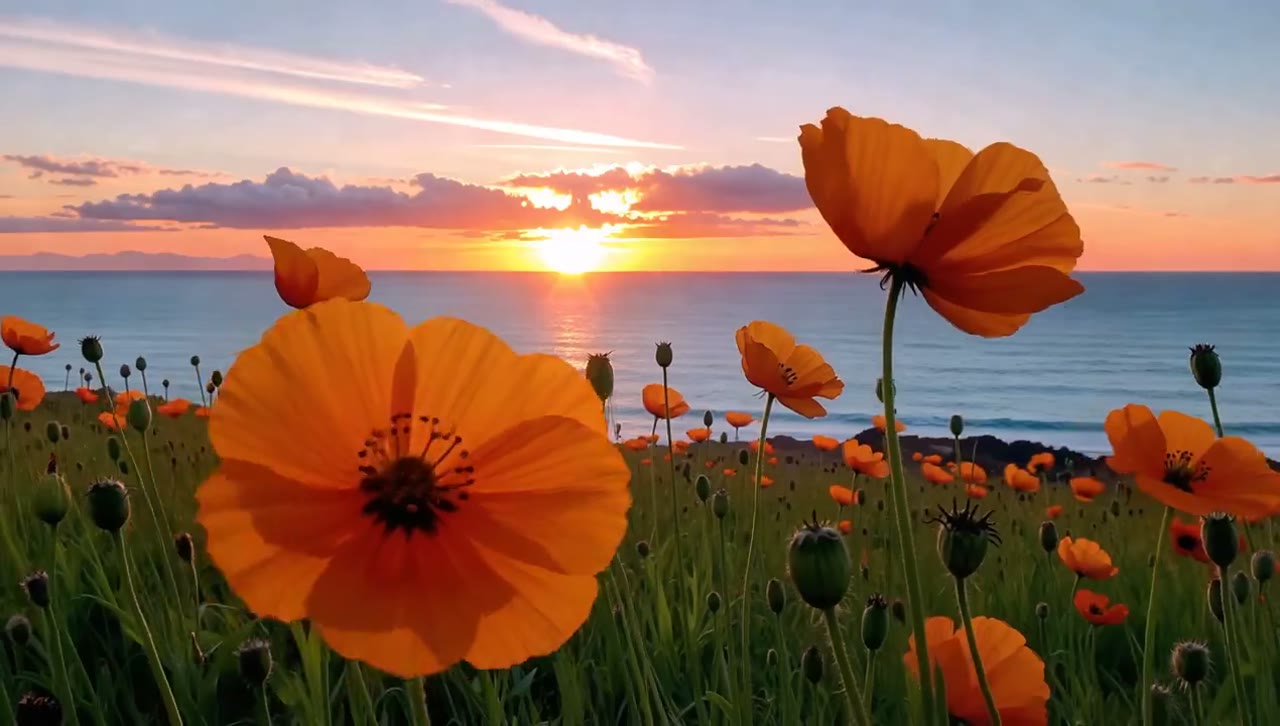
Creative B-roll
Generate supporting footage for films, music videos, ads, trailers, and social edits.
What you can create
Generate new shots from text or images, edit existing footage with prompts, and develop cinematic material for films, ads and visual projects.
Describe the subject, action, location, atmosphere and camera movement to create a new video scene from text.
Animate a composed frame while directing facial movement, environmental motion, timing and the camera.
Remove an object, replace a background or change part of a clip with a written editing instruction.
Test a scene, plan a sequence and create supporting shots before committing to a larger production.
Develop product-focused footage with planned lighting, composition, camera motion and campaign framing.
Explore performance shots, stylized movement and surreal environments for music, design and experimental projects.
Why choose Runway AI
Generate new shots, make precise changes to existing footage, keep characters consistent, and extend strong clips into longer sequences.
FLEXIBLE SOURCE MEDIA
Start a new shot from a prompt, animate a reference image, or transform a video clip you already have.
PRECISE VIDEO EDITS
Relight a scene, replace the background, or add and remove objects while keeping the parts you want.
CHARACTER REFERENCES
Use a character reference to carry the same face, clothing, and visual identity into later shots.
EXTEND AND UPSCALE
Extend a useful result, connect it to another shot, and upscale the video when the final edit needs more detail.
How to use Runway AI
Open a generative video session, select text to video or image to video, write the right type of prompt, and iterate on the result.
Start a video session in Tools mode and select the available Runway model that fits the speed and control your shot needs.
Use text to create the full scene from scratch, or add an image when you already have the subject and opening composition.
For text to video, describe the look and movement. For image to video, focus the prompt on subject motion and camera movement.
Review the output, adjust the prompt, or use the generated video as the starting point for another version, edit, or extension.
Who uses Runway AI
Runway AI is suited to professionals who create film shots, visual effects, advertising concepts, product videos, or animated design presentations.
Film and VFX
Generate B-roll, early scene previews, establishing shots, and visual effects concepts for films, trailers, and post-production work.
Agency creative
Develop pitch films, campaign concepts, mood reels, and ad variations before presenting an idea or booking a production.
Product advertising
Animate product photography into commercial shots, launch visuals, close-ups, and social ads for online stores.
Design visualization
Turn building renders and room images into walkthrough-style clips, camera studies, and presentation visuals for clients.
Choose a credit package based on the number of cinematic clips, product shots, and prompt variations you want to generate.
Perfect for hobbyists and beginners
Everything you need to start:
For teams and businesses
Everything in Basic, plus:
For creators and professionals
Everything in Basic, plus:
Runway AI questions
Answers about Runway inputs, model choice, video editing, references, longer scenes, sound, prompts and usage rights.
You can begin with a text prompt, an image or an existing clip, depending on the model and workflow. Use a reference when the subject, composition or original movement needs to guide the result.
Match the model to what you already have: words, a still image, or footage that needs a change. Then compare its supported controls, output quality, speed, and credit cost for that shot.
Yes. Supported editing tools can change a background, lighting, time of day, style or object while keeping the rest of the source clip as stable as possible.
A clear character image or video gives each shot the same visual guide. Similar clothing, lighting and camera distance can also reduce unwanted changes between scenes.
Extend a useful clip or connect several generations in a workflow. Plan the ending of each shot so the next part can continue the same action, setting and screen direction.
Supported models can create sound during generation, and other tools can add dialogue, voiceover or music afterward. Check the audio options for the model you select.
When an image already sets the look, describe the motion, timing, and camera behavior instead of listing everything visible. For text input, add only the scene details needed to frame one clear shot.
Runway states that creators own the work they make, including on its free plan. Review the current terms and make sure you also have rights to every image, clip, voice or brand asset you upload.
GENERATIVE AI VIDEO TOOLS
Explore tools for text-to-video, image animation, reference-led scenes, video editing, visual effects, product videos and cinematic clips.
DIRECT, EDIT, AND EXTEND THE SHOT
Use words, a reference image, or existing footage to guide the motion, change the frame, and continue the scene.