CHARACTER VIDEO
Consistent Character Scenes
Create new shots while keeping the main character recognizable across a sequence.
 Flow Studio
Create an AI video from text or images, then edit the motion, style, character, sound, and scene in one connected workflow.
OPENART AI VIDEO EXAMPLES
Explore practical video workflows for characters, products, social clips, and cinematic scenes.
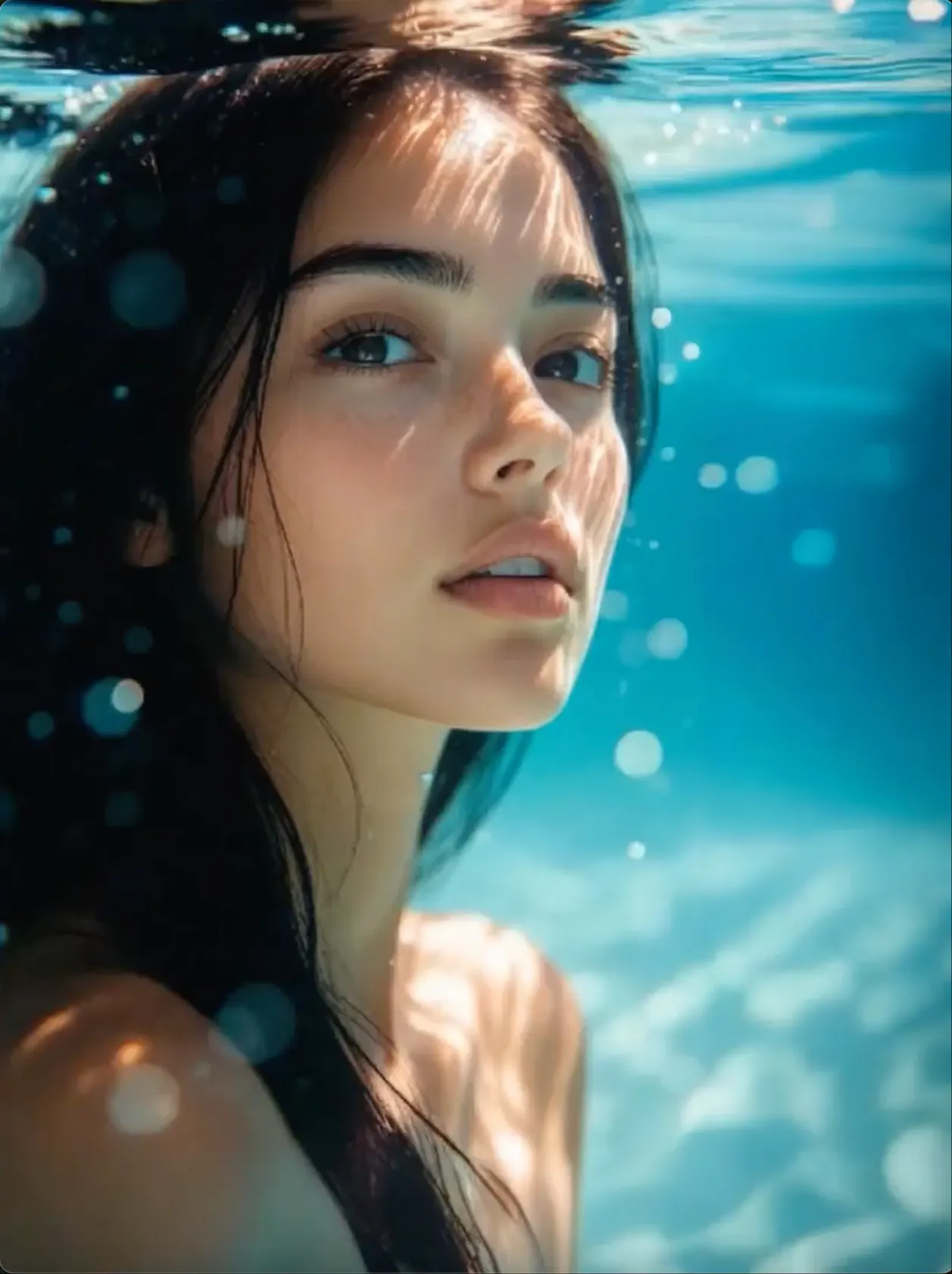
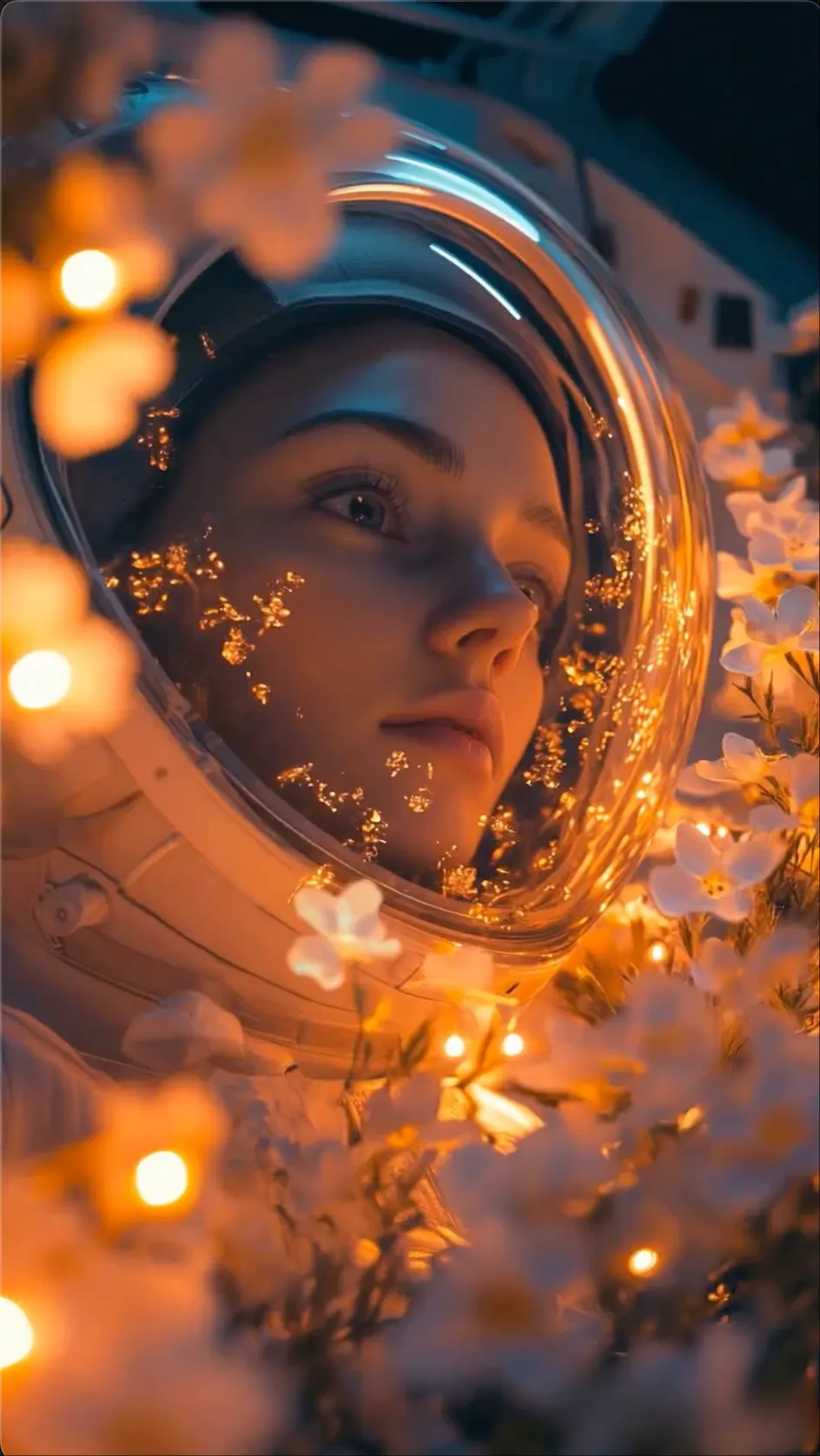
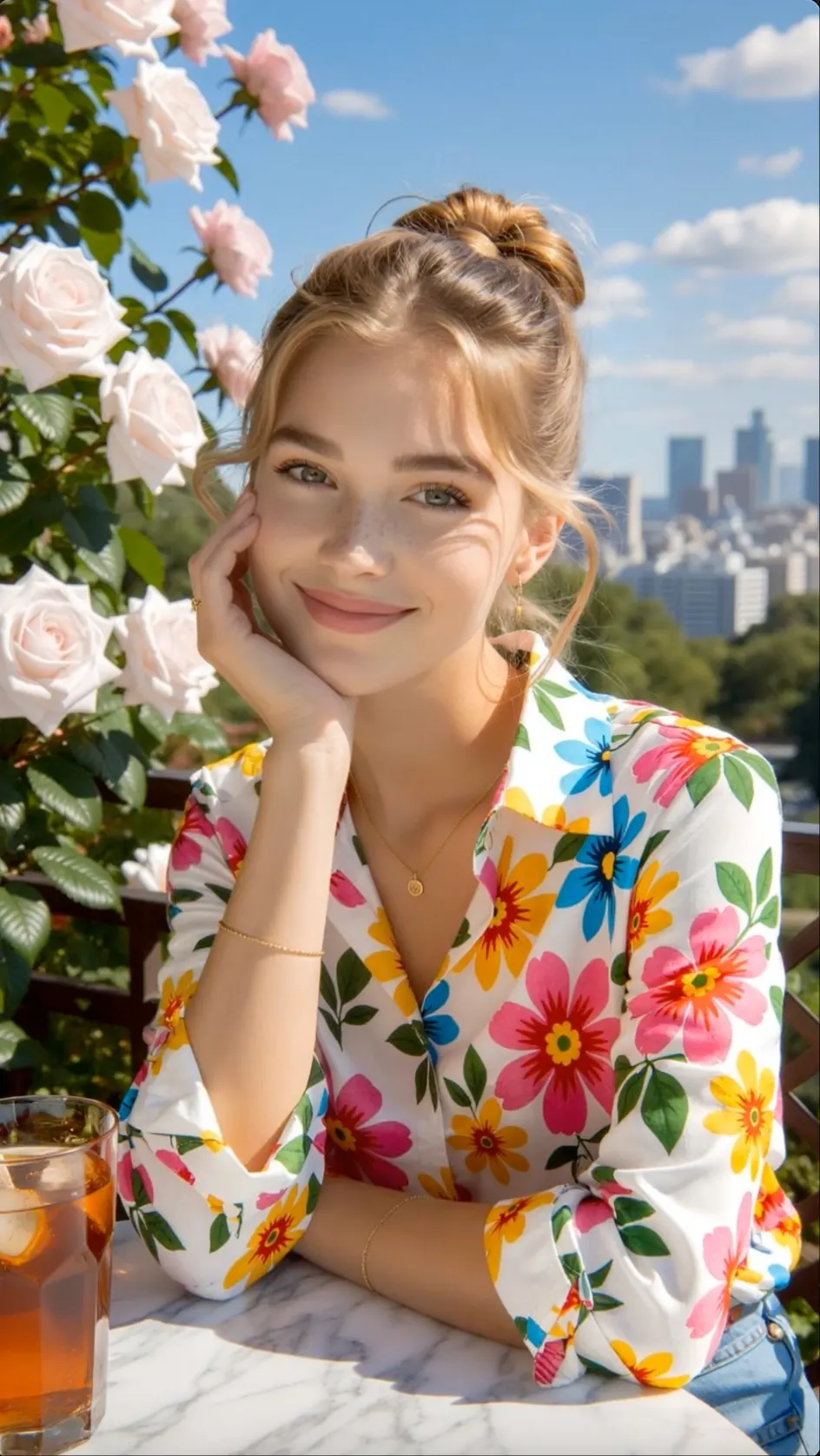
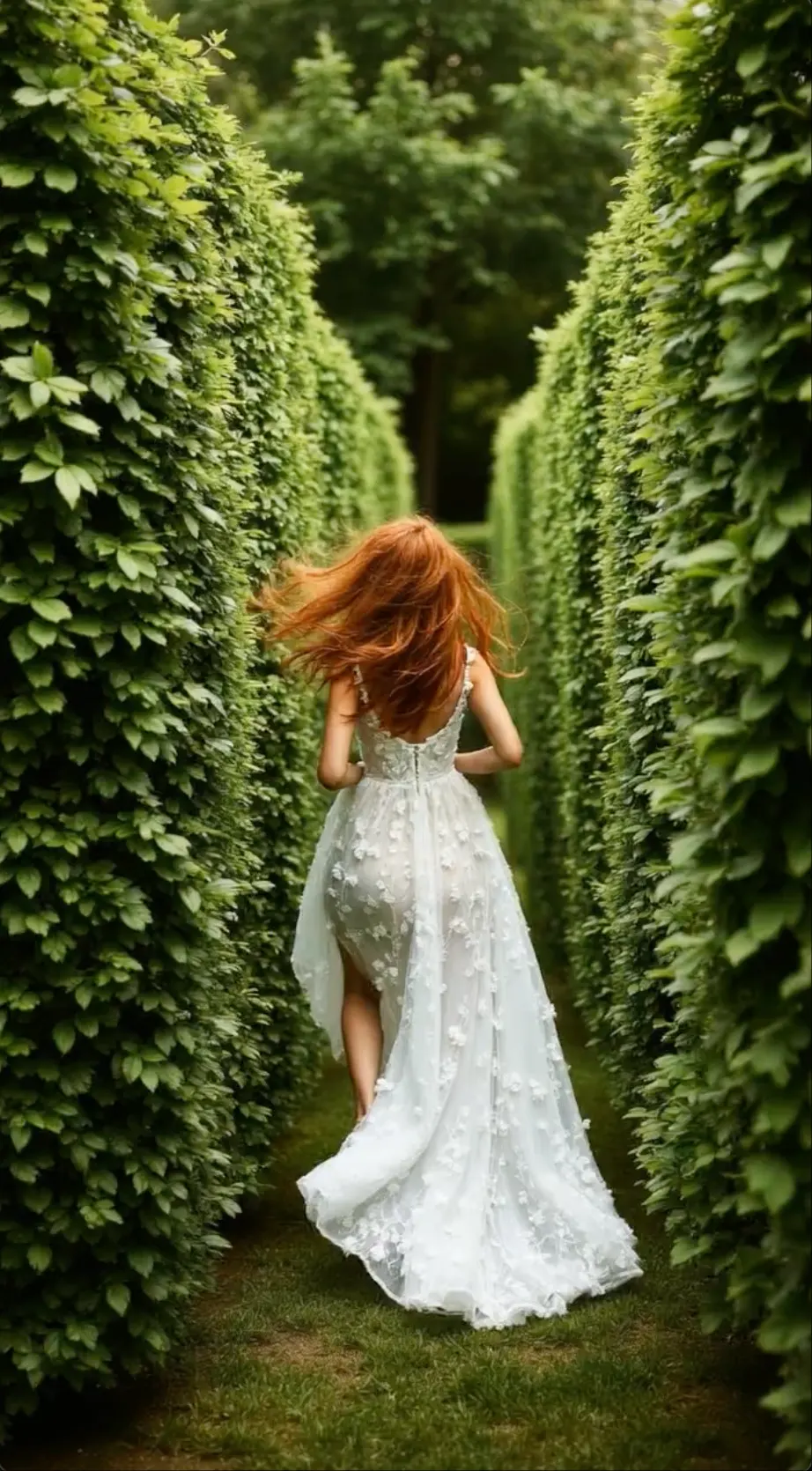
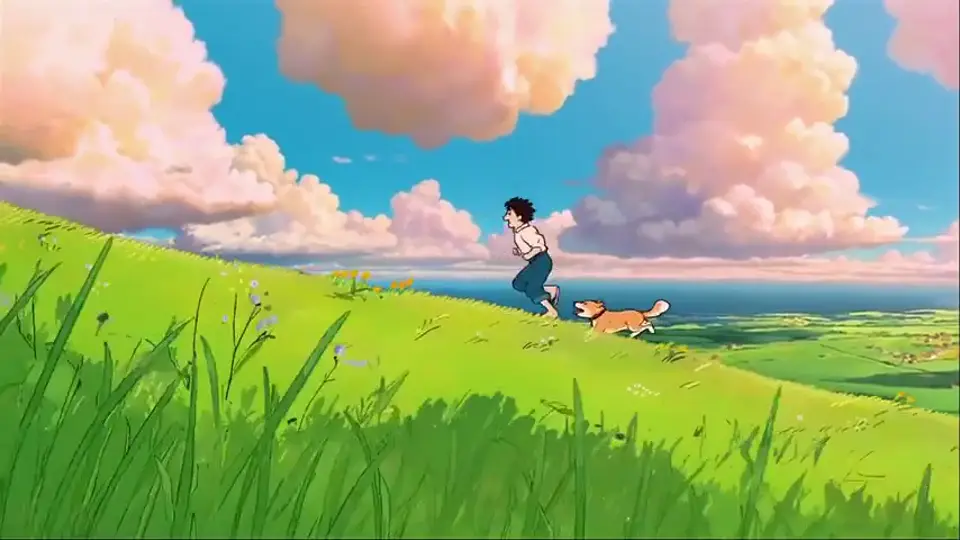
CHARACTER VIDEO
Create new shots while keeping the main character recognizable across a sequence.
VIDEO TO VIDEO
Change the visual style of an existing clip while preserving its useful movement.
PRODUCT VIDEO
Turn product ideas and images into clear, polished promotional scenes.
TALKING VIDEO
Create talking character clips with guided expression, motion, and lip sync.
WHAT YOU CAN MAKE
Create videos from prompts or images, reuse consistent characters, add speech and sound, and edit existing footage for ads, stories and social content.
TEXT AND IMAGE TO VIDEO
Generate a scene from text or animate a starting image with clear subject, action and camera instructions.
CONSISTENT CHARACTER VIDEO
Save a character reference and bring the same recognizable person or design into new shots and settings.
AI AD VIDEO
Create product demos, talking presenters and short ad variations for TikTok, Instagram and YouTube.
VIDEO WITH AUDIO
Add dialogue, voiceover or sound to character-led clips and keep the spoken performance connected to the scene.
VIDEO TO VIDEO
Transform an uploaded clip with a new visual style, background, lighting treatment or creative effect.
AI VIDEO EDITING
Extend a useful shot or revise one part of the result instead of generating the whole video again.
OPENART AI VIDEO BENEFITS
Create a video, change it with simple chat instructions, and keep characters, brand details, and scene edits in one creative workspace.
WHY
CHAT-BASED EDITING
Ask for a new background, different lighting, added sound, or another clear change without learning a complex editing timeline.
TARGETED CHANGES
Select an object, person, prop, or area and update that part while keeping the rest of the clip in place.
SAVED CHARACTERS
Save a character or use a clear reference so the same person or design stays easier to recognize across scenes.
BRAND KIT
Keep logos, colors, fonts, and other brand details ready for product videos, ads, and social content.
HOW TO USE OPENART AI
Choose text to video, image to video, or frame to video, select a model, guide the motion, and generate your clip.
STEP
Start from a written idea, animate one image, or add first and last frames when the opening and ending need more control.
STEP
Pick an available model based on the motion, visual style, speed, audio, and video quality needed for the scene.
STEP
Describe the subject movement and camera direction, then add reference or end frames when they help define the shot.
STEP
Preview the video and refine it with another prompt, an extended scene, sound, lip sync, or a new visual style when supported.
WHO USES OPENART AI
OpenArt AI works well for people who create character-led videos, animate artwork, or turn product images into polished short clips.
CHARACTER DESIGN
Build recognizable characters and reuse their look across talking scenes, story clips, and visual experiments.
ANIMATION AND STORY
Turn storyboards and character art into moving scenes with clear action, camera direction, and visual style.
ONLINE SHOPPING
Animate product photos for store listings, launch campaigns, lifestyle shots, and social media ads.
UGC AND SOCIAL
Make talking clips, product hooks, creator-style ads, and vertical videos for TikTok, Reels, and Shorts.
DIGITAL ART
Add motion to finished artwork, test new looks, and develop short visual pieces without redrawing every frame.
Choose a plan based on how often you generate, edit, restyle, and refine AI video clips.
Perfect for hobbyists and beginners
Everything you need to start:
For teams and businesses
Everything in Basic, plus:
For creators and professionals
Everything in Basic, plus:
OPENART AI FAQ
Clear answers about OpenArt video inputs, restyling, saved characters, motion sync, lip sync, editing, models, and prompts.
You can generate from text or an image, restyle an existing clip, reuse a saved character, copy motion, sync speech, extend a shot, edit parts of it, and increase its size.
Yes. Start with text for a new scene, use a photo when the look matters, or add an existing clip when you want to change its style, character, background, or motion.
Upload a clip and choose a new visual direction. OpenArt uses the original movement as a guide while changing the style, lighting, background, or overall treatment.
A saved character gives later generations the same visual reference. Clear images, similar framing, and simple scene directions can also help the face and design stay recognizable.
Motion Sync copies body movement and timing from a reference video. Lip Sync matches a character's mouth to speech or audio, so choose the tool based on what needs to move.
Yes. Supported tools let you change parts of a scene, replace a background or character, restyle the clip, add sound, make it longer, or improve its size and detail.
Switch models when the first result misses an important need, such as natural movement, character detail, speed, or sound. Check the current model notes before spending more time on the same prompt.
Write the camera path and the effect in direct terms, such as a slow push-in, orbit, rain, or smoke. Use one main movement per shot so OpenArt has a clear target.
AI VIDEO AND STORYTELLING TOOLS
Find tools for text-to-video, image animation, AI lip sync and character videos for short films, social content, product ads and visual stories.
CREATE, RESTYLE, AND KEEP EDITING
Bring in text, an image, or a clip, then adjust the character, motion, sound, and style as the story takes shape.
Build an OpenArt Video