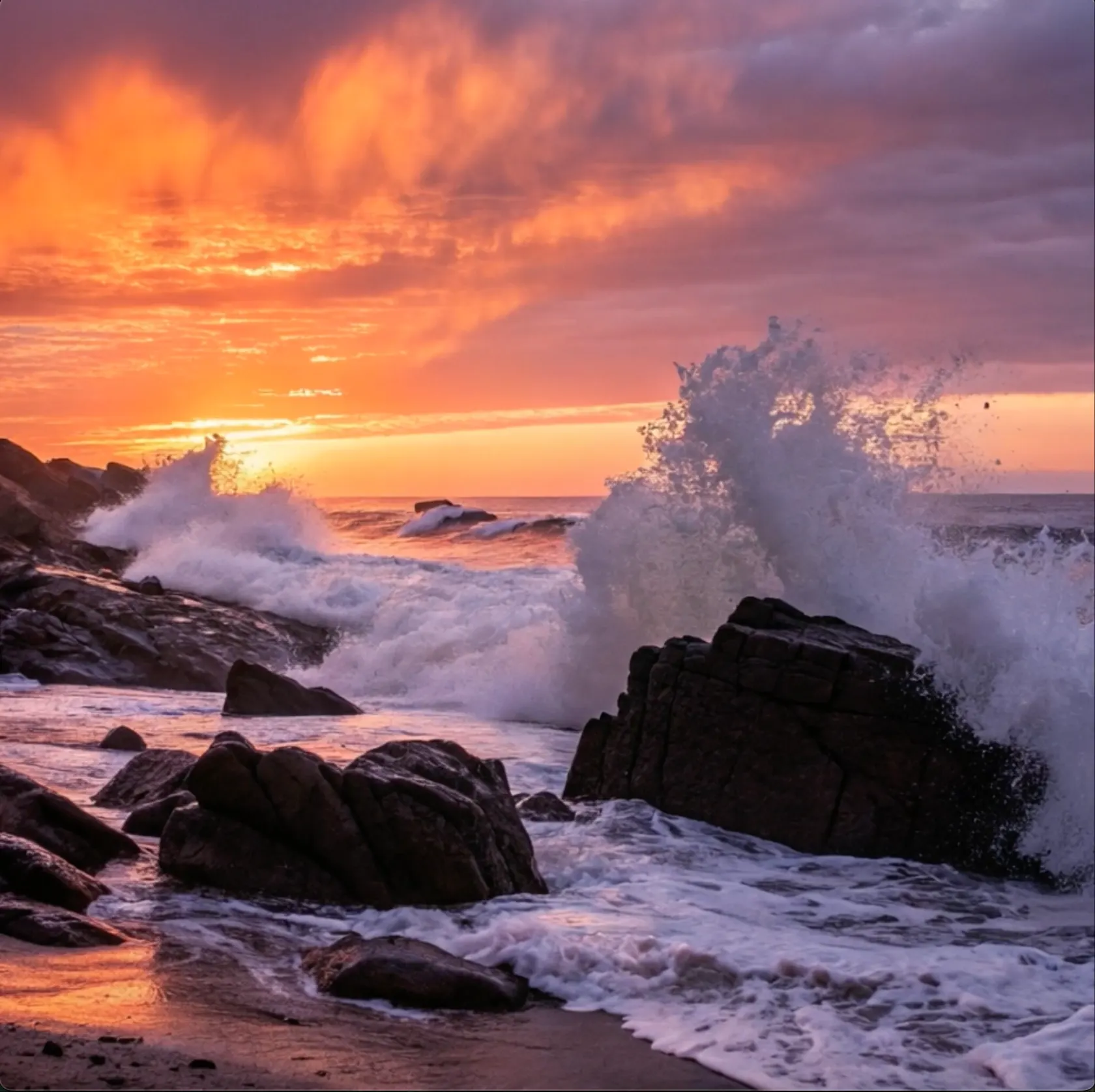
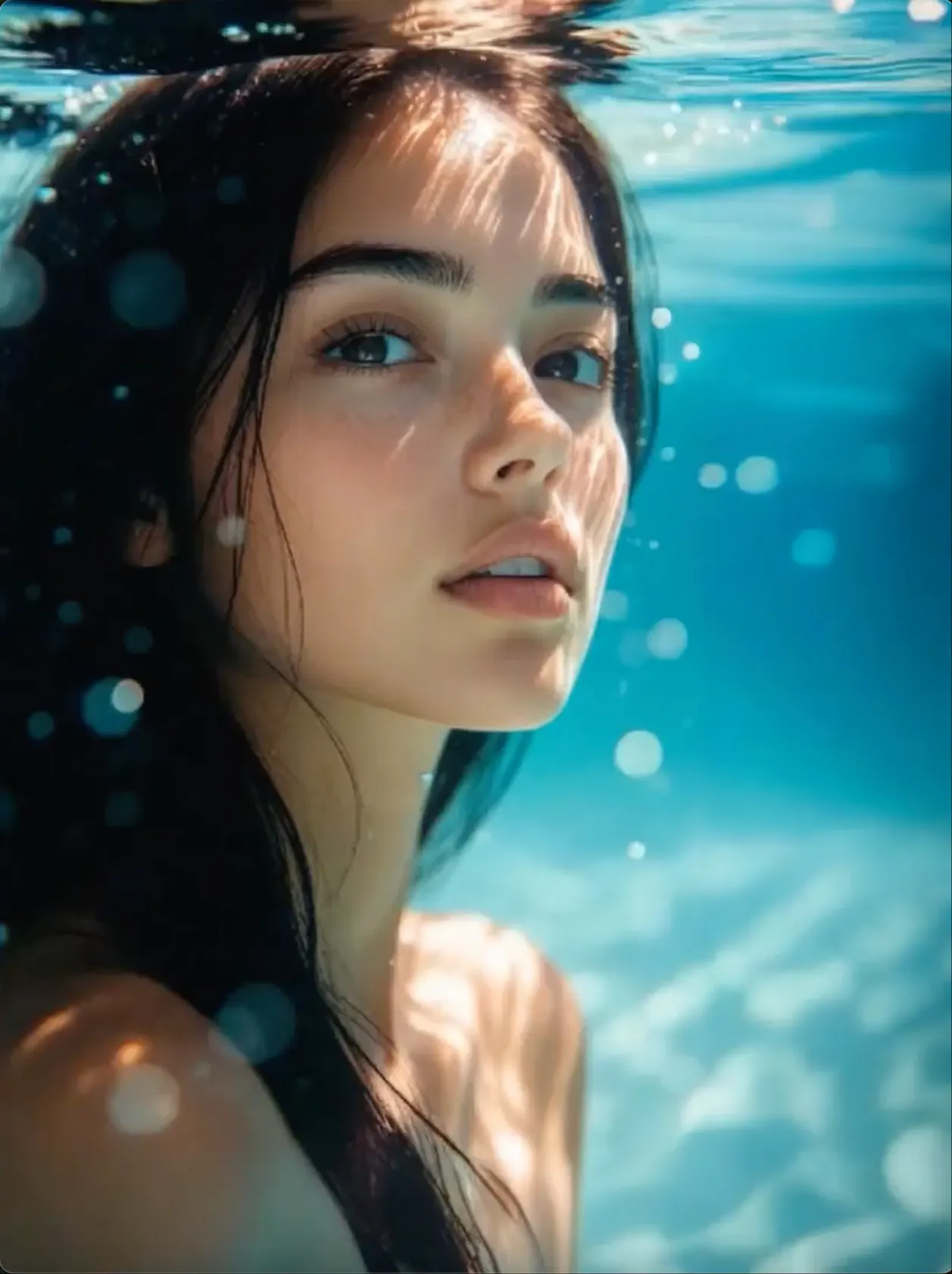
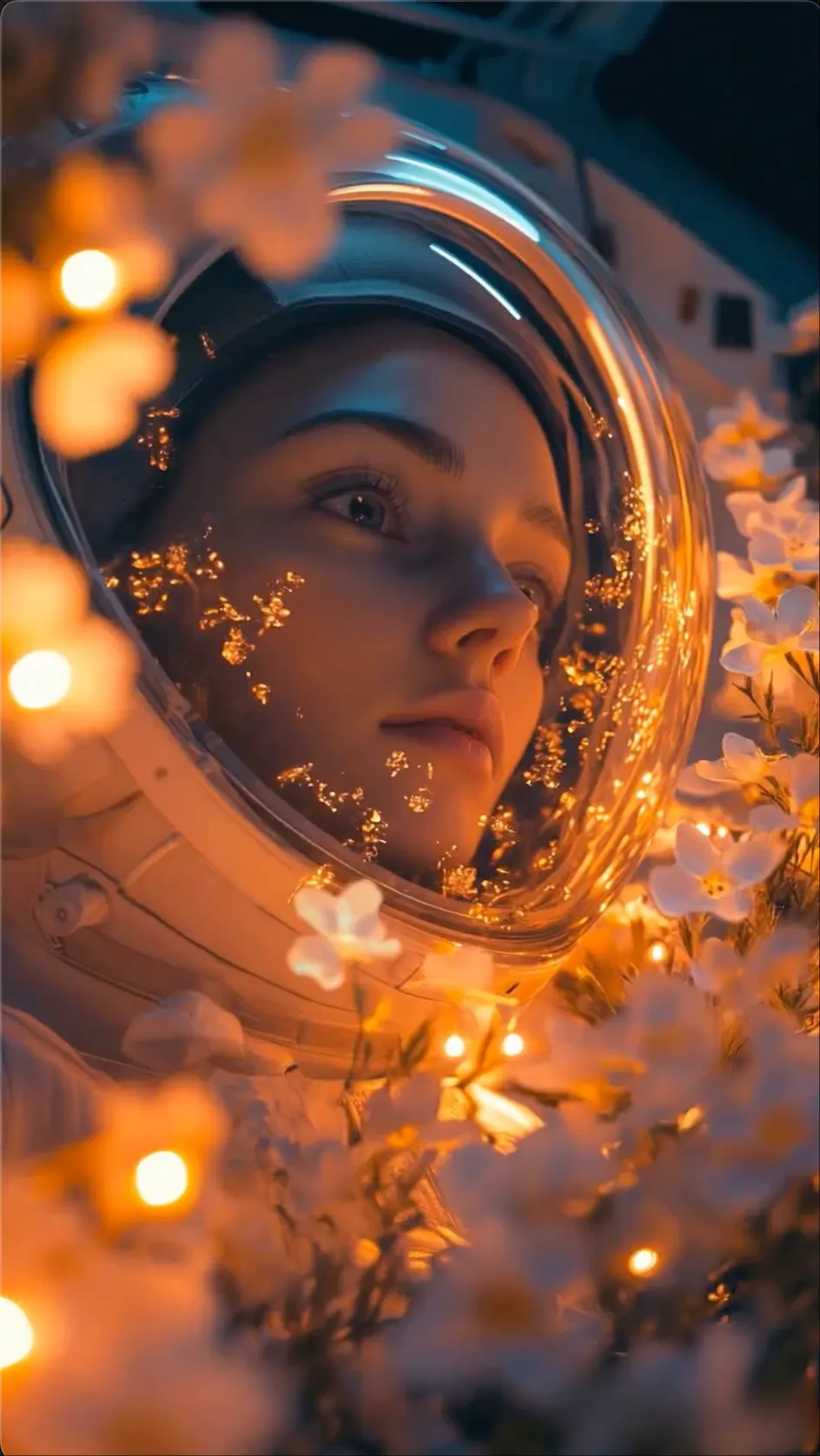
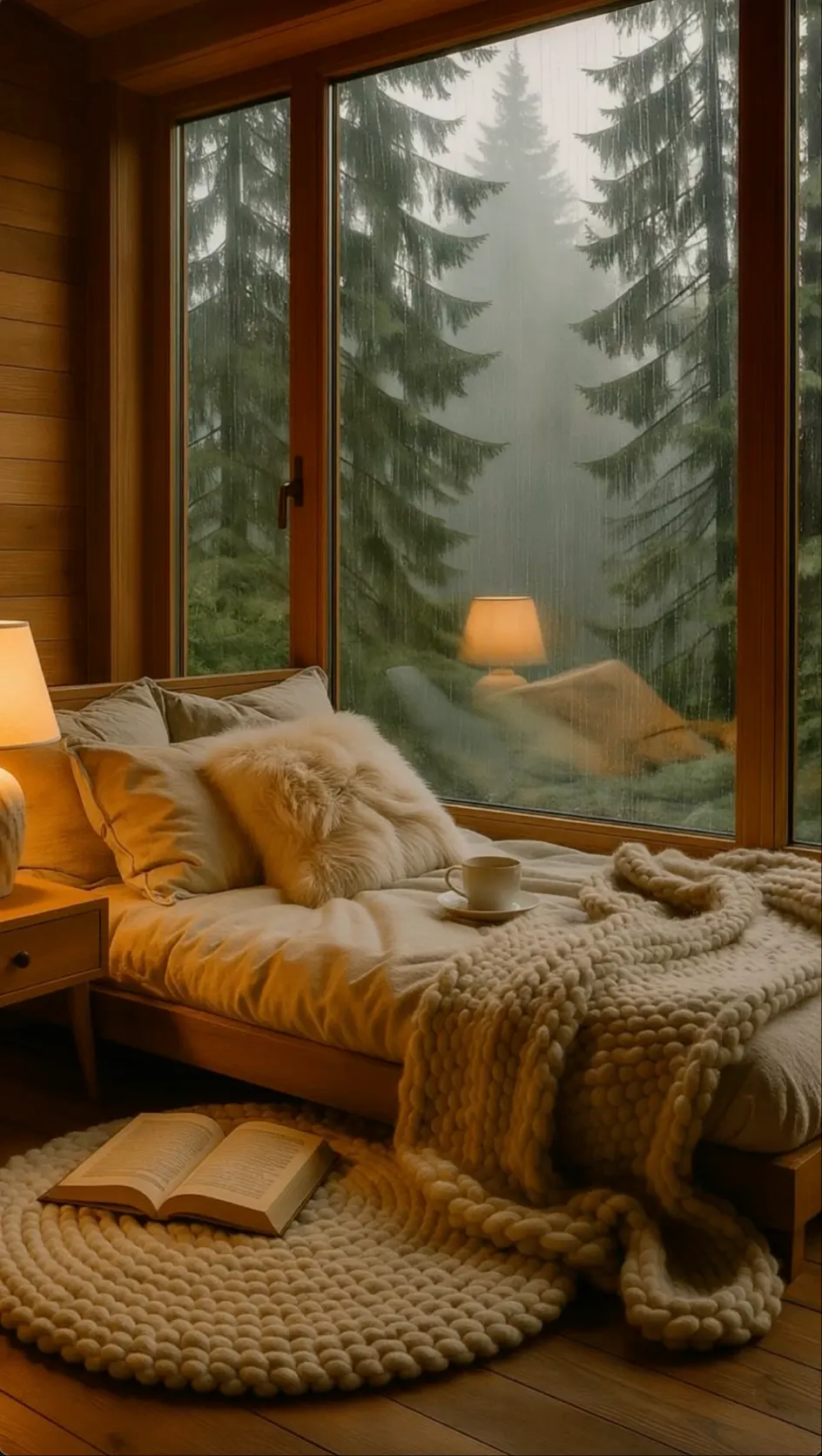
CINEMATIC VIDEO
Directed Story Shots
Build a focused scene with clear action, camera movement, and lighting.
 Flow Studio
Turn a prompt or image into an AI video, compare leading models, and refine each shot in one creative workflow.
KREA AI VIDEO EXAMPLES
Explore clear ways to turn product ideas, images, stories, and social concepts into moving scenes.
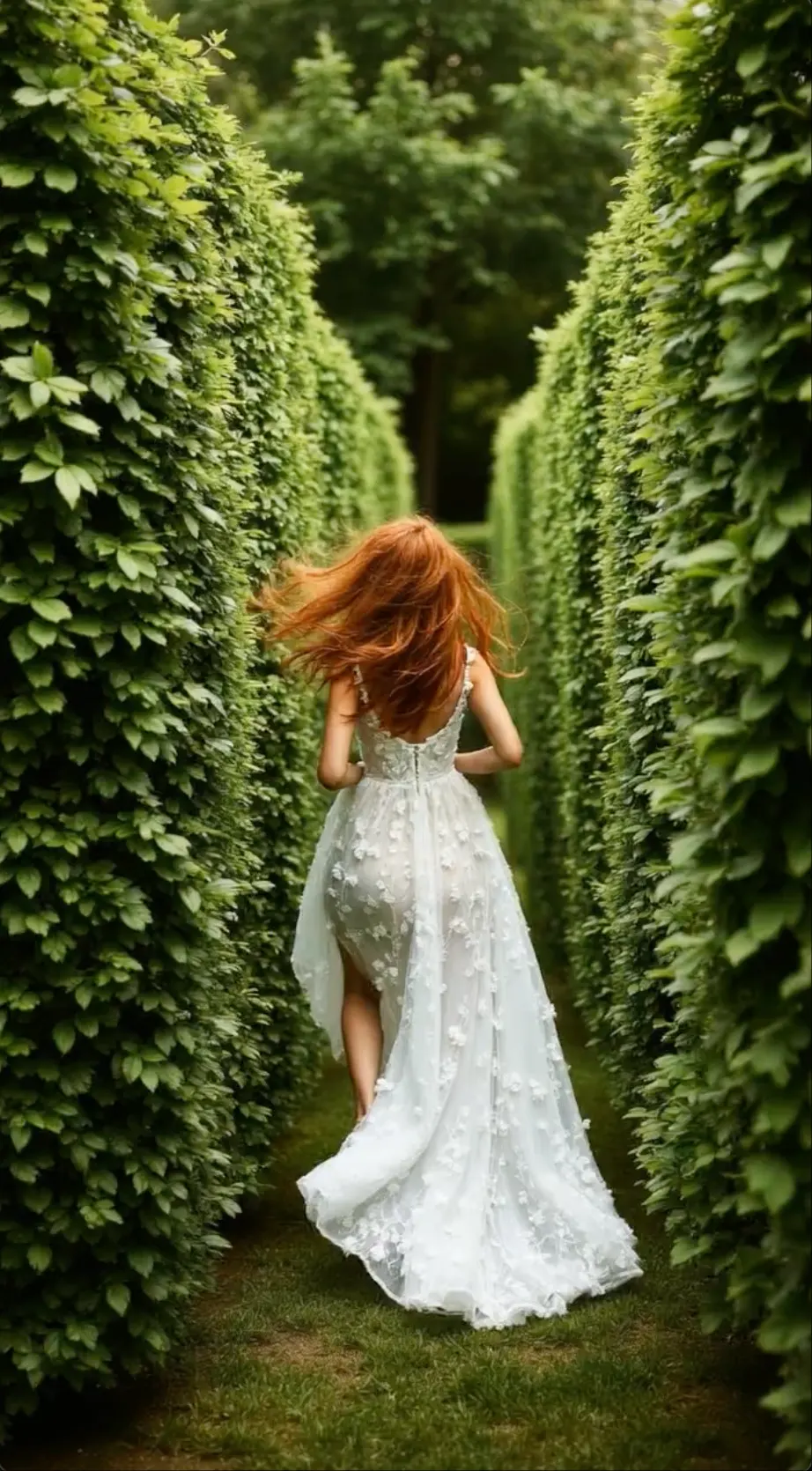
CINEMATIC VIDEO
Build a focused scene with clear action, camera movement, and lighting.
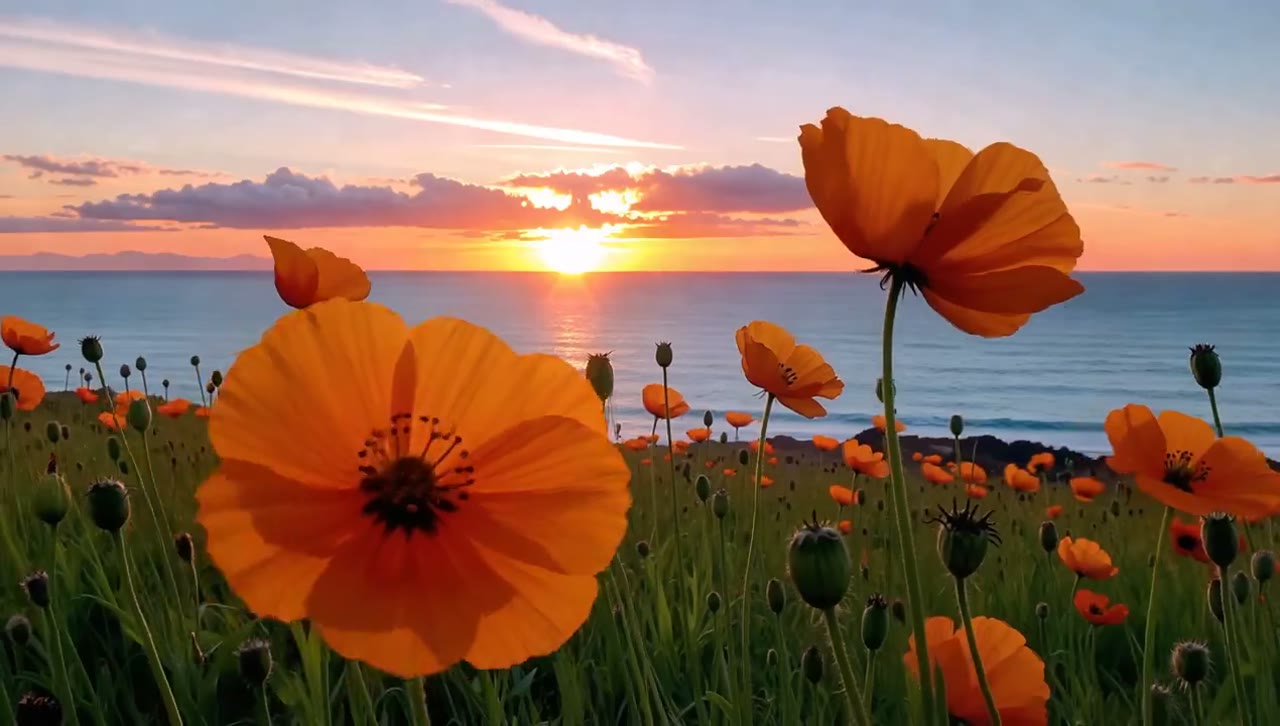
IMAGE TO VIDEO
Animate a photo or design while keeping its main look easy to recognize.
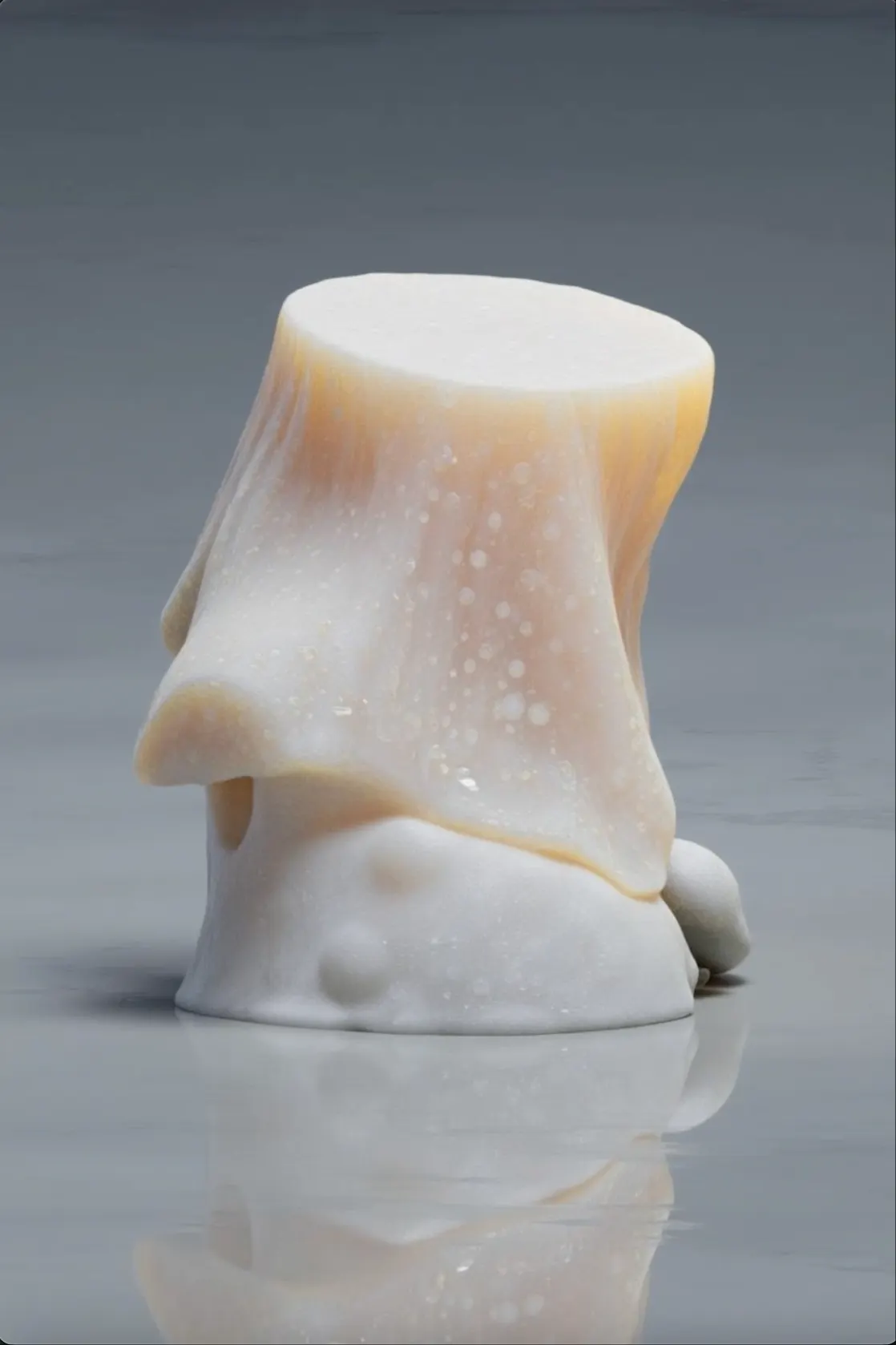
PRODUCT VIDEO
Show product details with controlled framing, light, and movement.
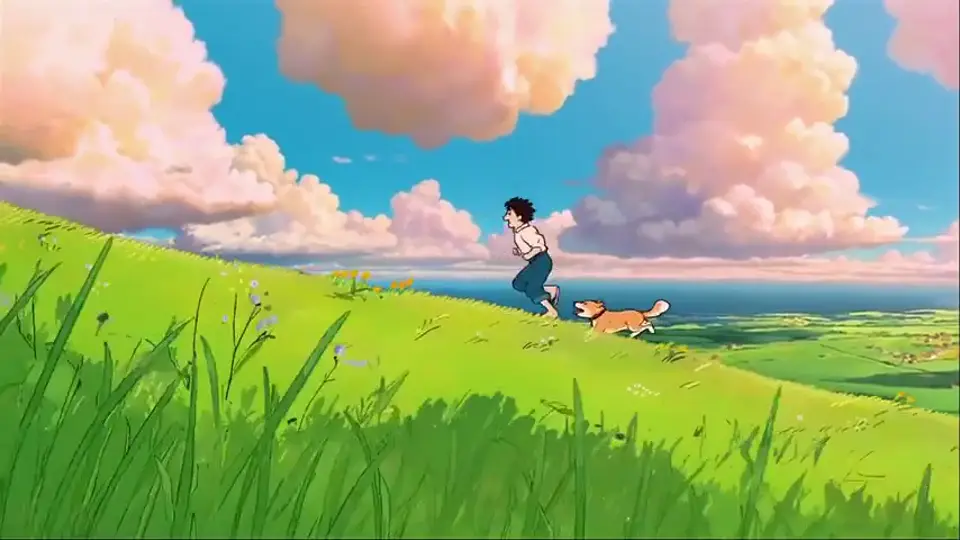
SOCIAL VIDEO
Test fast, eye-catching openings for campaigns and social posts.
WHAT YOU CAN MAKE
Generate clips with text or images, compare AI video models, animate keyframes and improve the strongest result in one visual workflow.
MULTI-MODEL VIDEO
Run the same idea through available video models and compare motion, detail and style before choosing a result.
IMAGE TO VIDEO
Use a photo, design or generated frame as the starting point and guide how the shot changes over time.
PRODUCT AND SOCIAL VIDEO
Make product reveals, lifestyle clips and short campaign videos in horizontal or vertical formats.
VIDEO ENHANCEMENT
Continue a useful shot, combine clips into a sequence and improve the final resolution for a cleaner export.
KREA AI VIDEO BENEFITS
Compare popular AI video models, shape visual references in real time, and improve finished clips without moving the project between separate tools.
MODEL COMPARISON
01Run the same prompt or image through available models and compare motion, detail, and style before choosing a result.
REAL-TIME REFERENCES
02Build or adjust a starting image while you work, then use it to guide the subject, composition, and look of the video.
REUSABLE VISUAL STYLE
03Create consistent visual references for recurring people, products, and brand looks instead of rebuilding them for every clip.
VIDEO ENHANCEMENT
04Upscale a useful clip and smooth its frames in the same creative suite before adding it to a larger edit.
HOW TO USE KREA AI
Open the Krea video generator, choose an AI video model, start with text or an image, and generate several versions to compare.
STEP 1
Open the Video tool and select the model that fits your goal, whether you need realistic motion, fast results, or sound.
STEP 2
Use text to create a new scene, or upload an image when you want to animate a product, character, photo, or design.
STEP 3
Write a clear video prompt with the subject, action, setting, camera movement, lighting, and mood you want to see.
STEP 4
Compare different models and prompts, keep the best clip, then extend the scene or merge clips into a longer video.
WHO USES KREA AI
Krea AI is a good fit for visual creators who want to compare AI video models, animate images, and test ideas quickly.
AI ART AND MOTION
Explore visual styles, animate artwork, and turn experimental image ideas into short motion pieces.
FILM PLANNING
Create concept shots, camera tests, and early scene previews before filming or building a longer sequence.
BRAND DESIGN
Develop campaign visuals, product scenes, and on-brand video options for reviews and client presentations.
SPACE VISUALIZATION
Turn building renders and room concepts into moving presentations with camera movement and lighting changes.
Choose a plan based on how often you generate, compare, extend, and refine AI videos.
Perfect for hobbyists and beginners
Everything you need to start:
For teams and businesses
Everything in Basic, plus:
For creators and professionals
Everything in Basic, plus:
KREA AI FAQ
Simple answers about Krea AI video models, text and image inputs, frame controls, longer clips, sound, and prompts.
Krea accepts text, images, and supported video input. Its video workspace lets you test available models, compare outputs, extend useful shots, and join clips into a longer sequence.
Open the Video tool, choose a model and format, then add a prompt or image. Generate a few versions, compare the motion and look, and keep the result that fits your shot.
Use text-to-video when you want to build a new scene from words. Use image-to-video when a photo, product shot, character, or composition should guide how the video looks.
The first frame sets how the shot begins, while the last frame gives it a clear ending point. Together, they can guide a transition, reveal, or planned camera move.
Video models can handle motion, realism, characters, style, and sound differently. Testing the same idea with more than one model helps you find the best fit for that scene.
Use Extend to continue a useful clip from its ending frame. You can also trim and join clips, but keep the subject, lighting, and camera direction consistent between each part.
Some video models in Krea support sound effects, background audio, or dialogue. Check the selected model before you generate because sound options are not the same for every model.
For text input, name the subject, action, place, and camera move. For an image, focus on what should move and how the camera should react. Keep each test to one shot.
TEXT-TO-VIDEO AND IMAGE-TO-VIDEO TOOLS
Create videos from text or images, animate still pictures and explore AI video models for realistic motion, cinematic shots and faster editing.
TEST MORE THAN ONE VIDEO MODEL
Begin with a prompt or image, compare available models, and keep building from the clip that matches your idea.
Make a Video with Krea