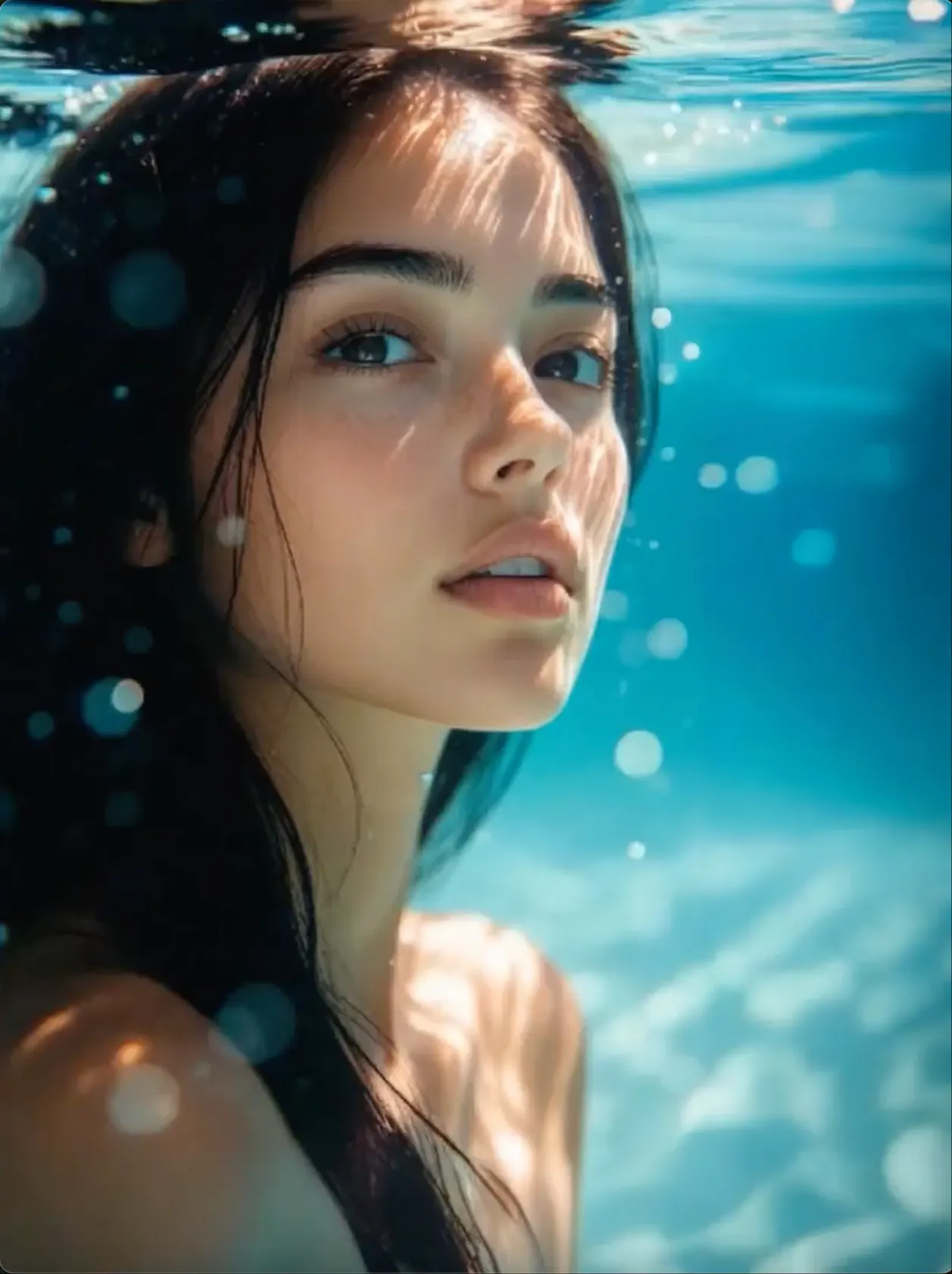
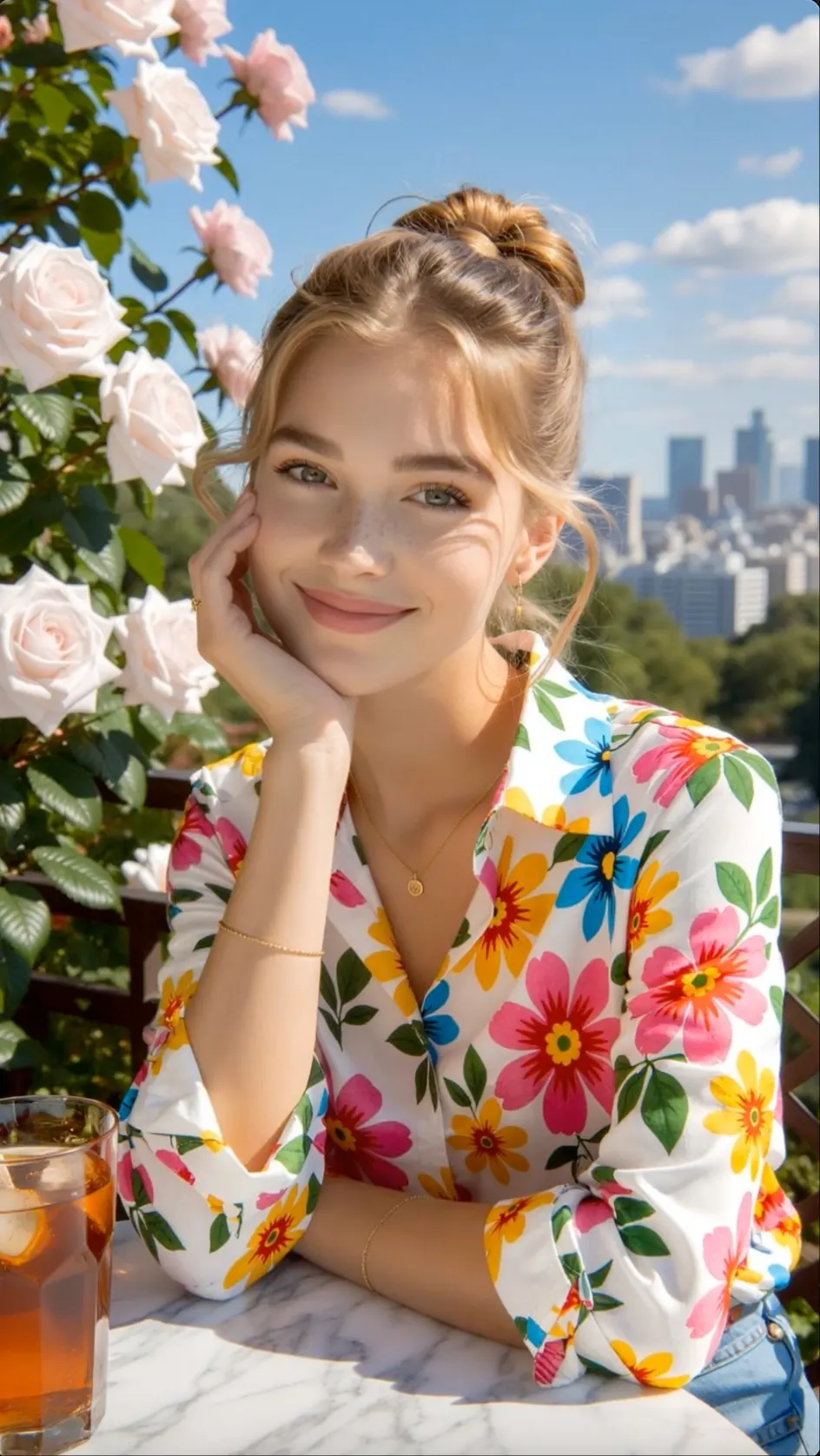
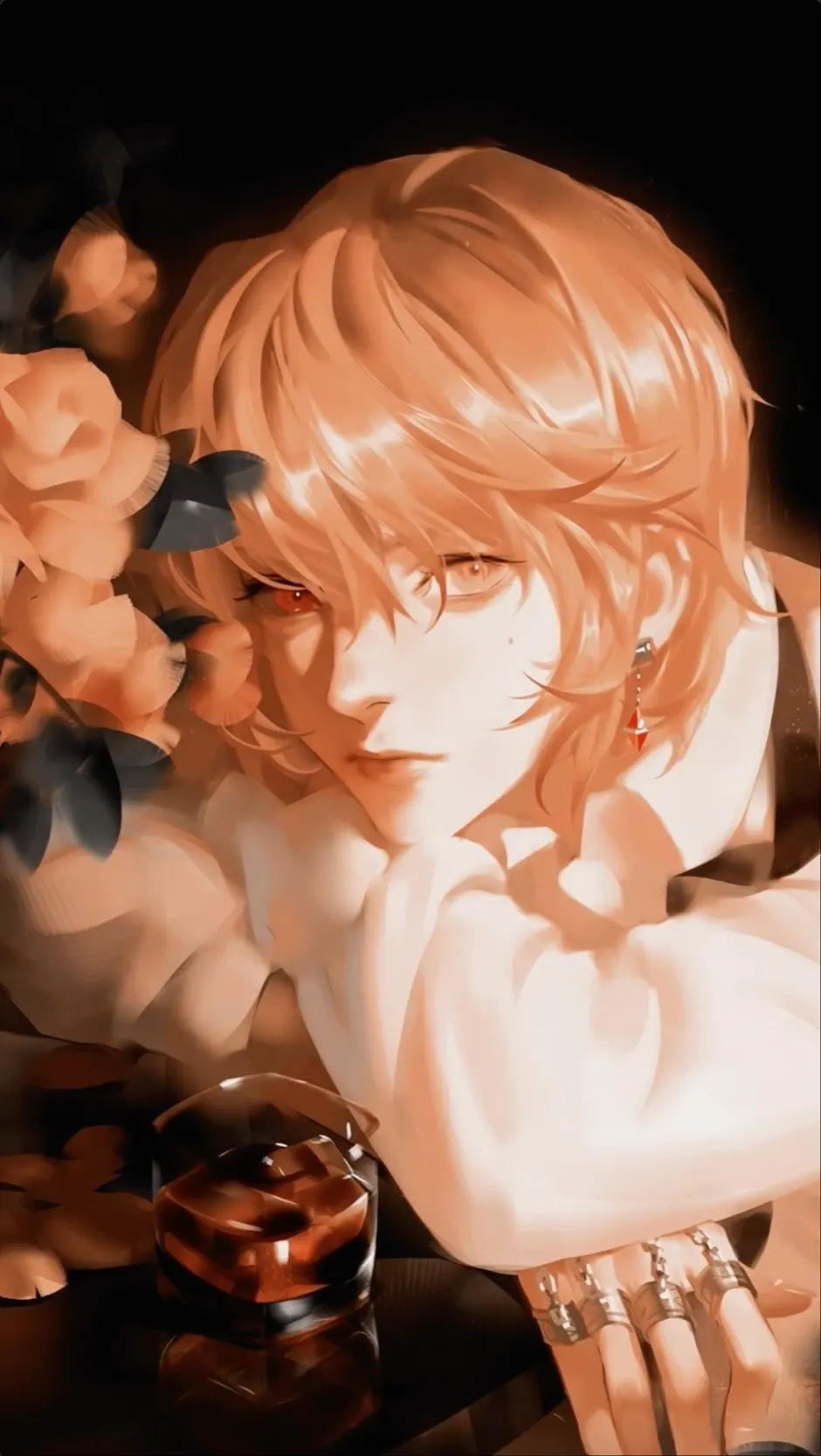
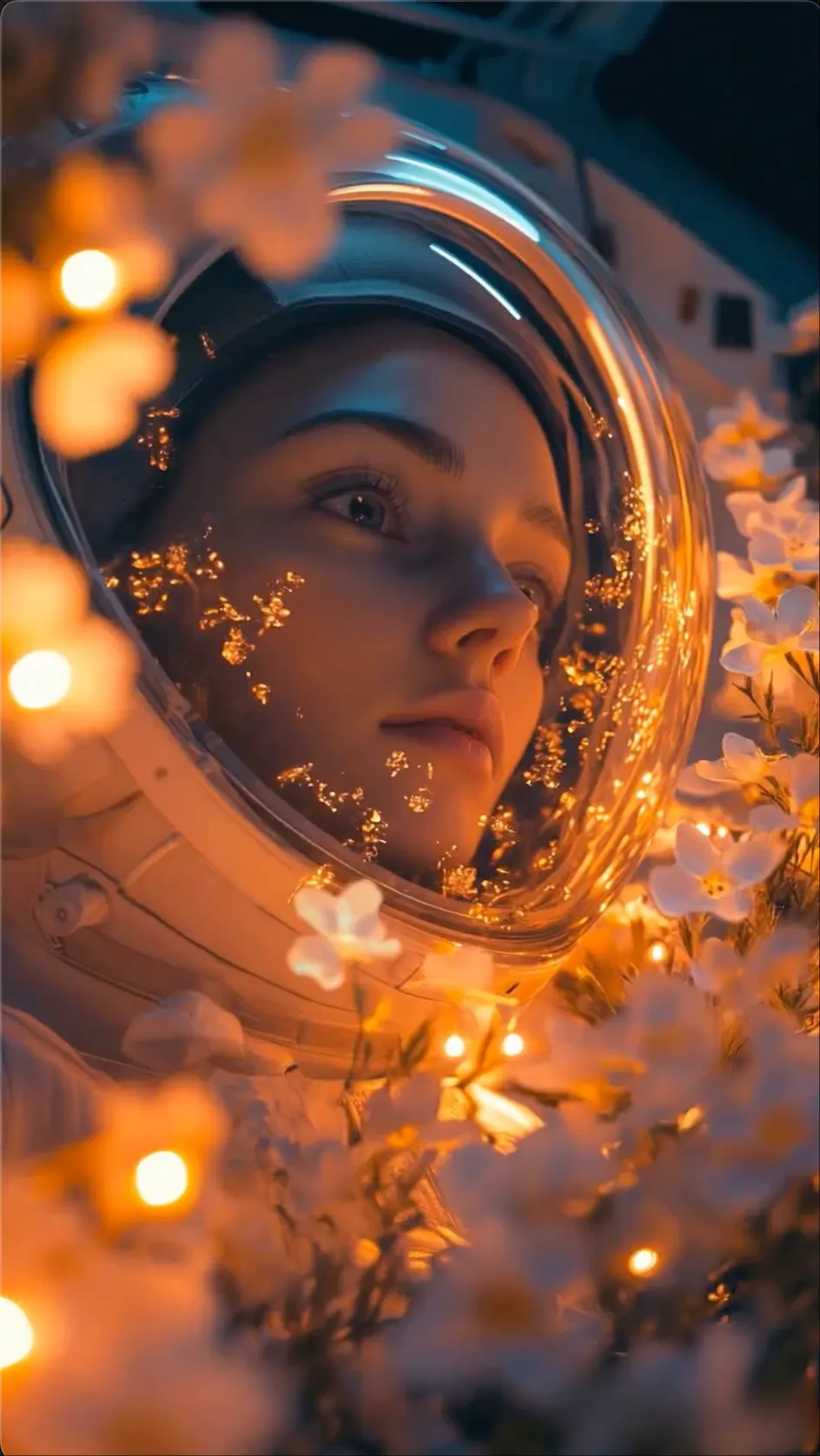
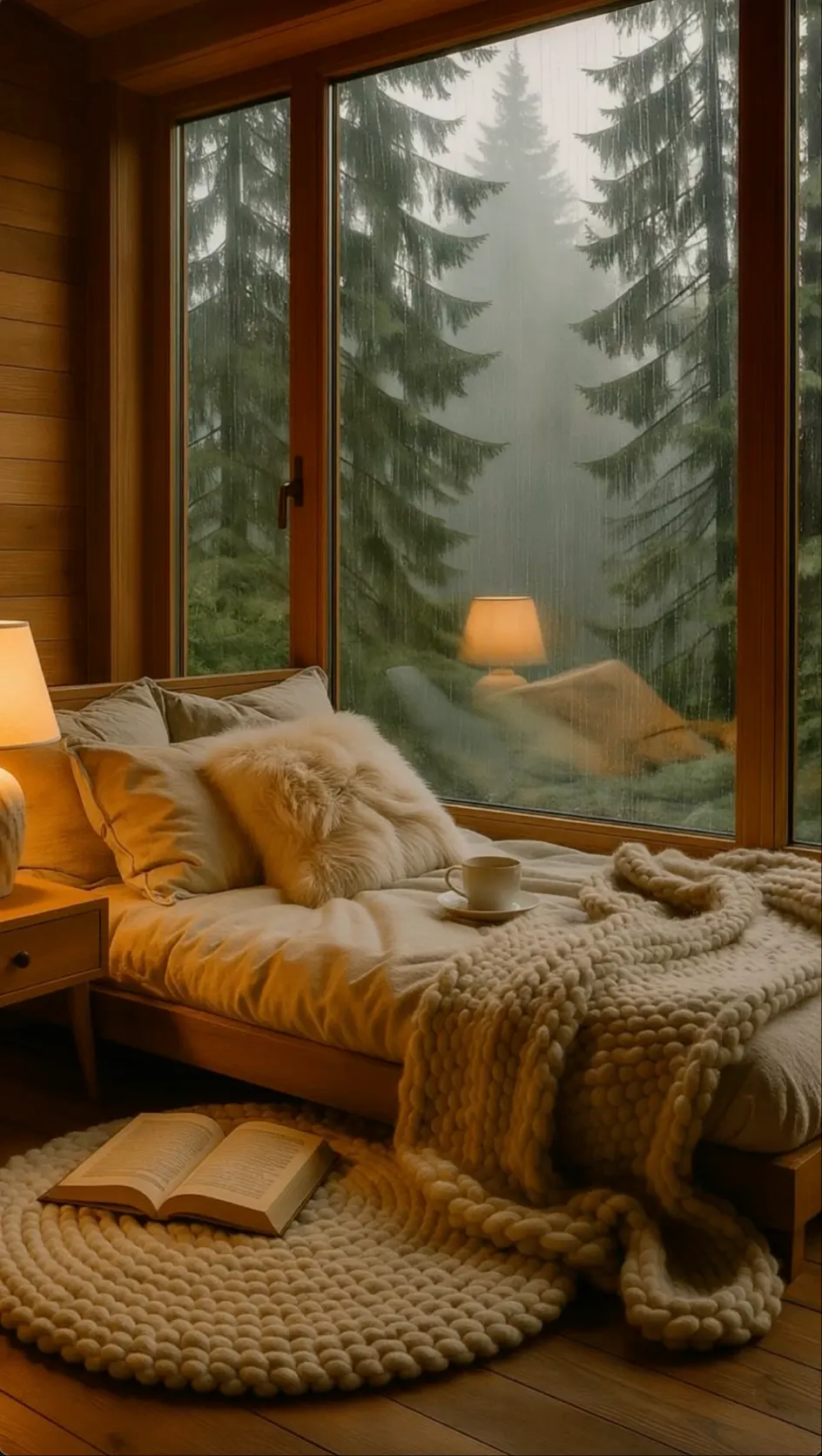
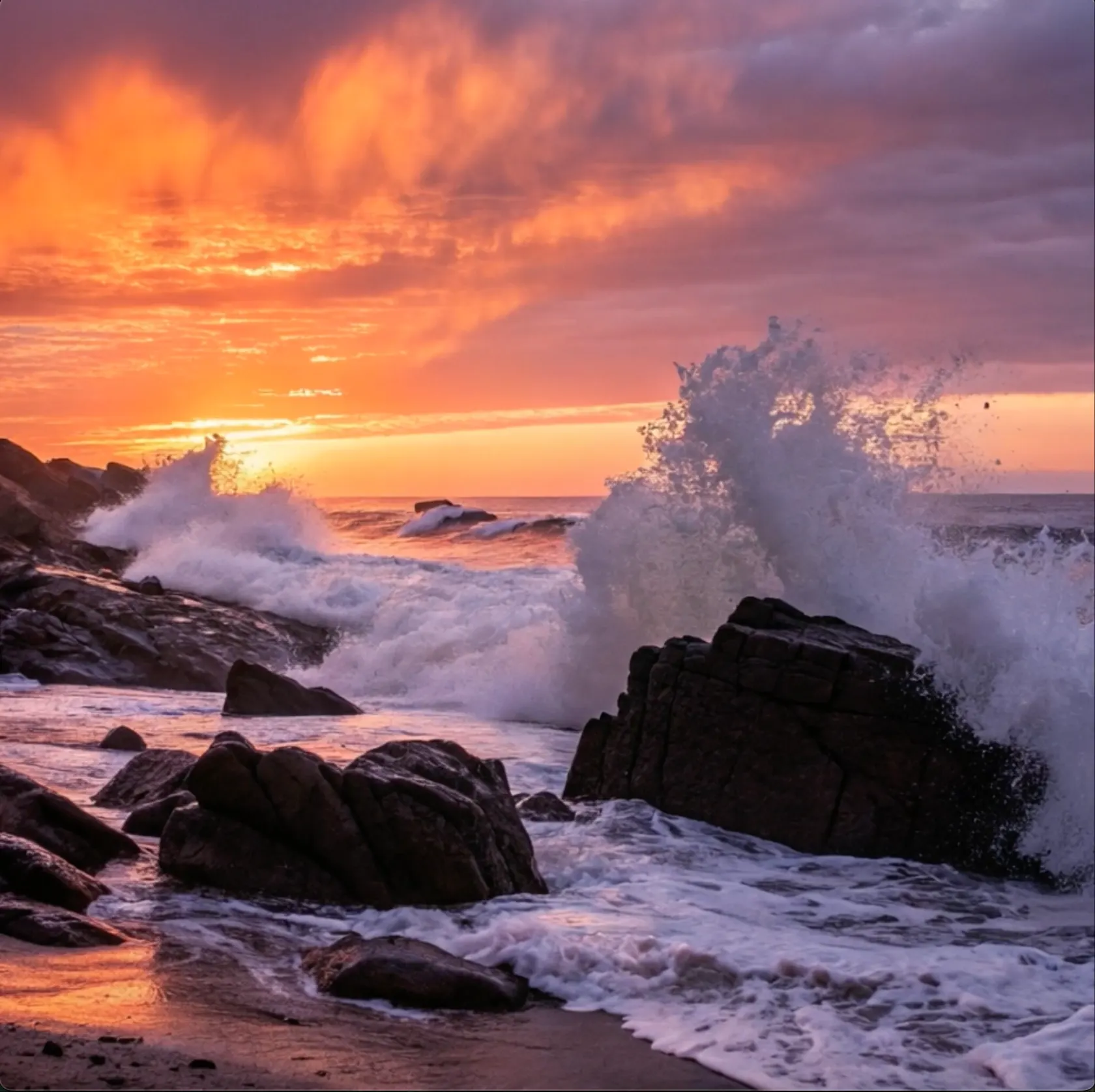
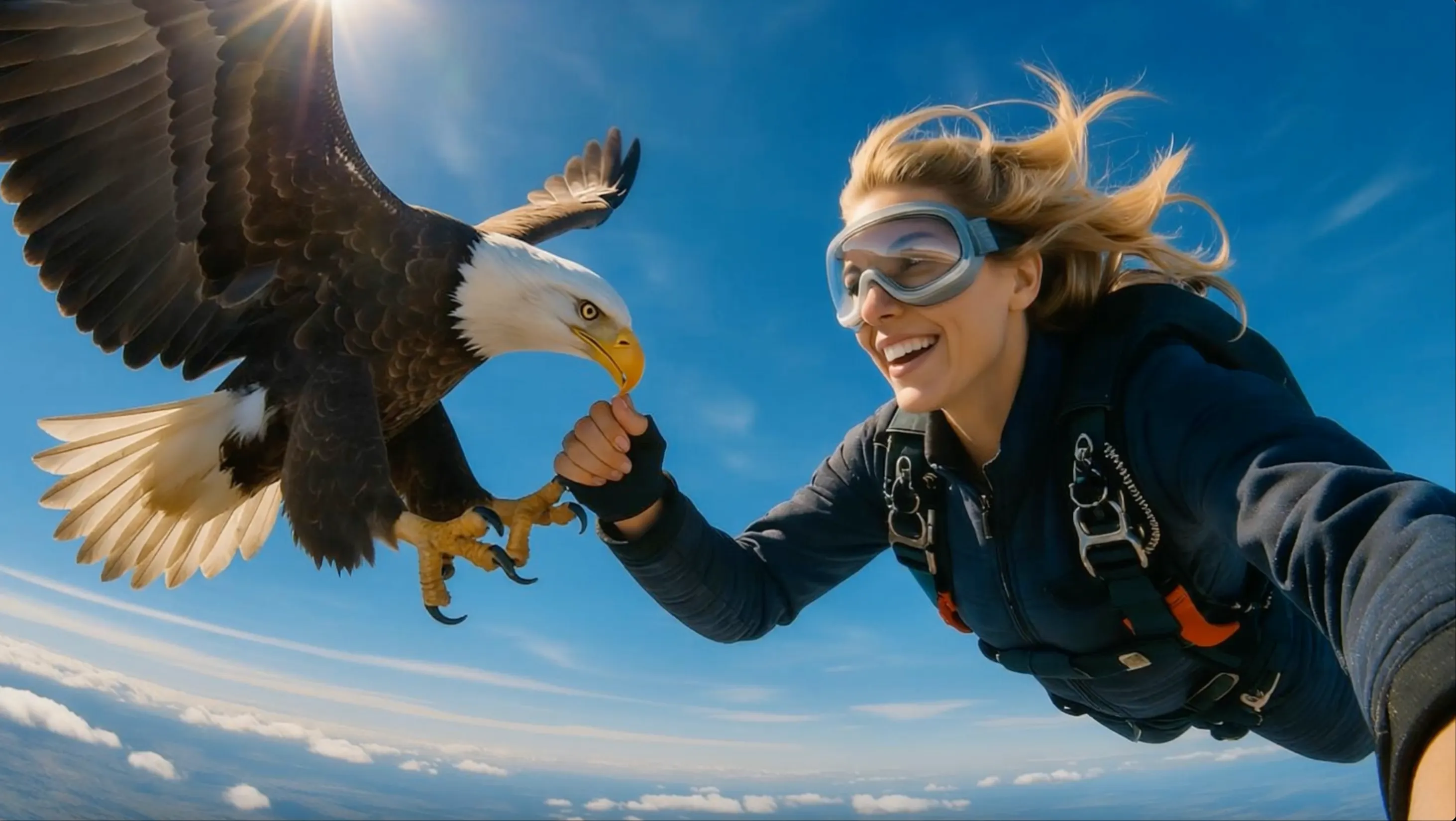
CINEMATIC AI VIDEO
Cinematic AI Videos with Camera Movement
Build a clear subject, setting, action, and camera move into one focused cinematic shot.
 Flow Studio
Create AI videos from text or images, choose the model that fits your shot, and control camera movement, format, duration, and start and end frames in one video workspace.
DAVINCI AI VIDEO EXAMPLES
Explore common DaVinci AI video ideas for cinematic scenes, product videos, social media clips, and animated photos.
CINEMATIC AI VIDEO
Build a clear subject, setting, action, and camera move into one focused cinematic shot.
IMAGE TO VIDEO
Turn a still image into a video while keeping its subject, framing, and visual style recognizable.
PRODUCT VIDEO
Turn a product image into a reveal, close-up, rotation, or lifestyle scene for a campaign.
WHAT IS DAVINCI AI
DaVinci AI is an AI video generator that turns text prompts and images into video. It brings multiple video models and practical shot controls into one creative toolkit.
TEXT TO VIDEO
Describe the subject, action, location, camera angle, lighting, and style to generate a video from scratch.
IMAGE TO VIDEO
Upload an image when the person, product, composition, or visual direction should guide the finished shot.
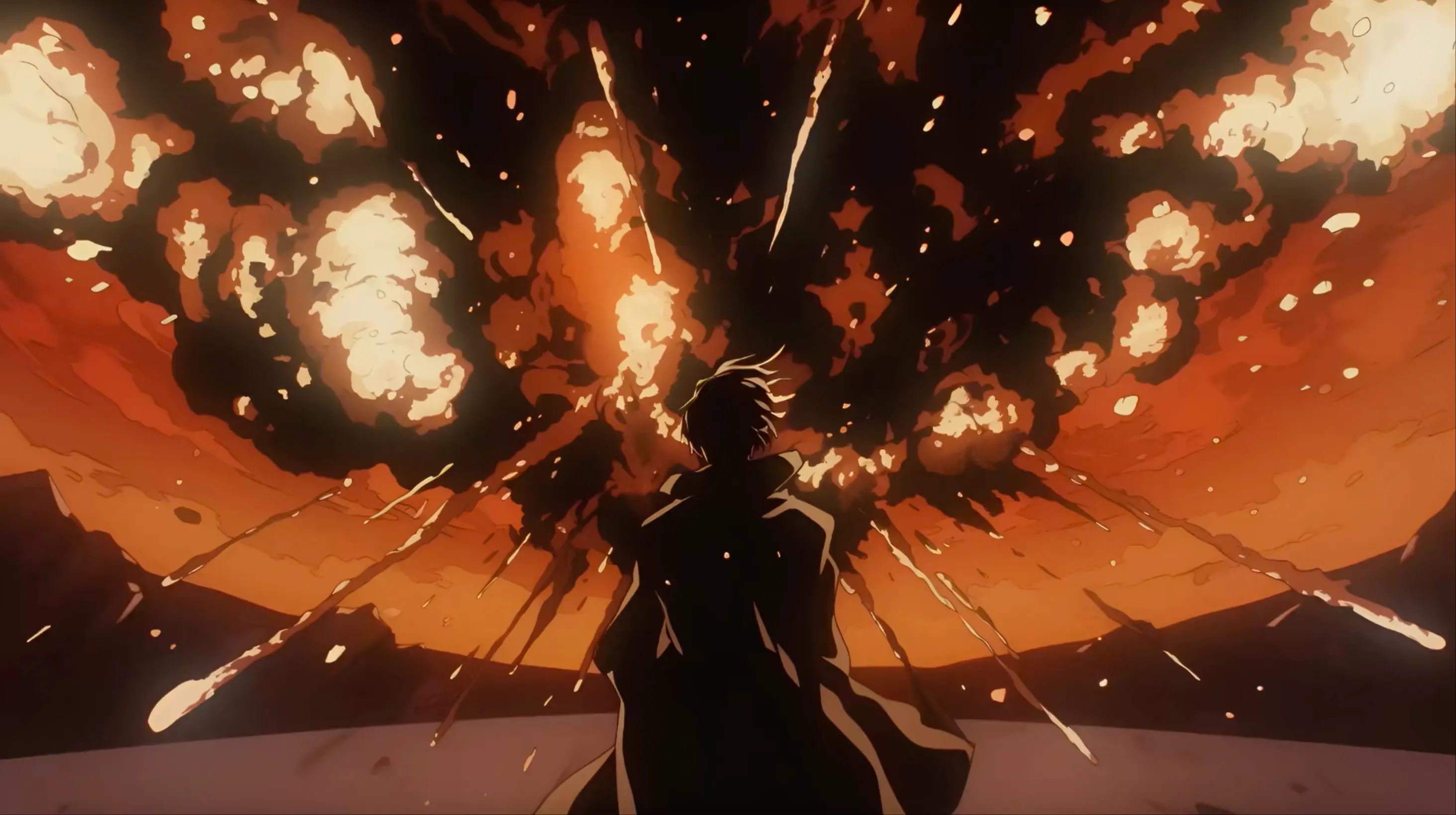 AI-generated cinematic scene created from a text promptTEXT TO VIDEO + IMAGE TO VIDEO
DAVINCI AI VIDEO BENEFITS
Create polished AI videos with leading models, text-to-video and image-to-video tools, camera controls, and quick revisions in one workspace.
LEADING AI MODELS
Choose the model that fits the shot, from realistic motion and cinematic scenes to fast drafts and stylized animation, without rebuilding your prompt.
TEXT OR IMAGE
Start with a prompt for a new scene, or upload a photo, product image, or illustration and turn it into a moving clip.
CAMERA CONTROL
Guide pans, zooms, tracking shots, and other camera moves, then add start and end frames when the shot needs a clear beginning and finish.
ALL-IN-ONE TOOLKIT
Keep prompts, visual references, generated clips, supporting images, and voiceover in one creative workflow.
HOW TO USE DAVINCI AI
Choose text to video or image to video, write a clear prompt, select an AI video model, and generate your clip.
STEP 01
Start with a text prompt to create a new scene, or upload an image to animate a person, product, artwork, or existing composition.
STEP 02
Add the subject, action, setting, shot type, camera movement, lighting, and visual style you want in the generated video.
STEP 03
Pick a video model for the look and motion you need, then set the aspect ratio, duration, quality, and start or end frame when available.
STEP 04
Create the video, check the motion and framing, refine the prompt or settings if needed, and download the version you want to keep.
WHO CREATES WITH DAVINCI AI
DaVinci AI works well for people who want multiple video models, image animation, camera controls, and mobile creation in one place.
MOBILE VIDEO
Make social clips, animate photos, test new ideas, and review video drafts from a phone or desktop.
PRODUCT VIDEO ADS
Animate product photos, create launch videos, and make different ad versions for social media and paid campaigns.
FILM AND STORY
Test camera angles, opening shots, B-roll, and scene ideas before filming or starting the final edit.
FREELANCE VIDEO
Compare video models, prepare campaign drafts, and deliver new versions without moving between several tools.
WHAT YOU CAN CREATE
Create cinematic AI videos, product ads, social media clips, animated photos, storyboards, and music videos from text or images.
CINEMATIC AI VIDEO
Turn a written idea into opening shots, character moments, action scenes, and cinematic backgrounds.
PRODUCT VIDEO ADS
Animate a product photo with close-ups, camera movement, lighting changes, and lifestyle scenes for ads and product launches.
SOCIAL MEDIA VIDEOS
Generate vertical video hooks, quick transformations, and short stories made for mobile social feeds.
IMAGE TO VIDEO
Add natural movement to portraits, artwork, landscapes, and old photos while keeping the source image recognizable.
AI STORYBOARD
Turn a script or campaign idea into visual scenes to compare shot order, framing, pace, and style before making the final video.
MUSIC VIDEO
Create performance shots, animated cover art, cinematic backgrounds, and looping visuals for songs and teasers.
Choose a credit option based on how many video drafts, model comparisons, and final clips you plan to create.
Perfect for hobbyists and beginners
Everything you need to start:
For teams and businesses
Everything in Basic, plus:
For creators and professionals
Everything in Basic, plus:
DAVINCI AI FAQ
Clear answers about DaVinci AI text-to-video, image-to-video, video models, prompts, camera control, start and end frames, and output settings.
DaVinci AI is a creative toolkit for AI image, video, and voiceover generation. Its video generator supports text and image inputs, multiple video models, and shot settings in one workspace.
Yes. Enter a prompt that describes the subject, action, setting, camera movement, lighting, and style, then choose a video model and output settings.
Upload a clear image, describe the motion and camera action, select the model and format, then generate the clip. The image guides the subject, framing, color, and style.
Choose by task. Some models are better for realistic motion, some for cinematic control, and others for fast drafts or stylized scenes. Compare a small number of versions using the same prompt or image.
Start with the subject and visible action. Add the setting, shot size, camera movement, lighting, and style only when each detail helps the main scene.
Supported models let you provide opening and closing images. This can guide a transformation, transition, reveal, entrance, or final composition.
Yes. Choose a vertical, square, or widescreen format that fits the placement, then create product videos, campaign scenes, social clips, or short story content.
Yes. Review the motion, framing, and subject consistency, then change one prompt detail, frame, model, or output setting and generate another version.
AI VIDEO GENERATORS AND MODEL TOOLS
Find text-to-video, image-to-video and reference video tools for camera movement, realistic motion, talking characters and product ads.
CREATE WITH DAVINCI AI
Write a prompt or upload an image, choose the right model for the shot, and create a video for film, social media, or marketing.
Create a DaVinci AI Video