Text to video
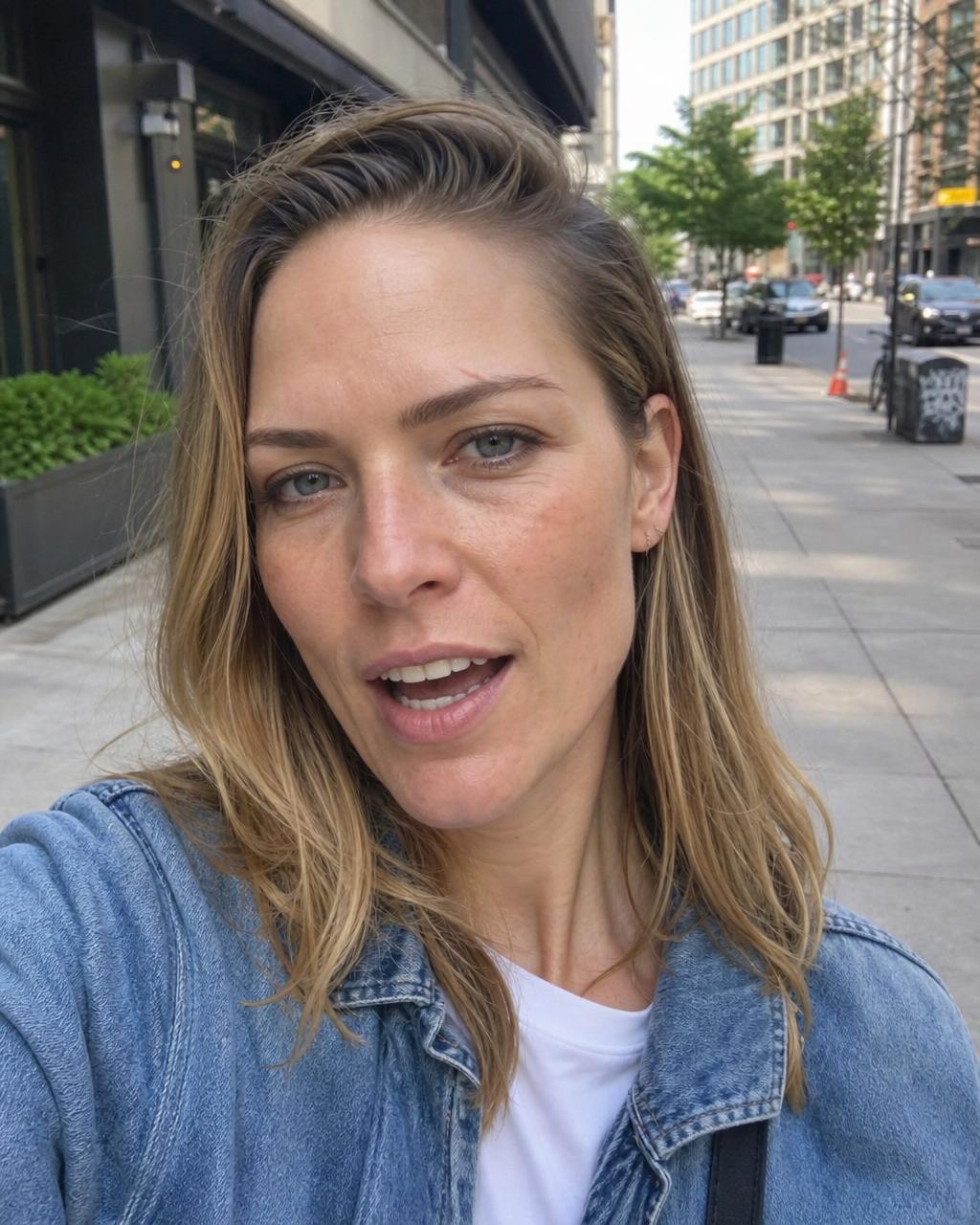
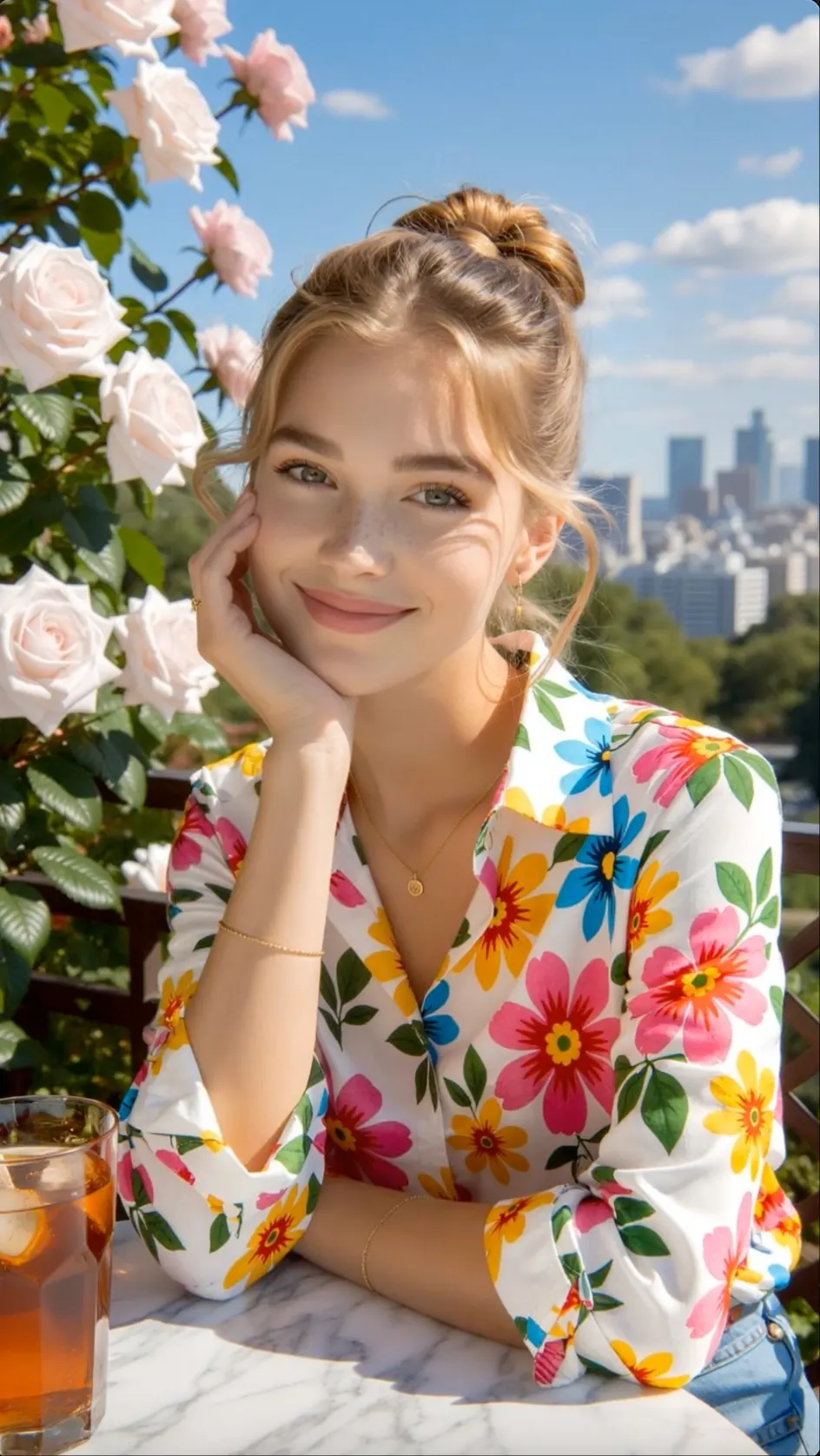
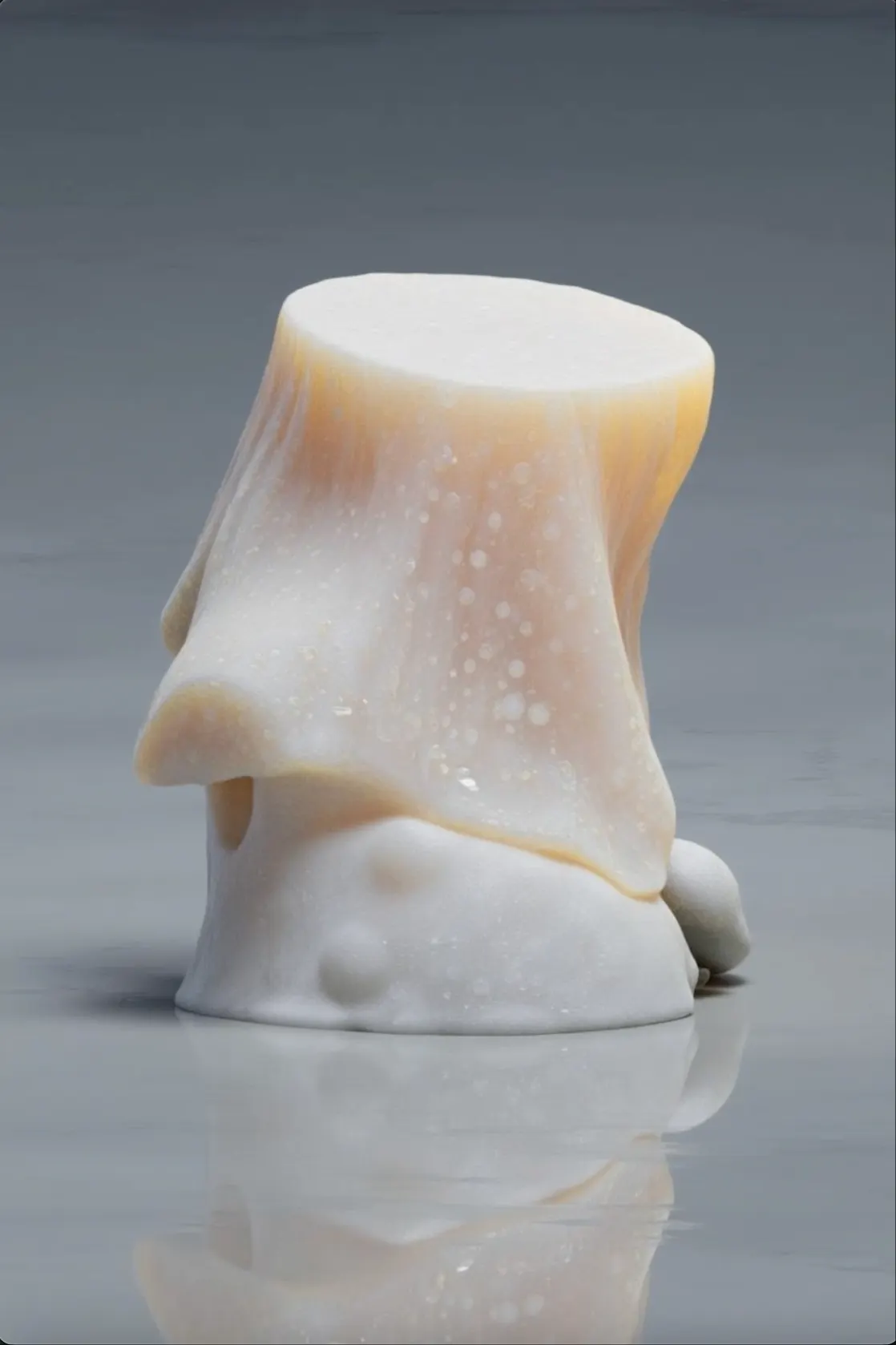
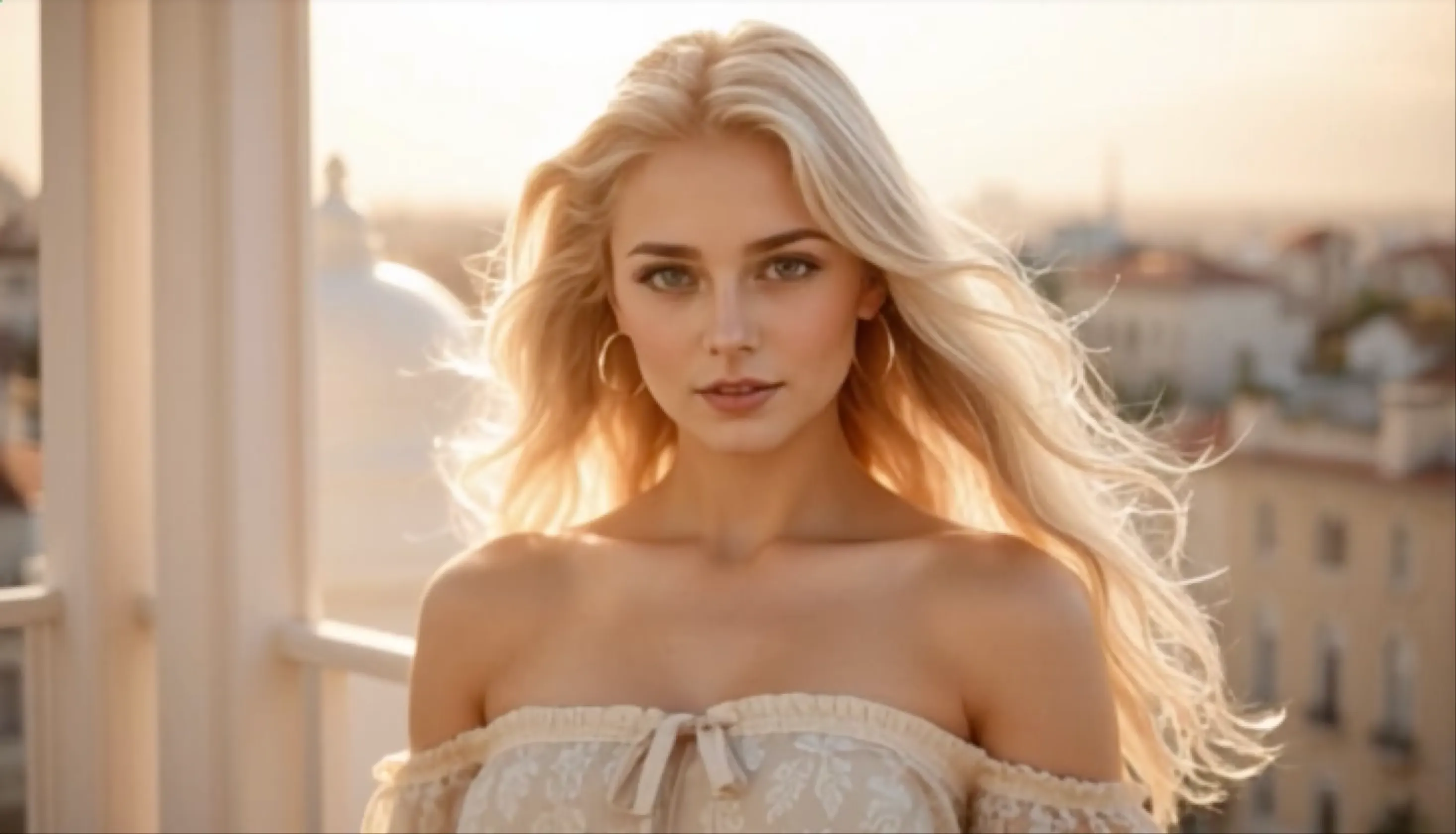
01Generate a New Scene from a Written Idea
Write the subject, action, location, and camera move to build a fresh video scene without a starting image.
 Flow Studio
Turn a prompt, source image or visual reference into an AI video concept. Direct the subject, action, camera and style, then generate and refine your scene in one workspace.
WHAT YOU CAN CREATE WITH VIDU AI
Use text to video, image to video, or reference to video to create new scenes and keep characters, products, and settings consistent.
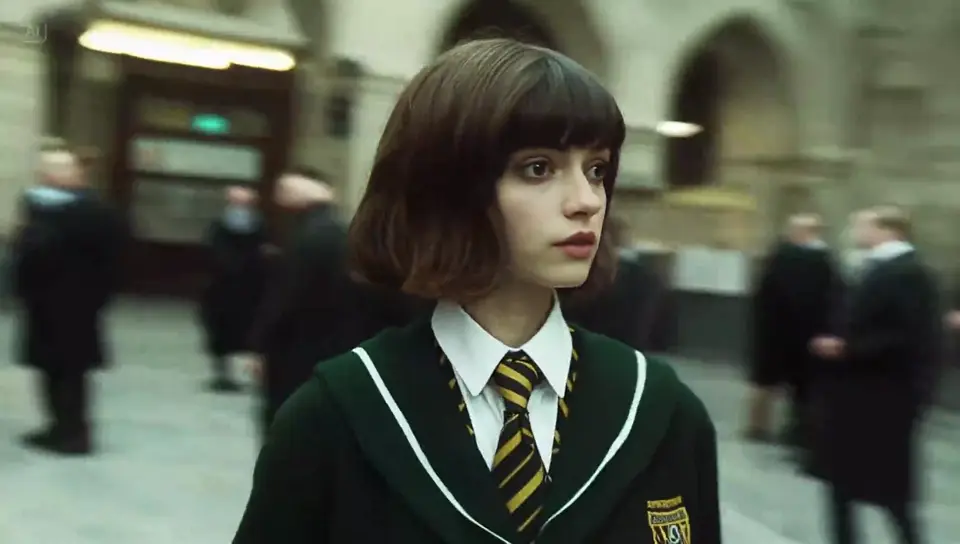
Text to video
01Write the subject, action, location, and camera move to build a fresh video scene without a starting image.
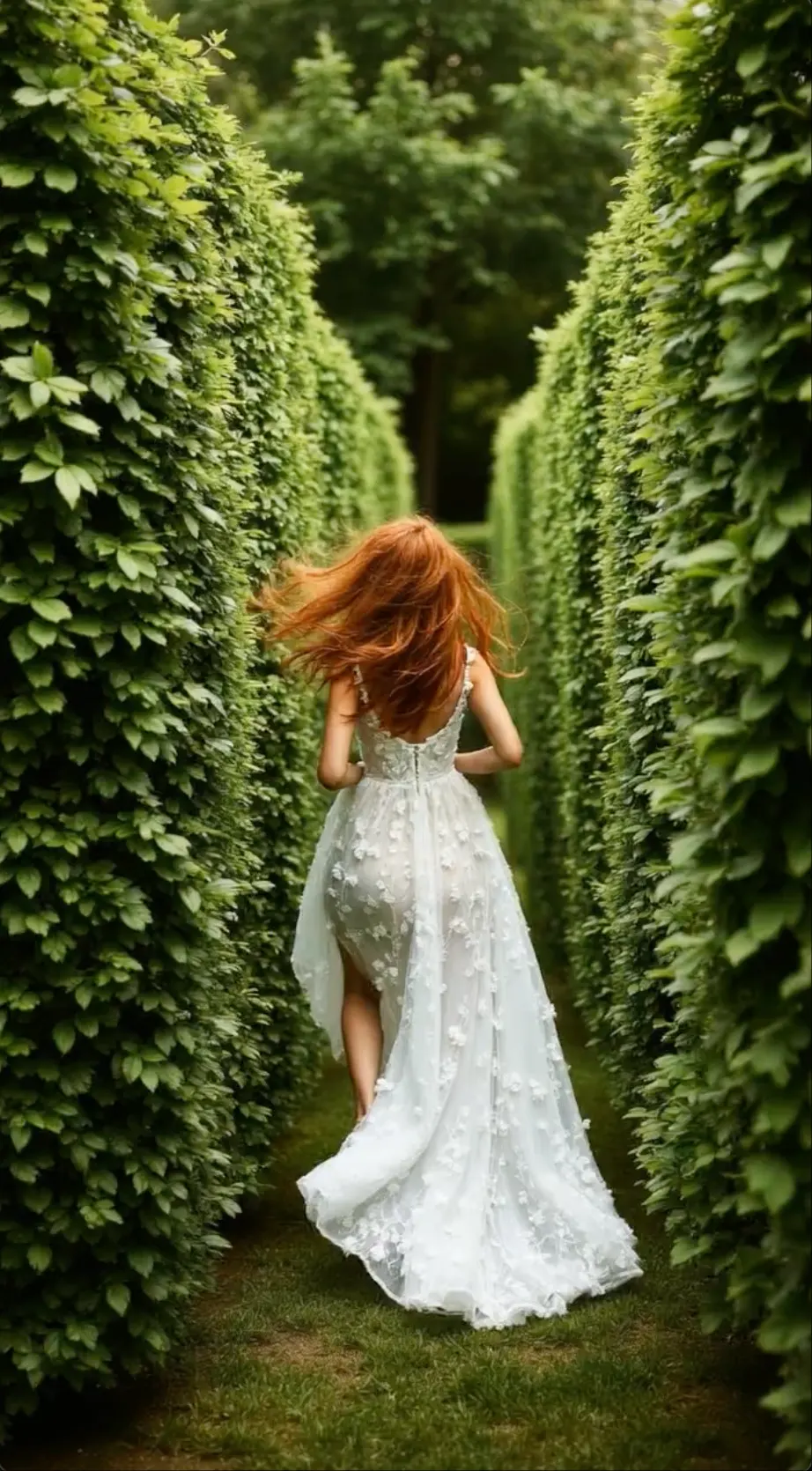
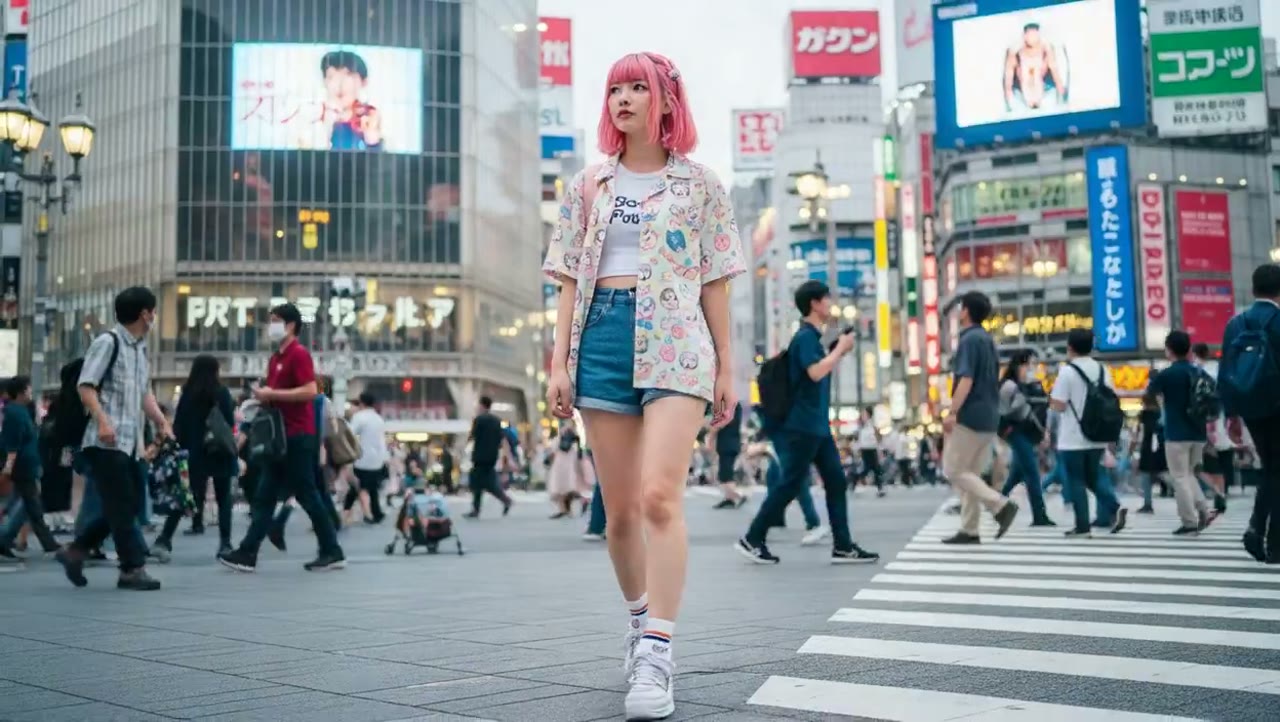
Image to video
02Upload a portrait, item, or illustration and explain what moves while the original look stays easy to recognize.
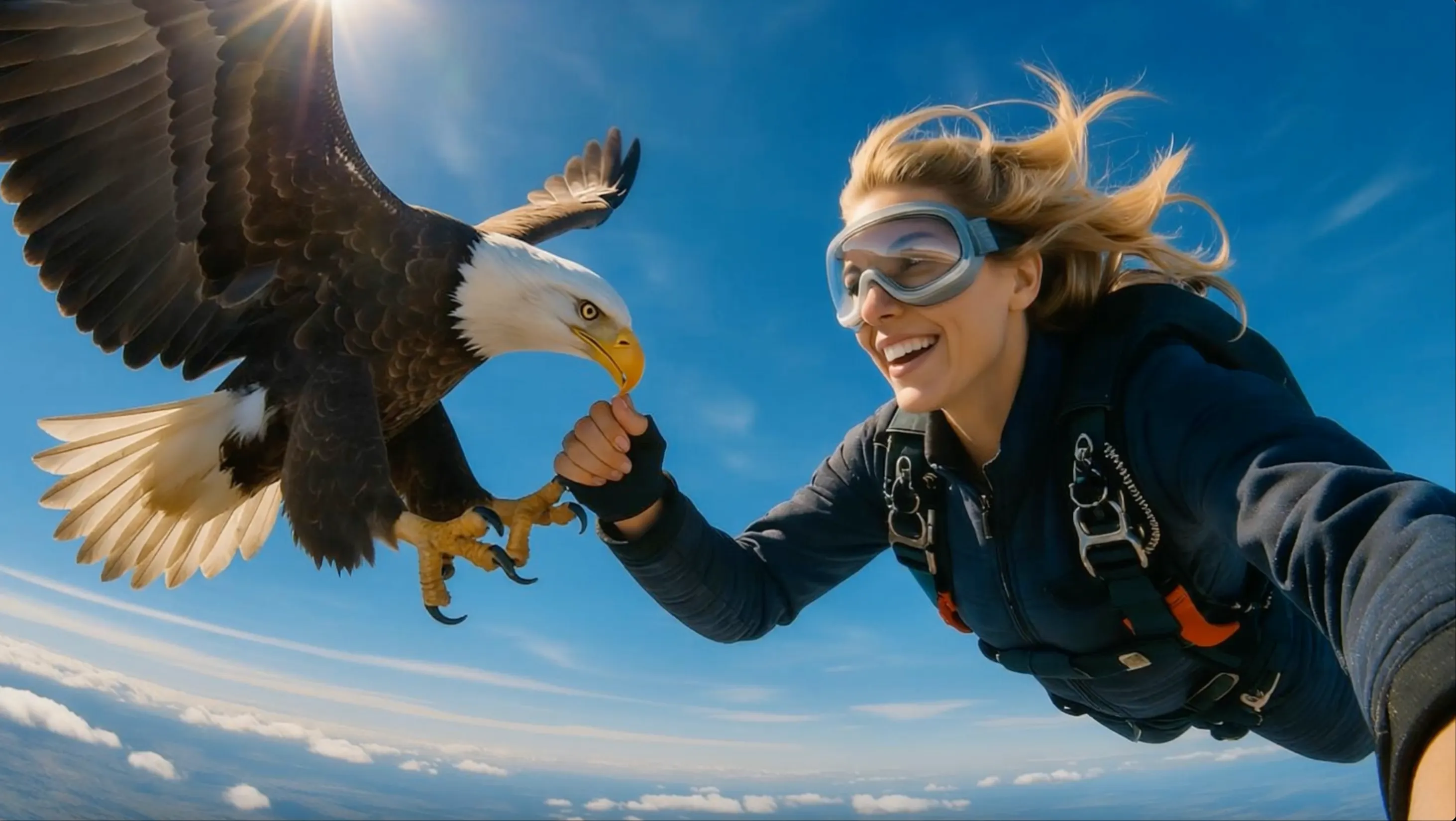
Reference to video
03Use multiple views as references so a person, object, or setting remains familiar through a new action and camera angle.
Vidu AI video benefits
Use text, images or multiple subject references to create short clips while keeping people, products and visual styles easier to recognize.
Multiple references
Combine separate character, product, and style images to give a new scene a clearer look.
Multi-subject consistency
Guide how multiple people or objects appear together while preserving the details that matter across the clip.
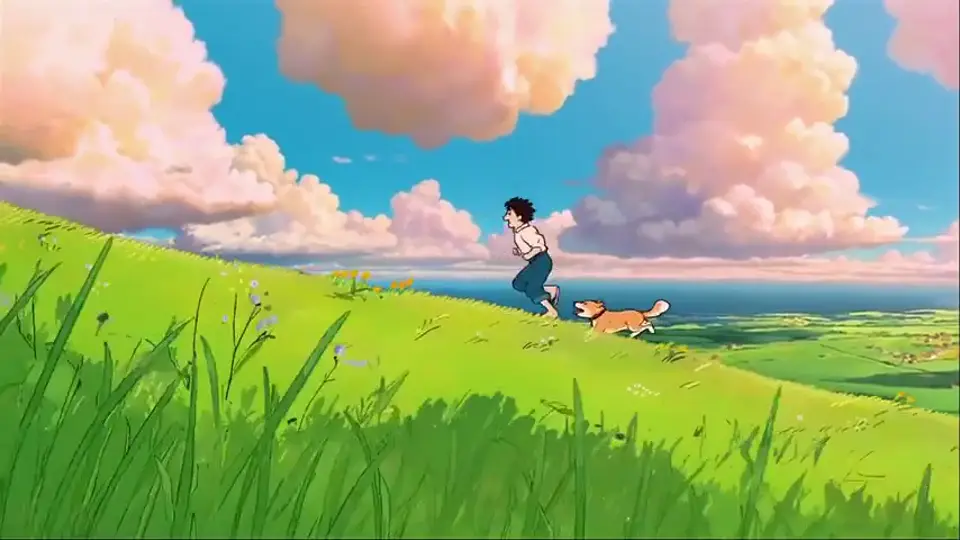
2D and anime styles
Add movement to drawn characters and stylized images while keeping the original visual language recognizable.
Flexible output controls
Choose the available movement strength and output settings that fit a quick test, social post or polished edit.
How to create a Vidu AI video
Select a Vidu creation mode, add the source material, choose the output, and turn the idea into a finished clip.
Step1
Use Text to Video for a fresh scene, Image to Video for a moving photo, or Reference to Video when the same subject must remain recognizable.
Step2
Upload the material you want to use, then explain the subject, action, setting, and camera direction in plain language.
Step3
Pick a general or ecommerce workflow when available, then set the aspect ratio and video length for the final placement.
Step4
Run the generation, watch the complete video, and check the subject, timing, and movement before saving or making a revised version.
Who uses Vidu AI
Vidu AI is a practical choice for anime video, character animation, reference-based clips and quick product or story scenes.
Anime video
Animate manga panels, character illustrations and stylized key art for openings, edits and short anime scenes.
Character consistency
Use reference images to keep a recurring hero, mascot or visual world recognizable across several shots.
Product advertising
Move a packshot into a product reveal, lifestyle setup or social ad without rebuilding the item in 3D.
Pre-production
Test character action, camera movement and scene transitions before committing to a longer animation or live-action shoot.
Vidu creator reviews
Read how creators use Vidu AI for text to video, image to video, reference-to-video consistency, anime clips, product videos, and story planning.

Vidu AI is useful when I want to animate a character without losing the original design. Reference images help me keep the face, outfit, and overall style recognizable across different actions.
Review credit options for occasional Vidu AI experiments, regular social production and ongoing creative work.
Perfect for hobbyists and beginners
Everything you need to start:
For teams and businesses
Everything in Basic, plus:
For creators and professionals
Everything in Basic, plus:
Vidu AI FAQ
Clear answers about Vidu text-to-video, image animation, reference images, first and last frames, free credits, resolution and downloads.
Vidu is an AI video generator from ShengShu Technology. It supports text-to-video, image-to-video, reference-to-video, and first-and-last-frame workflows.
Write a prompt with the subject, action, setting, camera move, and style. Vidu reads the full description and generates a new scene without requiring a starting image.
Image to Video animates one starting image and can use first and last frames. Reference to Video uses several views of a character, object, or scene to improve consistency in a newly generated clip.
The number of reference images depends on the selected Vidu model and workflow. Check the upload counter and current model settings before generating.
Yes. A supported first-and-last-frame workflow lets you choose how the video begins and ends while Vidu creates the motion between those images.
Available trial credits and generation costs depend on the current plan or promotion. Check the pricing page and your workspace balance before generating.
Available resolution, duration, and credit use depend on the selected Vidu model and output settings. Review the current options before generating.
Flow AI Video does not add its own logo to the downloaded file. Any provider-level watermark or usage rule depends on the selected service and plan.
Explore more AI video tools
Compare related workflows for Chinese prompts, cinematic camera movement, image animation and short social videos.
Create with Vidu AI
Select the creation mode, add your prompt and visual material, then choose the aspect ratio and length before generating the clip.