 Text-to-Video Generator
From words and photos to motion
Seedance 3.0 AI Video Generator
Turn your words or photos into short videos. Describe a scene, add movement, and create a clip for TikTok, YouTube Shorts, or your next product launch.
|
0/2000
Why choose us
Why Choose Seedance 3.0 for Your Next Video?
Make short videos from the ideas and photos you already have, without arranging a new shoot for every post.
Create without a camera
Describe the scene you need and generate a clip. You can try a video idea without finding a location, hiring actors, or recording footage.
Get more from photos you already have
An old travel photo or a recent product picture can become the starting point for a new post. You do not need fresh footage for every video idea.
Try a new opening for your next post
Test a quiet start, a surprising action, or a closer view before choosing your clip. Keep the version that best introduces your story.
See the credit cost upfront
Check the credits shown for your chosen model and video settings before you generate. Decide what to create with your remaining balance.
Creative inspiration
Find Inspiration for Your Seedance 3.0 Videos
Use this inspiration gallery to find a starting point for your story, from a quiet portrait to an outdoor adventure.
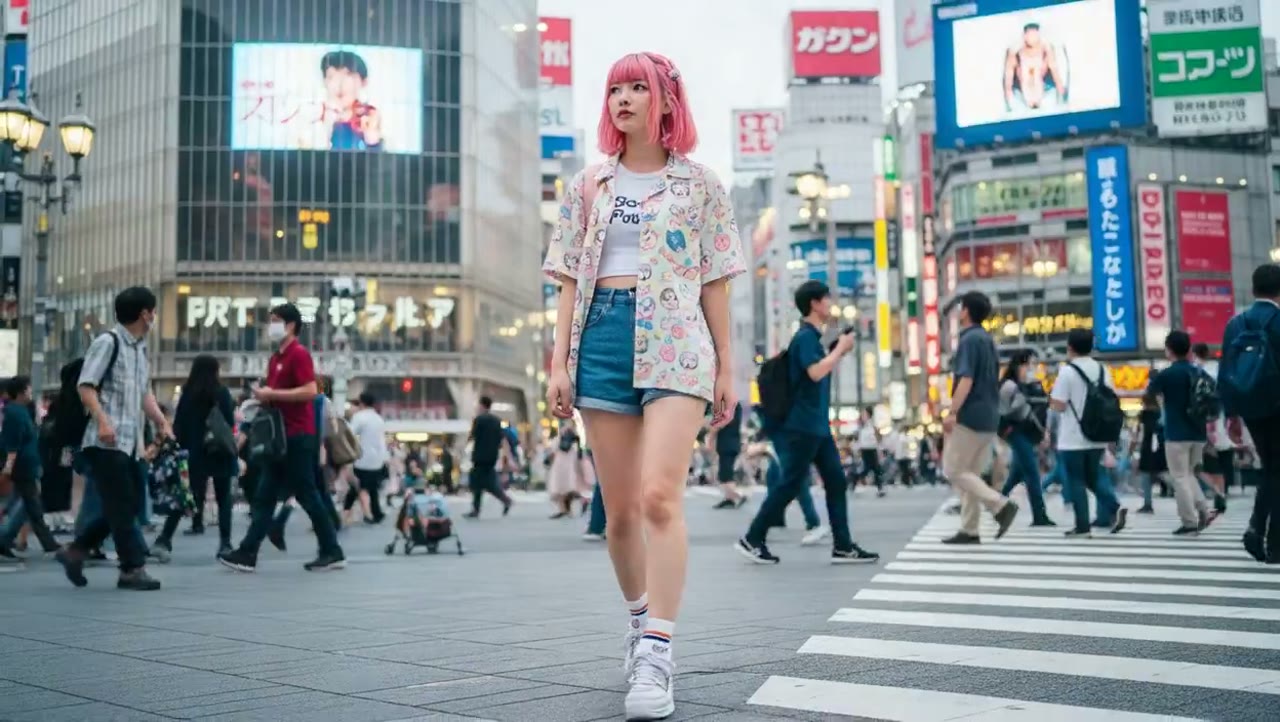
A scene with a slow camera move
Keep the setting simple so the camera movement is easy to follow.
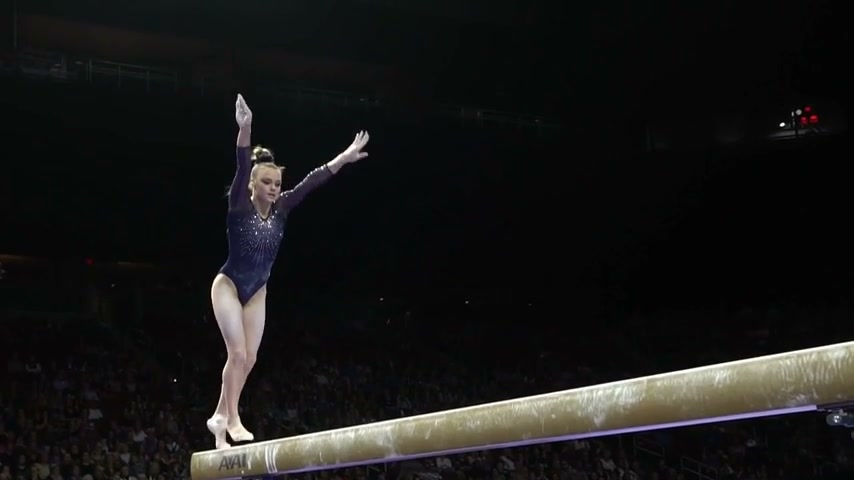
A character in motion
Build a short story around an expression or a small gesture.
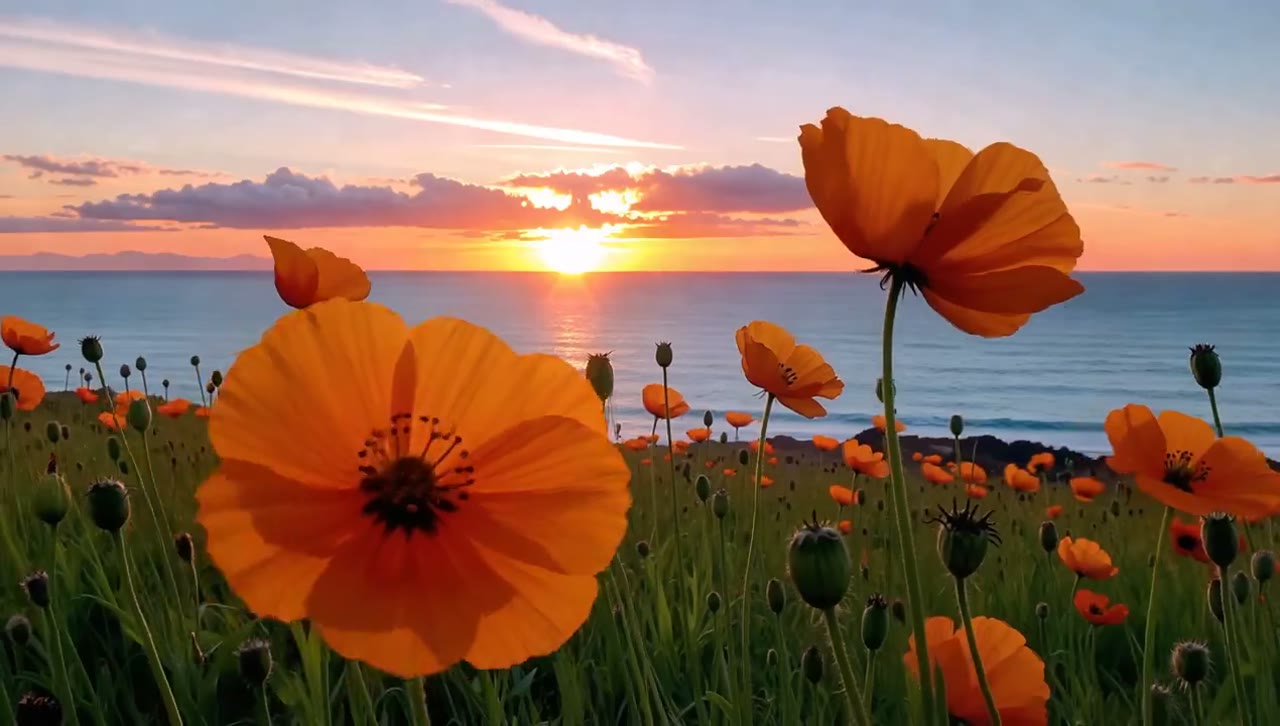
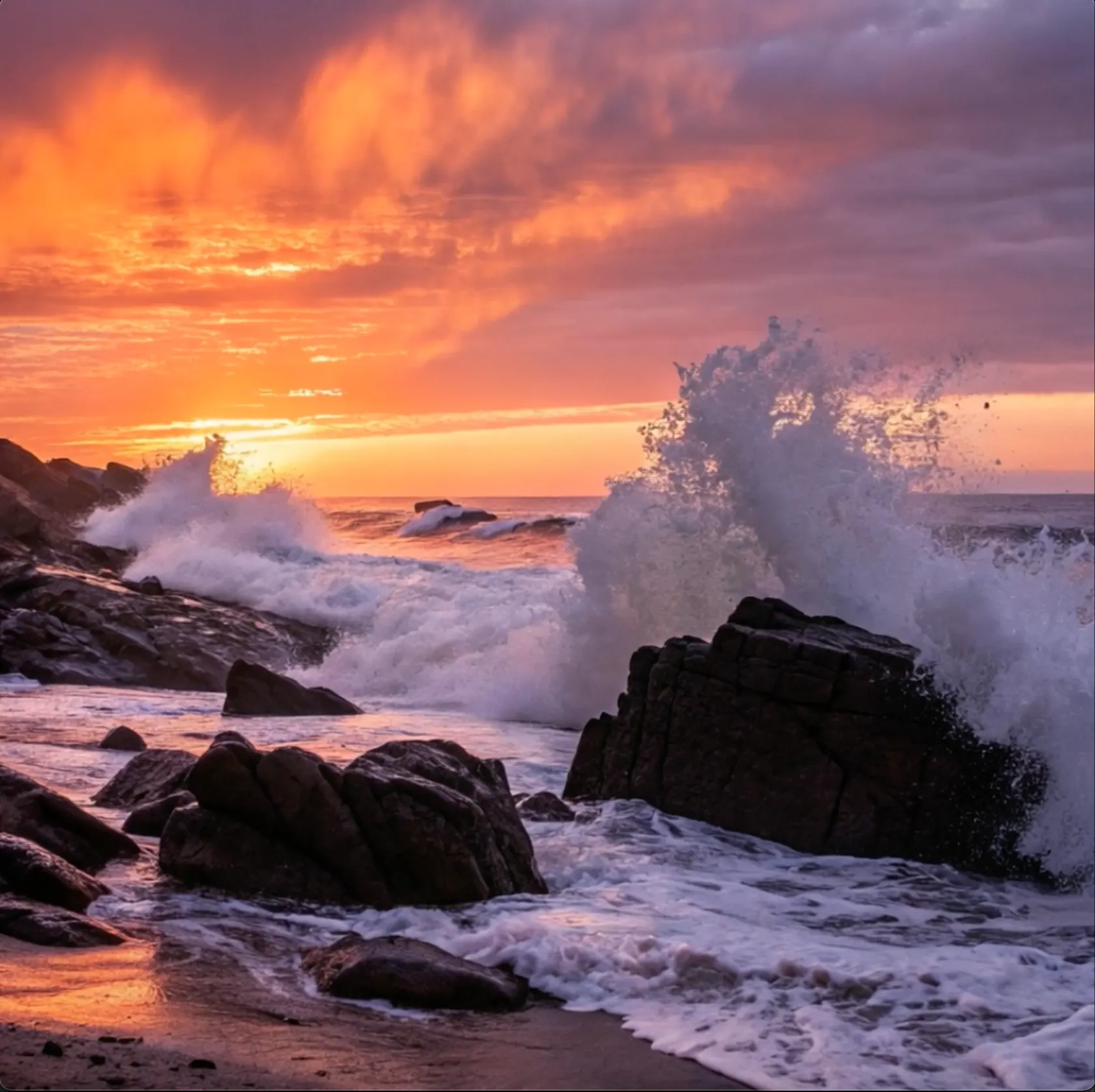
Sunset by the sea
Make the waves the main action and let the warm light set the mood.
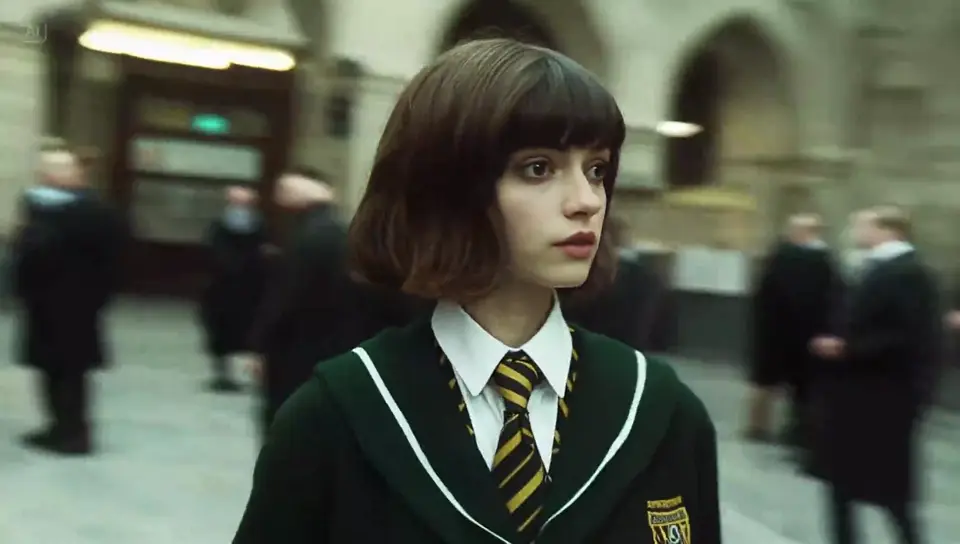
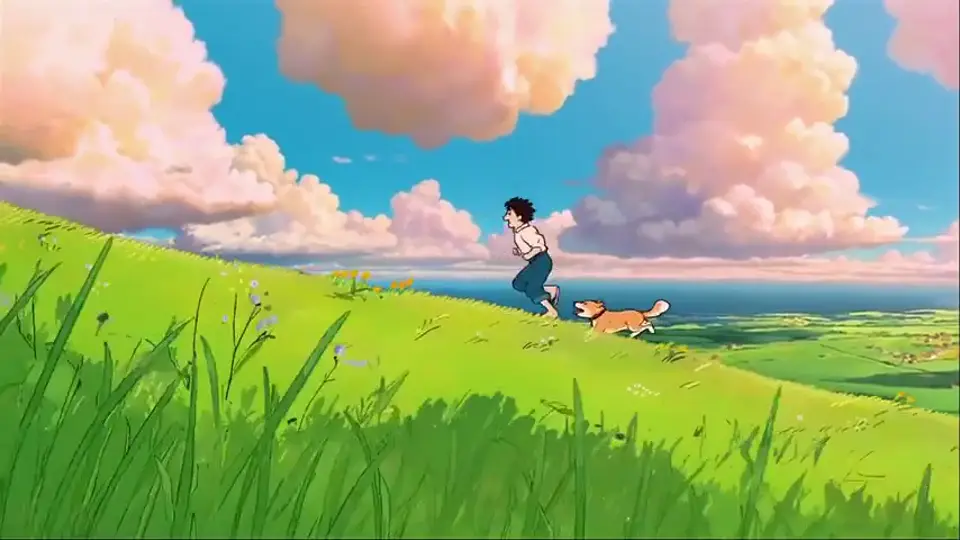
An unexpected adventure
Pair a familiar character with a surprising moment for a short story hook.
Ideas to create
What Can You Make with Seedance 3.0?
Fill your next post with a quick story, a useful tip, or a moment from your day.
TikTok and Reels clips
Build a short everyday scene, such as making coffee or walking through a busy market. Add your caption and music in your usual editor.
YouTube Shorts stories
Create a single moment for a short story: a door opens, a visitor arrives, or a lost item turns up. Use the clip as part of your next episode.
Clips for tips and tutorials
Make a simple visual to go with a cooking tip, a daily habit, or a travel guide. Add your own explanation when you put the video together.
Photos with movement
Add a sense of life to a holiday photo or an outdoor portrait. Describe a gentle breeze, moving water, or a small smile.
From idea to result
How to Make Your First Seedance 3.0 Video
Keep the first clip simple. A clear subject and one main action are enough to get started.
Add your idea or photo
Type the scene you want to see, or upload a photo to guide the look of your video.
Describe the action
Say what moves and what the camera should do. Add a few words about the setting and mood.
Choose your video settings
Select an available model, size, and duration. Check the credit cost, then generate your clip.
Preview and save
Watch the result. Adjust the prompt for another take, or download the clip when you are happy with it.
Made for your work
Who Is Seedance 3.0 For?
For people who post regularly and need fresh video ideas without turning every post into a full shoot.
TikTok creators
Turn a story idea or a photo into a short clip for your next post. Try different opening scenes for your series.
Small business owners
Keep your business page active between product launches with short scenes for seasonal posts and store updates.
YouTube creators
Make opening shots and extra footage to add to your main video, or create a short scene for YouTube Shorts.
Bloggers and educators
Give a written tip or lesson a visual example to share alongside your explanation.
Common questions
Seedance 3.0: Frequently Asked Questions
Answers about starting with a photo, writing your scene, and saving a finished clip.
How do I turn an idea into a video?
Describe the subject, setting, and main action. Choose a model shown in the generator and review its settings before submitting your prompt.
Can I start from my own photo?
Use the reference upload with a model that accepts images. A clear photo and a short description of the movement give you a focused starting point.
What should I write in a video prompt?
Use a sentence such as: A cyclist rides along a quiet road as the camera follows from the side. Then add the lighting or mood you want.
Can I make a vertical video for social media?
Choose a portrait aspect ratio if the selected model offers it. Keep the main subject near the center and check the crop before posting.
How many credits will a video use?
The generator shows the credit cost for your selected model and settings. Review that amount before you generate; there is no single price for every video.
Which model creates my video?
Your video uses the model selected in the generator. Check its name, video settings, and credit cost before you start.
Keep creating
Explore More Video Tools Beyond Seedance 3.0
Turn your next story into a video, animate a photo, or explore a different video tool.