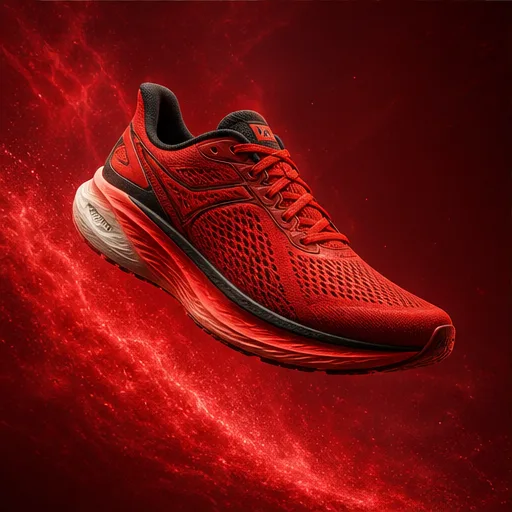
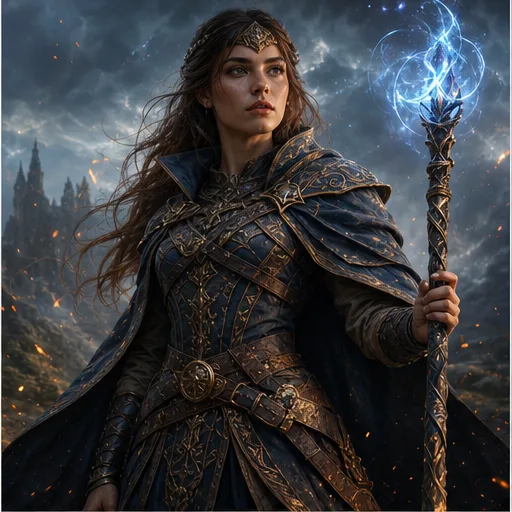
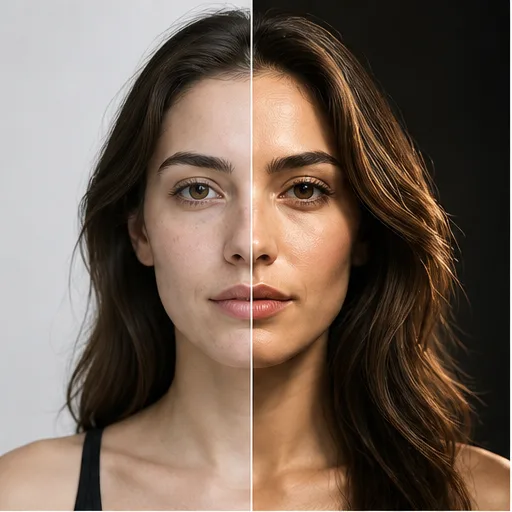
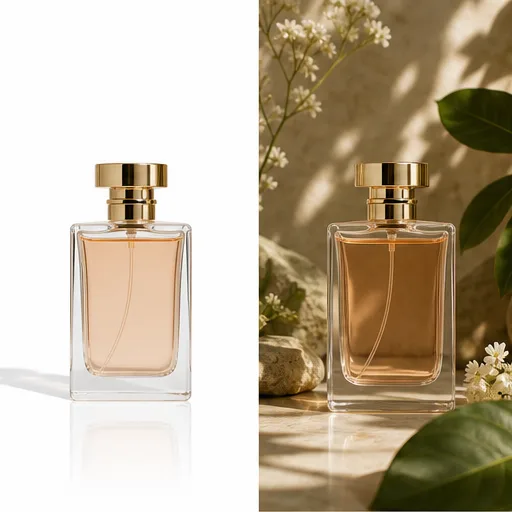
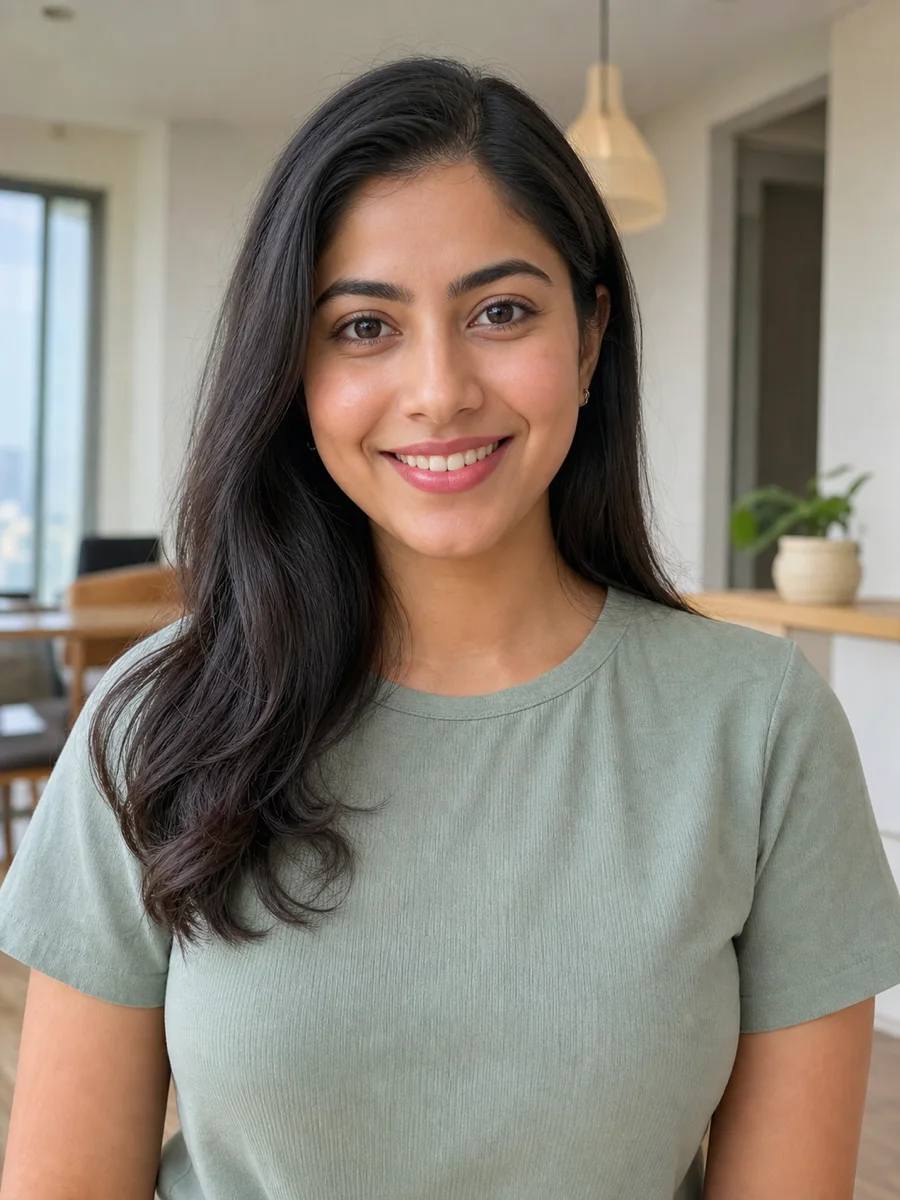
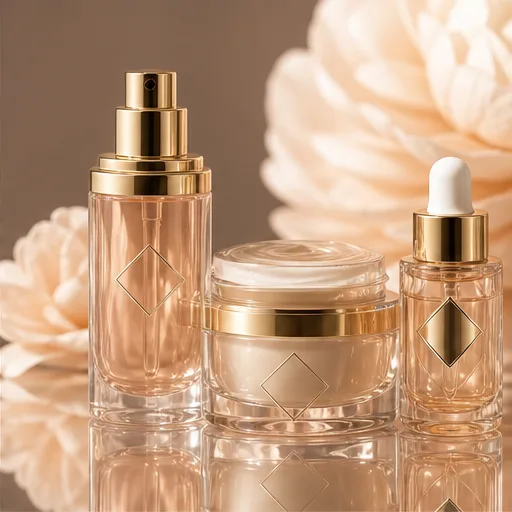
 01Product photo
Editorial Product Photo
Prompt idea
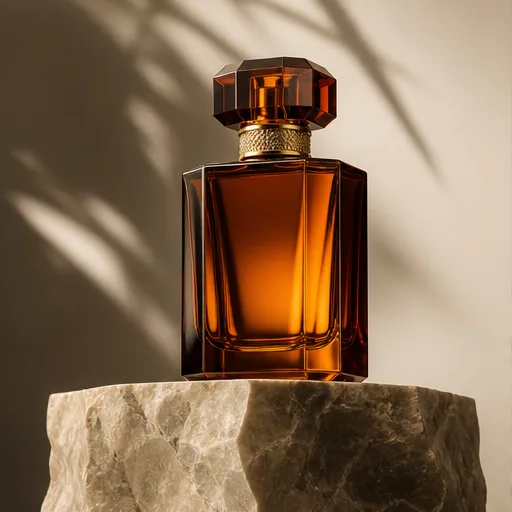
A minimalist skincare bottle on pale limestone, warm window light, soft shadows, premium editorial product photography, square composition.
 Flow Studio
Text to image · Photo editing
Turn a few words into an image, or give an existing photo a new look. Create product shots, portraits, and social graphics in one online image workspace.
Start with a prompt or photo. Choose your model and review credits before generating.
Why choose this image workspace
Spend more time on the idea and less time setting up a design. Start with everyday words, build on photos you already have, and explore different looks before choosing your favorite.
Ask for a brighter background, a different outfit, or softer light. You can explain the look you want without learning layers, masks, or complex editing tools.
Add reference photos to guide the subject, colors, and style. Give the generator a visual starting point instead of describing every detail from scratch.
Choose how many images to generate and compare the results. Try a new setting or composition before spending time on your final design.
Use the same browser-based workspace on your phone or computer. Upload a photo, write your prompt, and download a result without installing an image editor.
Find a visual direction
Browse visual examples and sample prompts for inspiration, then describe the image you want to create.
01Product photoPrompt idea
A minimalist skincare bottle on pale limestone, warm window light, soft shadows, premium editorial product photography, square composition.
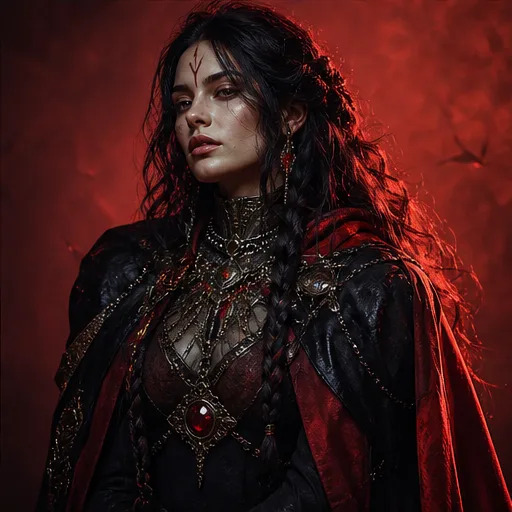 02Character design
Prompt idea
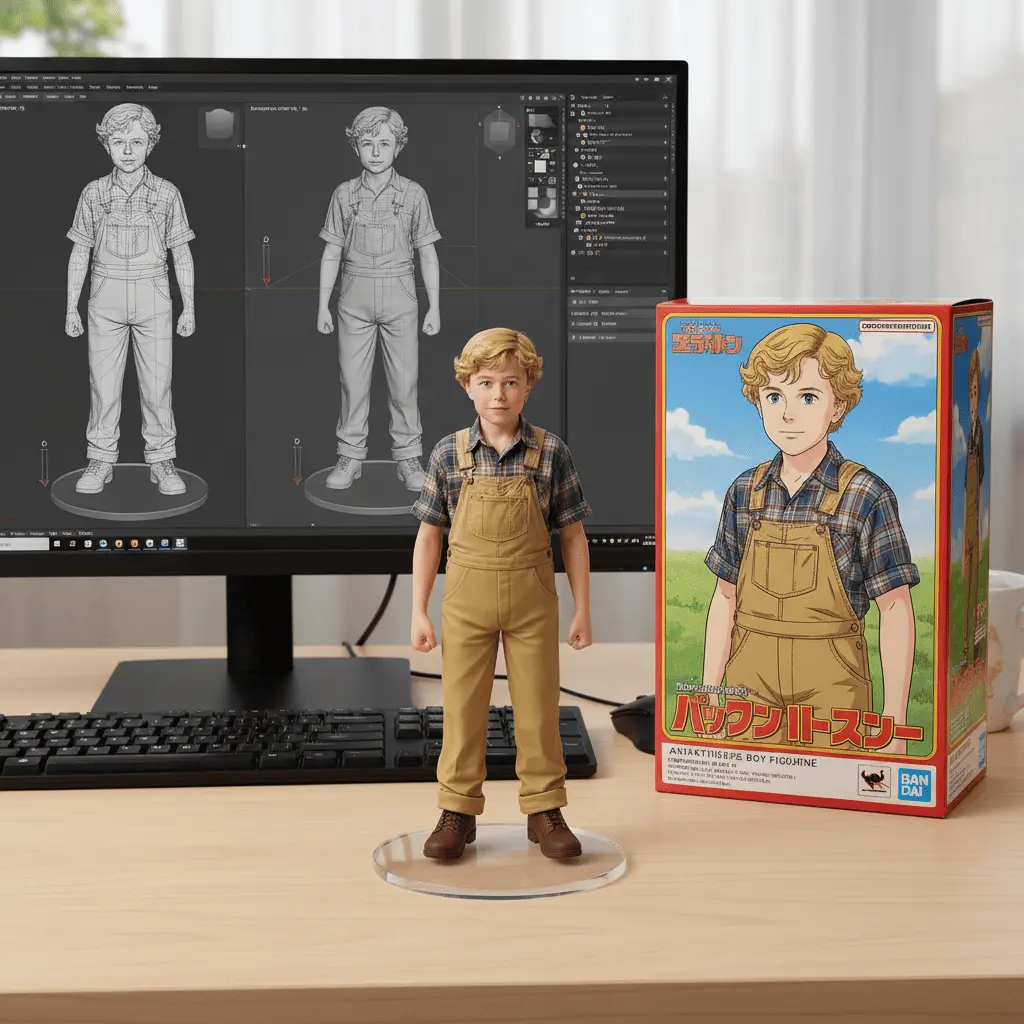
A determined space navigator in a weathered flight suit, cinematic rim light, shallow depth of field, realistic skin detail, dramatic portrait.
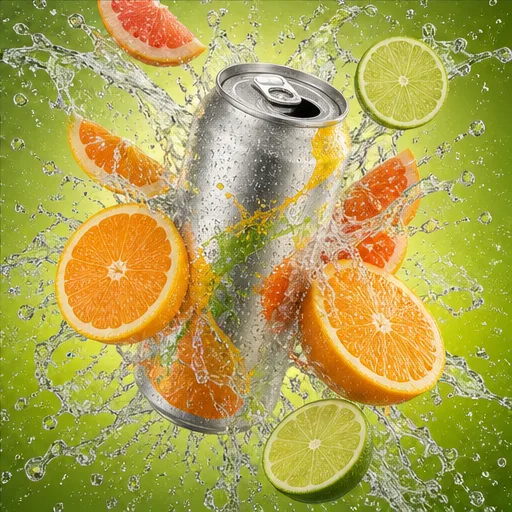 03Social graphic
Prompt idea
A bold summer drink campaign with citrus slices, condensation, bright cyan background, energetic studio lighting, clean space for a headline.
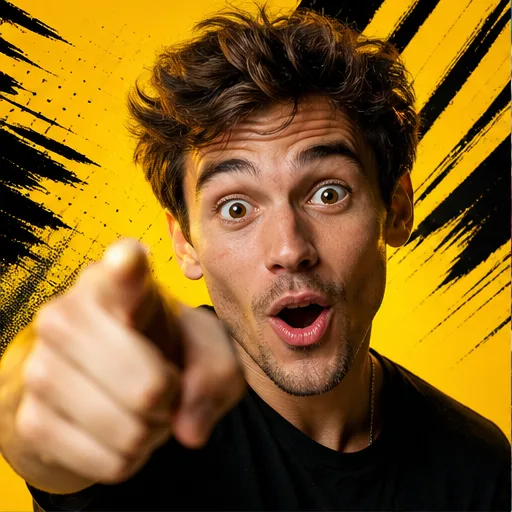 04Thumbnail
Prompt idea
High-contrast creator thumbnail about a productivity challenge, expressive portrait, clear focal point, vivid yellow accents, room for large text.
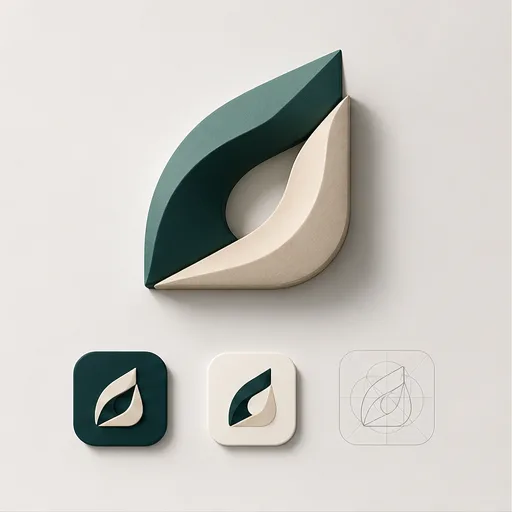 05Brand concept
Prompt idea
A clean geometric logo concept for a modern outdoor coffee brand, mountain and sunrise motif, simple vector shapes, two-color identity system.
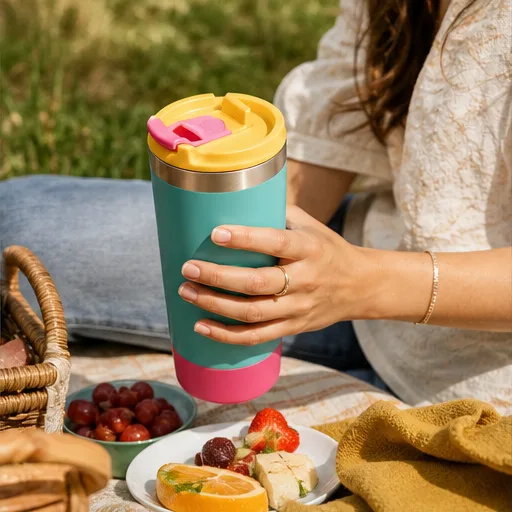 06Lifestyle image
Prompt idea
Wireless headphones on a commuter desk beside a notebook and coffee, natural morning light, realistic lifestyle photography, calm neutral palette.
Images for everyday projects
Make a useful first image for a real project. Choose the subject and format, then describe the setting, colors, and details that matter to you.
Place a skincare bottle, accessory, or other product in a studio or lifestyle setting. Explore backgrounds and lighting for store listings and campaign ideas.
Try a new outfit, illustrated style, or scene for a portrait. Use a reference image to guide the look and check the details in the result.
Create an eye-catching subject for a YouTube thumbnail, Instagram post, or Pinterest image. Leave room to add your headline in your preferred editor.
Explore a color palette, campaign mood, or illustrated scene. Bring a visual idea to a client or team before developing the finished design.
From prompt to picture
Use the image generator above to move from your first idea to a downloadable result. Start simple and add detail when you need a more specific look.
Describe what you want to see. Include the main subject, background, and style, such as a ceramic mug on a wooden table in soft morning light.
Upload an image if you want to edit a photo or guide the result. Say what should change and which details you want to keep.
Select a model, image shape, and output count. Check the displayed credits, then select Generate Image. Sign in when prompted.
Open the result and check the details. Download the image you like, or adjust your prompt and generate another version.
Made for your next project
You do not need to be a professional designer to start. Use image generation to prepare the visuals your work or personal projects need.
Explore product backgrounds, seasonal scenes, and promotional images. Check the generated product details before using a picture in a listing.
Build thumbnail ideas and fresh visuals for your next post. Try different subjects and colors to find a look that fits your channel.
Turn a campaign idea into something your team can see. Compare visual directions for ads, launches, and social content before final editing.
Use prompts and reference images to explore characters, compositions, and illustration styles. Take the strongest idea into your creative workflow.
Questions and answers
Find answers about prompts, reference photos, credits, and downloading your images.
Create images from a text prompt or use reference images to guide a new result. The workspace includes model selection, aspect ratios, output counts, and downloads.
Yes. Write a description of the image you want to create. Add a subject, a setting, and a style to give the generator a clear starting point.
Upload a reference photo and describe the changes you want. For example, ask for a plain background or warmer lighting. Mention any details you want to keep and review the generated result.
The model shown in the generator is the one selected for your request. You can choose another available image model before generating; review its displayed settings and credit cost.
Yes. Check the cost shown in the generator before starting. Your balance and the pricing page show the available credits and plans.
Yes. Open the workspace in your mobile browser, upload a photo or type a prompt, and download your result. No desktop application is required.
Describe one clear subject, the setting, and the style you want. Add a reference when appearance matters. If the result needs work, change one part of your prompt and compare the next image.
Choose a square, portrait, or landscape format in the generator to suit your project. Review the final crop and add any essential text in an editor before publishing.
Keep creating
Discover more tools for AI image generation, photo editing, product visuals, video creation, animation, and lip sync in one creative workflow.