 GPT Image 2 AI Image Generator
From a simple idea to an image
GPT Image 3 AI Image Generator
Describe the image you need, or upload a photo and say what you want to change. Create product images, social media graphics, and YouTube thumbnails from a simple prompt.
0/1000Smart Expansion
Why choose us
The Benefits of Creating with GPT Image 3
Get started with a few words or your own photo. Templates, styles, and image formats help you turn a simple idea into a useful design.
No design experience needed to start
Write what you want in everyday words, such as a white background or warm sunlight. You do not need to learn design tools to make your first image.
Use your own photo as a starting point
You do not have to explain every detail from scratch. With image input, your photo can guide a request for a different background or look.
Start with a ready-made template
Choose a built-in template when you are unsure what to write. Replace the subject and details with your own to create an image for your project.
Choose a shape that fits your post
Select from the available image sizes for a square post, a wide thumbnail, or a portrait image. Plan the layout around where you will use it.
Creative inspiration
Picture Your Next Project with GPT Image 3
Browse sample layouts for product images, campaign graphics, and portraits. Pick the details that suit your next post or design.
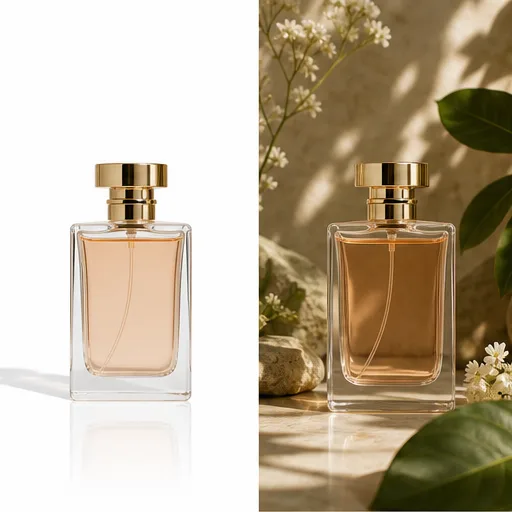
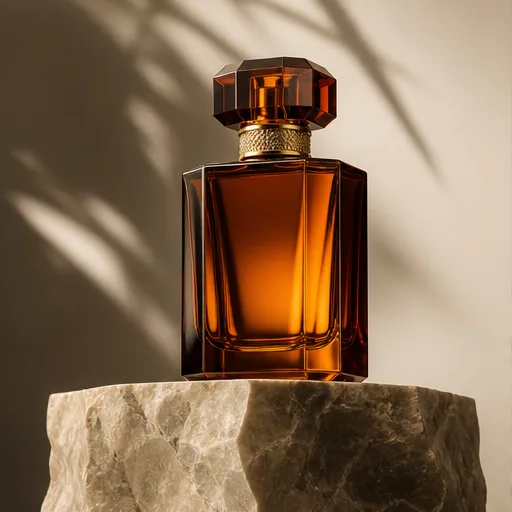
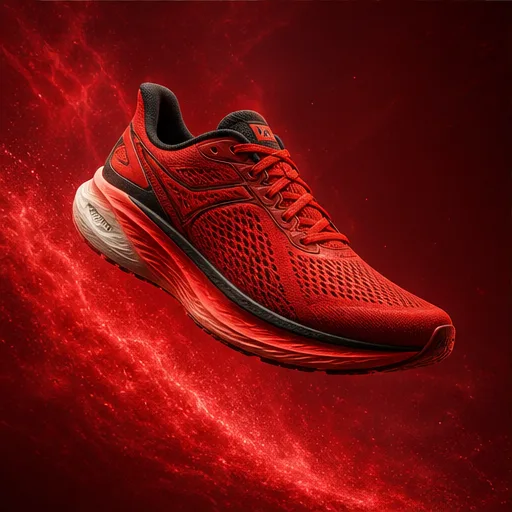
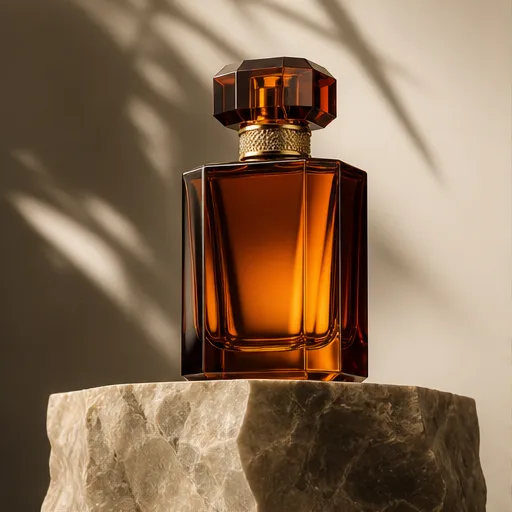
A clean product setting
Use simple lighting and a quiet background to keep attention on the product.
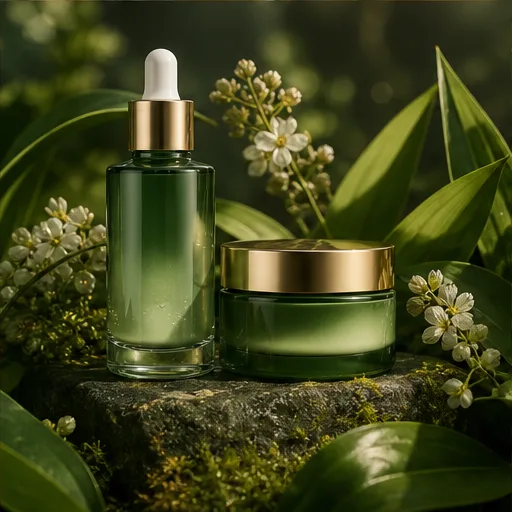
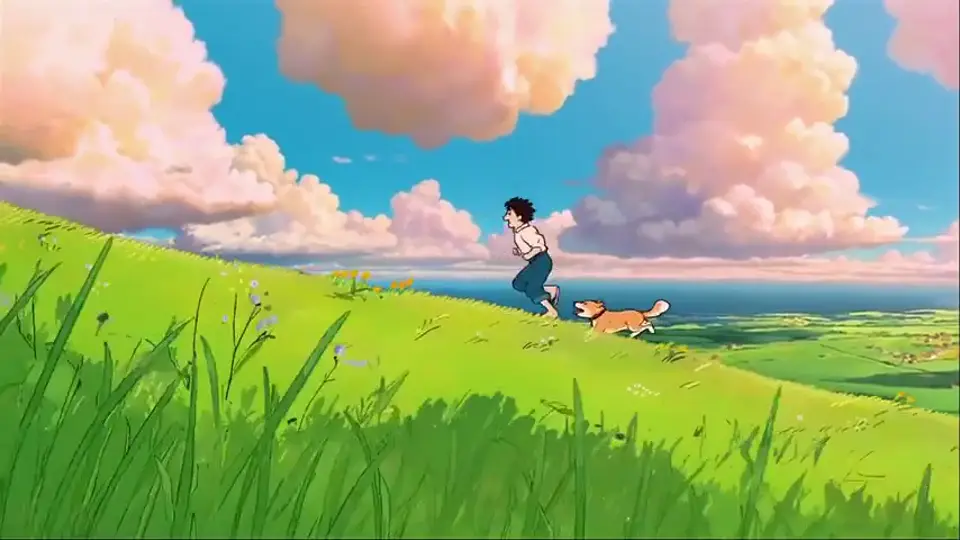
A social campaign concept
Choose a color direction and leave room for your message.
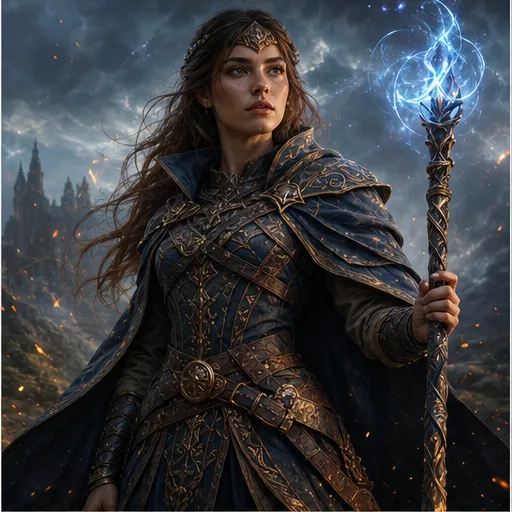
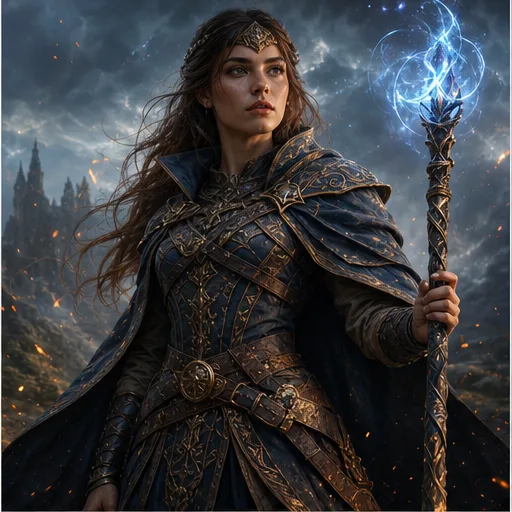
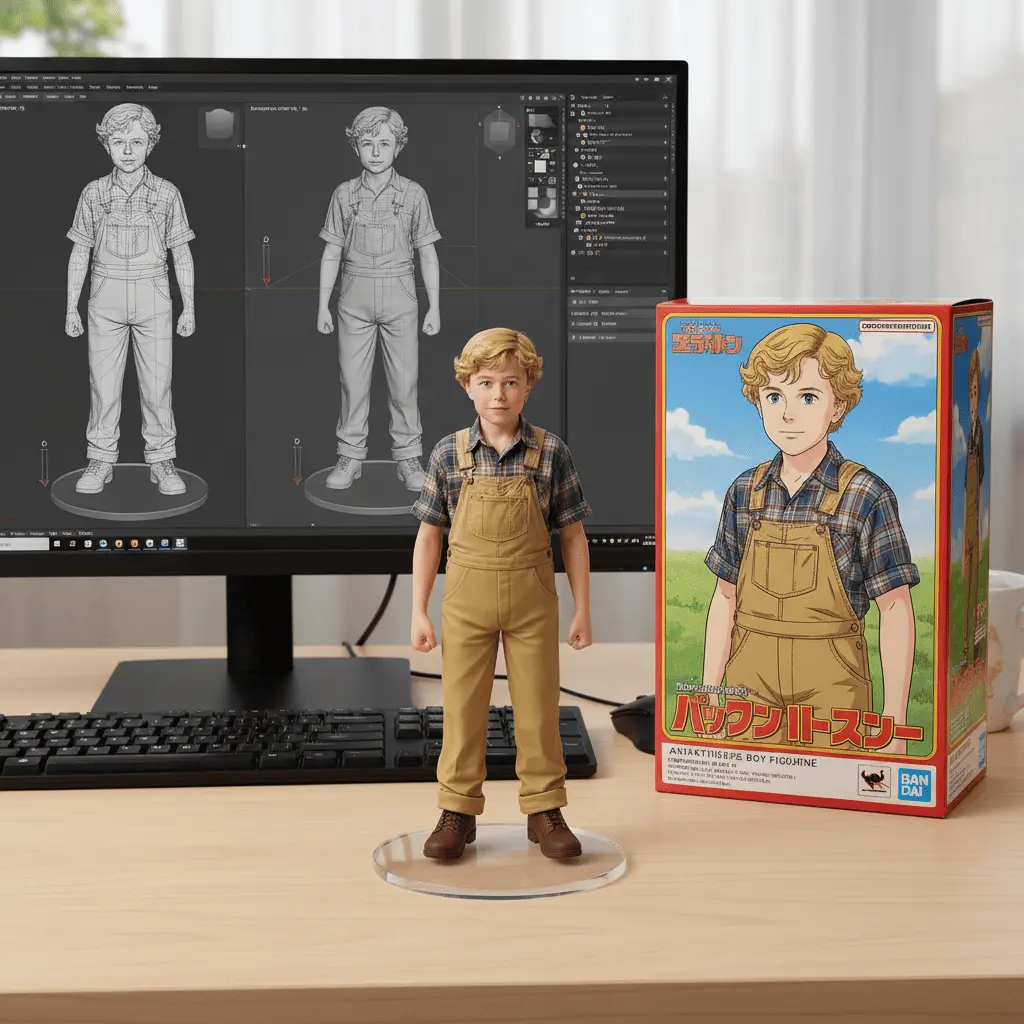
A character for your story
Describe the face, clothing, and setting to give your character a clear identity.
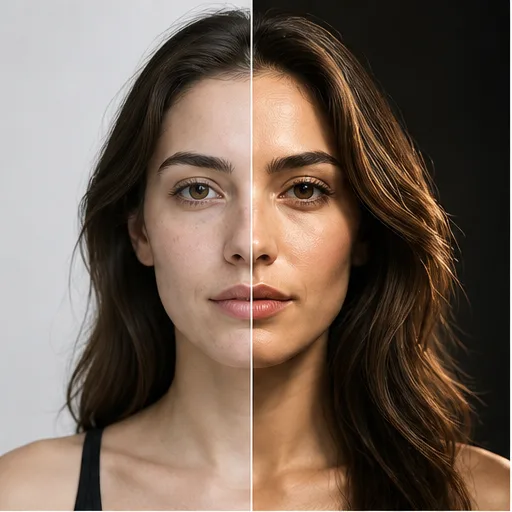
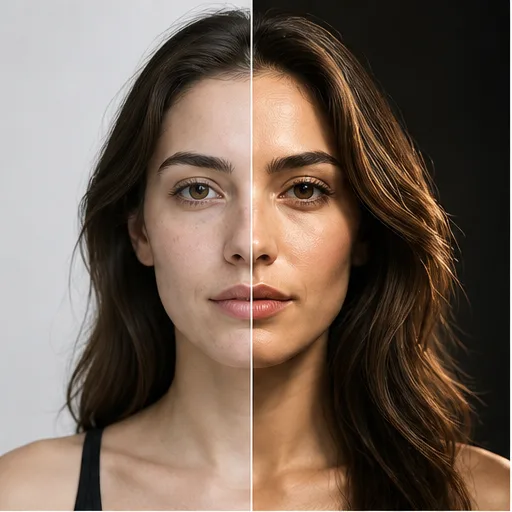
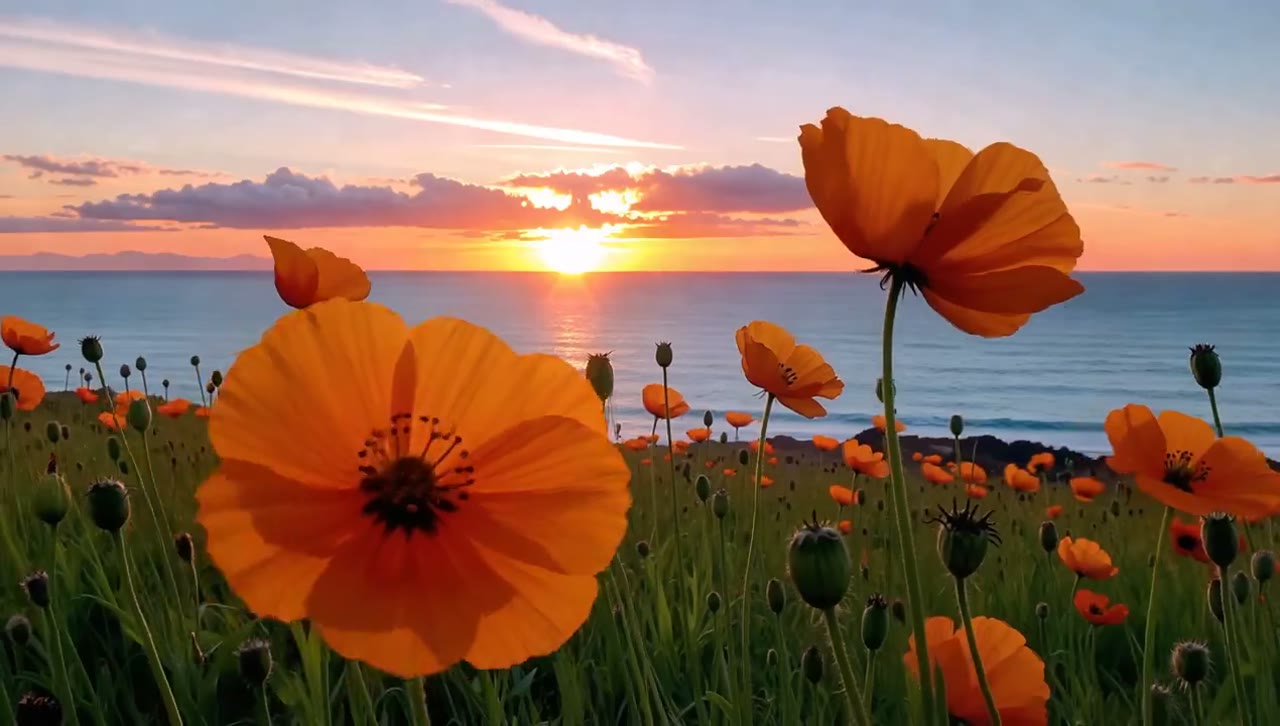
A different light for a portrait
Try a softer or brighter look while checking the details that matter to you.
Ideas to create
What Types of Images Can You Make with GPT Image 3?
Make useful images for the places you publish every day, from your store and channel to a lesson or slide deck.
Product images
Show a product against a clean background or in a home setting. Check that its shape, label, and details are accurate before using the image.
Social post graphics
Create a visual idea around a launch, a seasonal theme, or a message you want to share.
YouTube thumbnail images
Try a clear subject, a bold background, and room for a short title to add in your design tool.
Blog and presentation images
Illustrate a topic with a simple scene, object, or visual example. Leave space for the heading you will add to your article or slide.
From idea to result
Create an Image with GPT Image 3 in Four Steps
Describe what you need, choose your settings, and generate an image. You can add a reference photo for image-based requests.
Describe your image
Write what you want to see. Include the main subject and a few details about the background or style.
Upload a photo if needed
Add a reference for the look you have in mind, or leave it empty to begin with text alone.
Choose settings and generate
Select an image model, aspect ratio, and number of images. Review the credit cost and click Generate Image.
Review and download
Inspect the picture, including faces and any text. Save a result you like or update the prompt for another option.
Made for your work
Who Can Benefit from GPT Image 3?
For people who need an image to explain an idea, support a message, or start a design.
Content creators
Prepare post images and thumbnail concepts that fit the topic of your next upload.
Shop owners
Make product backgrounds and sale graphics from your own photos. Review the product details before adding an image to your store.
Writers and newsletter editors
Find a clear visual for an article or email when a stock photo does not explain the topic well.
Teachers and presenters
Develop illustrations that make a lesson or presentation easier to understand.
Common questions
GPT Image 3 FAQs: What You Need to Know
Get help with image prompts, photo uploads, and preparing your pictures for use.
What is the difference between text to image and image editing?
Text to image begins with a written description. A reference-based request also includes a picture to guide the result. The selected model determines which inputs and edits are supported.
Do I need to write a long image prompt?
No. Start with the subject, setting, and style. Add details only when they help explain something important about the picture.
Can I add my own reference photo?
Use the reference control in the image generator. Only upload material you have permission to use, and describe the result you want beside it.
Can I create images for a social post?
Choose an aspect ratio that suits the post. Review the result at a small size and add final text or branding in your design editor.
Are generated words always accurate?
Check spelling, numbers, and small details in every result. Use an editor for important text such as prices, legal notices, or contact information.
Where can I check my image model?
Look at the model name beside the image settings. That is the model used for your request. You can change it before generating your image.
Keep creating
More Image Tools to Try Alongside GPT Image 3
Keep working on your pictures with tools for image generation, editing, and new visual styles.